


The article is a guide on Alert configuration in Process Integration (PI) single stack installation or Process Orchestration (PO) with a step-by-step configuration example. In this article we will discuss the features of the SAP PI/PO alert framework, then we will look into the architecture of Component-Based Message Alerting (CBMA), and finally the SAP PI/PO single stack alert configuration steps.
Before we jump to configuration steps and examples, first we will try to understand the architecture of the SAP message alerting framework.
SAP replaced the Netweaver Alert Framework which was included until Netweaver release 7.30 with a newer mechanism called Component-Based Message Alerting (CBMA).
To understand the CBMA, let’s first look at what the main features of an alert framework should be.
SAP PI/PO Alert Framework Features:
It should have capabilities to create custom Alert Rules as per business needs.
Ability to identify and collect errors, warnings and other alert messages which are generated in the system.
Functionalities to distribute the identified alerts to selected parties.
SAP PI/PO Single Stack CBMA Alert Framework Components:
SAP Component Based Message Alerting (CBMA) framework consists of three main components to facilitate the three features above.
Central Configuration for Alerts:
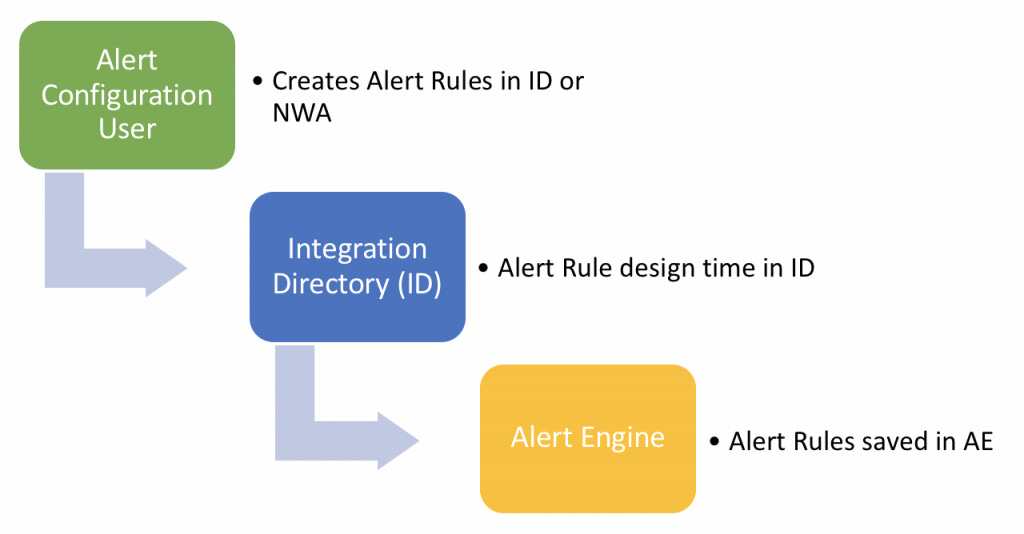
Users or IT teams can configure Alert Rules and consumers as per their requirements either using Integration Directory (ID) or Netweaver Administrator.
Alert Engine:
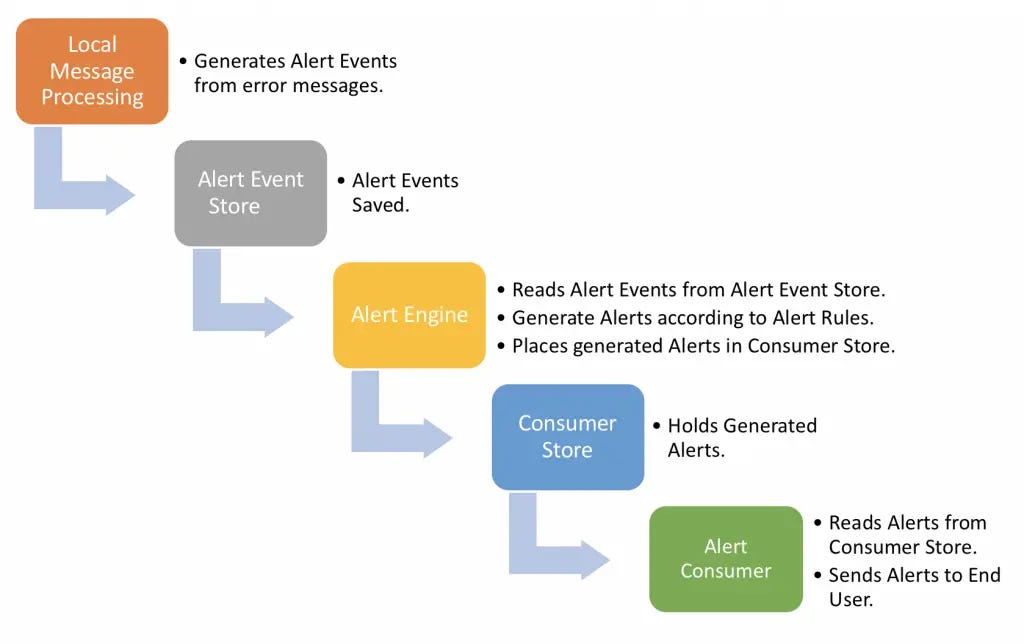
Local Alert Engines are included in each runtime environment of Integration Engine (IE) and Advance Adapter Engine (AAE) of SAP PI/PO. Alert engine reads the alert event store (PI/PO message error information) and generates alerts if a matching Alert Rule is found for the generated error type. Then it updates the consumer Alert Store defined in the Alert Rule.
Alert Consumer:
Consumers receive alerts, generate notifications via SMS, e-mail, etc. Alert Consumer extracts the alerts from respective Alert Store and sends notifications. SAP Solution Manager is a special Alert Consumer with capabilities to process generated alerts and push them to alert inbox.
SAP PI/PO Alert Runtime Process Overview:
When an error occurs in a runtime of a PI message, it adds an error status to the message. When Alert Engine receives this error information or alert events from PI runtime, it checks for matching Alert Rules and configuration to decide if an alert should be generated or not. Alert generation depends on the error status and runtime component configuration of the Alert Rule.
Generated alerts contain information such as error event information, Alert Rule ID, timestamp, etc. Each alert consumer has separate Alert Stores. Alert Engine places created alerts in corresponding consumer Alert Stores. Finally, Alert Consumers retrieve the alerts from the local consumer Alert Store to be distributed to the end-users.
Alert Design Time Process Overview:
Alert Runtime Process Overview:
Step-by-Step Alert Configuration in SAP PI/PO Single Stack:
Let’s look at a simple e-mail notification configuration step by step. We will send an email notification to an end-user on errors that occur in an integration configuration.
Step 1: Create Alert Rules.
Alert Rules can be created either in Integration Directory (ID) or Netweaver Administrator. To create Alert Rules centrally using Netweaver administrator, go to Monitoring home > Configuration and Administration > Message Alert Rule Configuration. Otherwise, create them in ID as below.
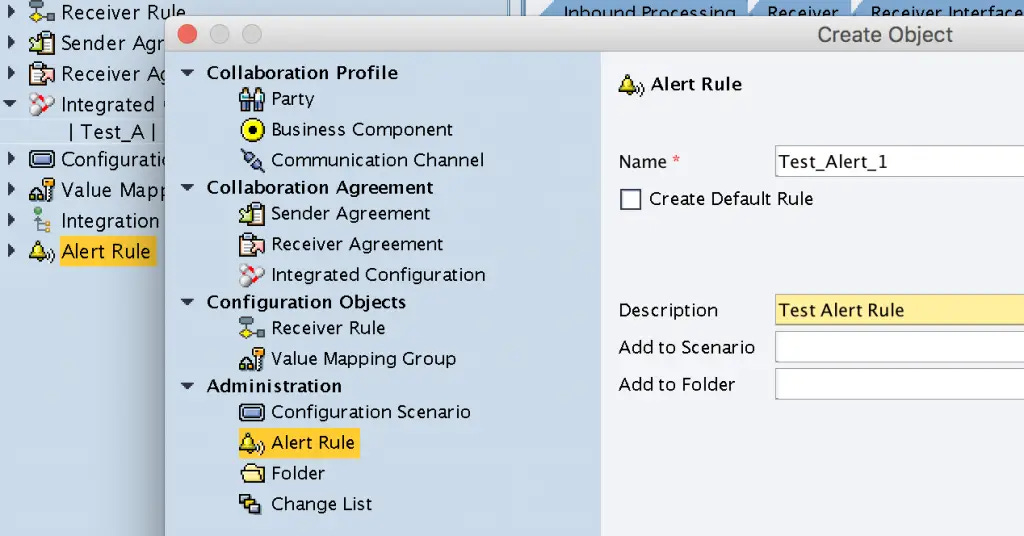
Step 2: Configure Types of Objects to be Considered for Alert Rule.
You can specify interface-related objects such as Integrated Configuration Object (ICO), Configuration Scenario, Communication Component, etc. If you select either ICO or configuration scenario, alerts get generated for errors that occur in any stage of the message processing pipeline and for all interface components included in ICO.
Set Alert rule type and enable the Alert Rule.
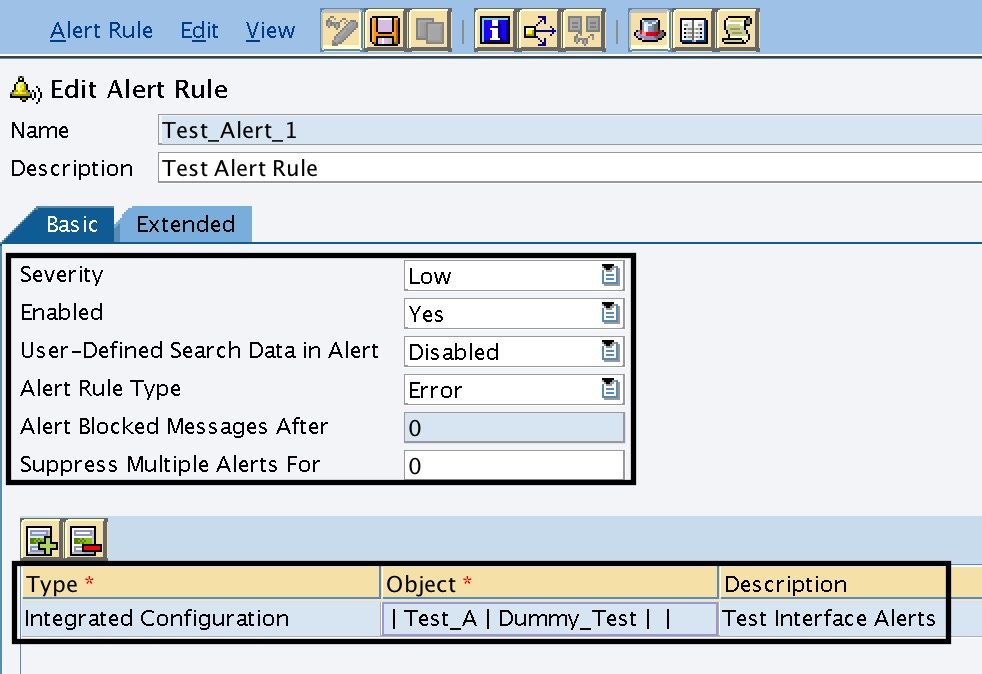
Step 3: Configure Error Sources and Alert Consumer.
Select Error Sources for which the alerts should be generated. Check or uncheck the Error Sources in the extended tab of the Alert Rule configuration. You can configure alerts to be generated based on either errors which take place in different adapters or other runtime errors such as message mapping.
Include the consumer name where the generated alerts should be placed. This defines the local consumer Alert Store where the alerts generated under this Alert Rule would be placed. Since our aim is to send the alert as an email, let’s include the consumer as ALERT-TO-MAIL.
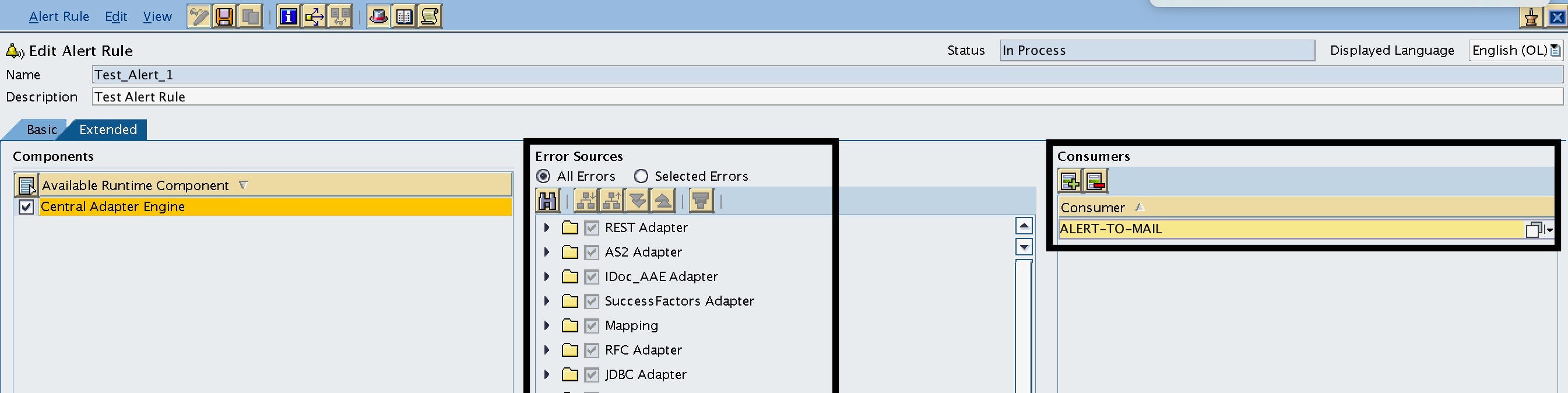
If you have a requirement to segregate the alerts and send them to multiple users, for example, separation of alerts on a SAP functional area basis, create different consumers which represent each functional area and assign them the correct interfaces in the Alert Rule.
Example:
ALERT-TO-MAIL-OTC: Assign Interface Runtime Components of Order to Cash (OTC) functional area to this Alert Rule and Consumer.
ALERT-TO-MAIL-P2P: Assign interface Runtime Components of Purchase to Pay (P2P) functional area to this Alert Rule and Consumer.
Step 4: Configure Java Mail Client.
This is a one-time activity and the BASIS team usually creates a default mail client in post-installation steps.
But if you need to create one you can do it by maintaining basic settings such as
mail.from
mail.smtp.host
mail.smtp.password
mail.smtp.user.
Step 5: Create the Task which Sends Emails Using the Java Mail Client Created in Step 4.
Go to NWA > Operations > Jobs > Java Scheduler > Task and add a new task.
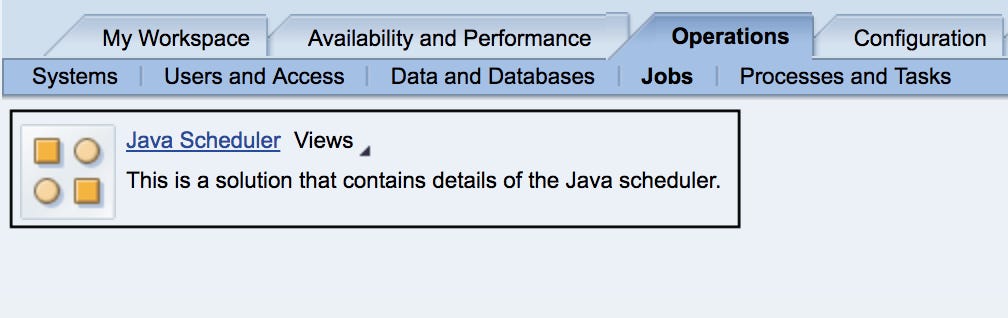
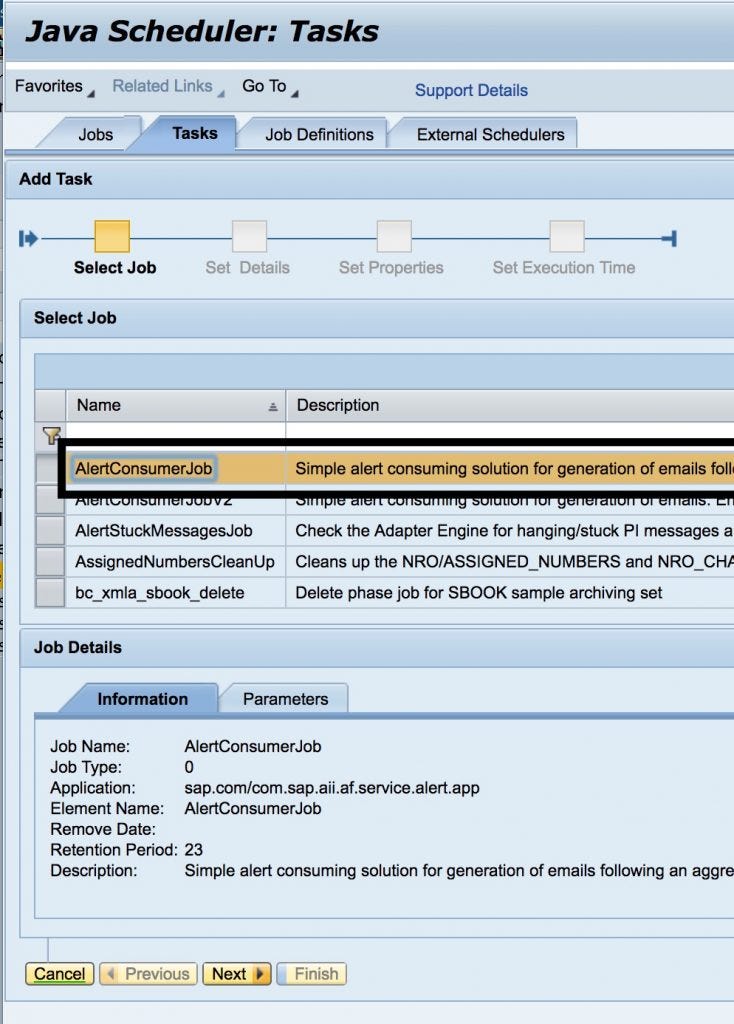
Select consumer job “AddConsumerAlert” or “AlertConsumerJobV2” and set a suitable name for the task. AlertConsumerJobV2 is an updated version of the job and it has more parameters in comparison with the previous version. For example, you can configure an email template and set the location of the email template file as a parameter.
Job definition and parameters can be viewed from the Job Definition tab.
Follow the Java Scheduler Task creation configuration wizard.
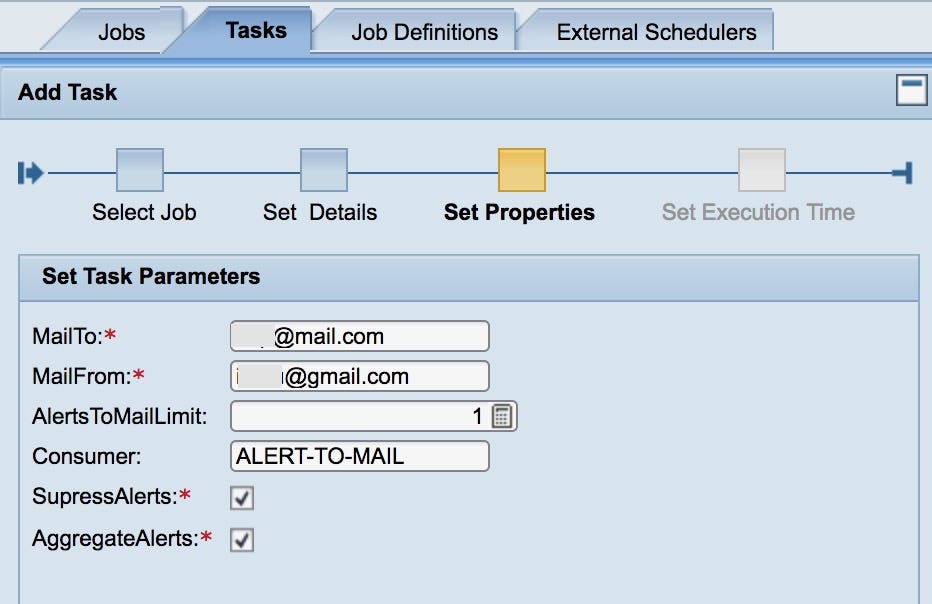
Then configure the properties and details of the task. Configure consumer as “ALERT-TO-MAIL” and emailTo as the email address of the user who should receive the notification.
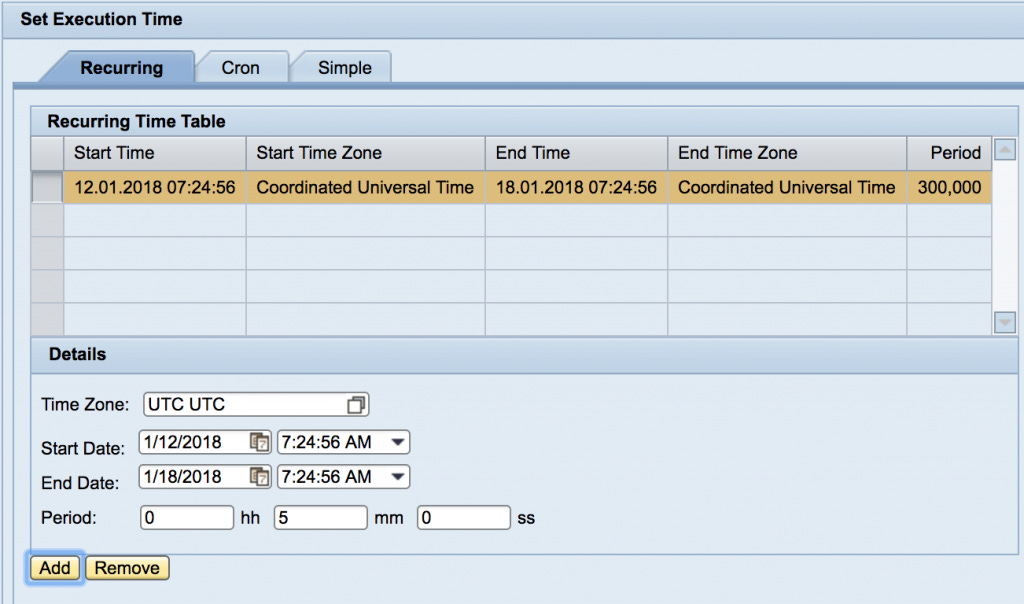
Set the start time and the frequency of the job. I have set the frequency as every 5 minutes.
Result:
I stopped the receiver file channel of the Integration Scenario to create couple of messages with errors.


Go to Java Scheduler > Jobs and find the Consumer Job you created. You can find the number of alerts consumed by the AlertConsumer task in the task log.

If you need any clarifications on the steps described here, please do not hesitate to leave a comment below.
The post Alert Configuration Example in PI/PO Single Stack appeared first on SAP Integration Hub.