


How to use CALL TRANSACTION to submit BDC in different modes. This technique is very useful for mass data upload to SAP system from external data sources. Lets assume that external data is what user enters in the selection screen.
Program designed to change the delivery date of the sales order line items according to selection using the transaction va02.
Note that landscape is SAP AFS vertical.
Main steps in creating a BDC program
Record BDC using transaction SHDB.
Create driver program and application logic class.
Step 1:Record BDC using transaction SHDB.
Go to transaction SHDB and select “New Recording”

Select the recording options and set the names

Start recording

Save the recording. Remove unwanted elements from the recording
Identify the parameters that need to be set from driver program (eg: sales order no and del. date which is marked in red)

Step 2:Create driver program and application logic.
Driver Program: ZTEST_VA02_DRIVER


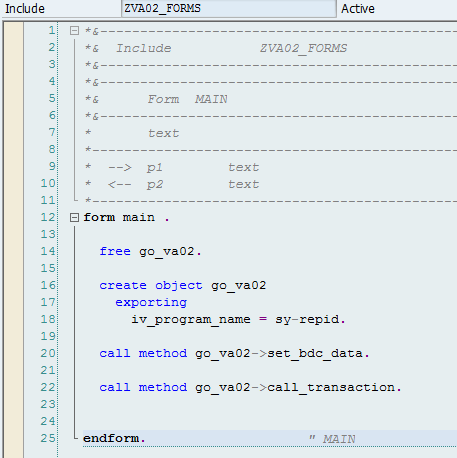
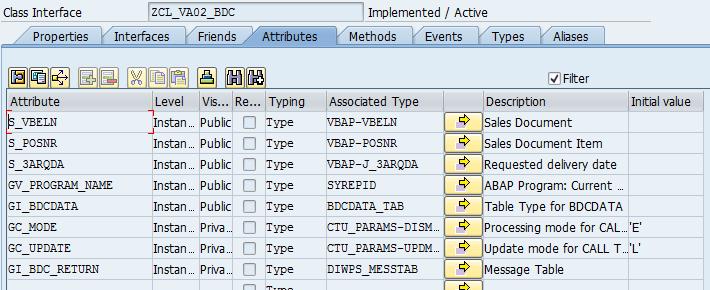
Application logic class: ZCL_VA02_BDC
Attributes
Methods

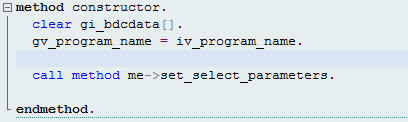
Constructor
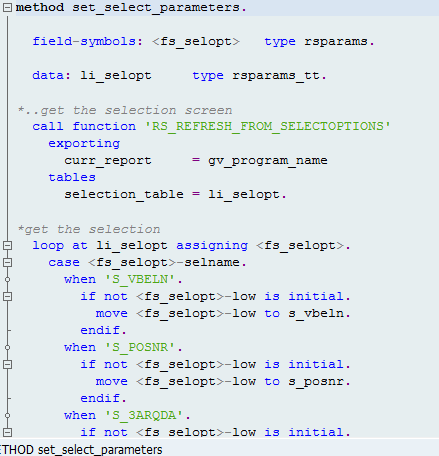
Set select parameters
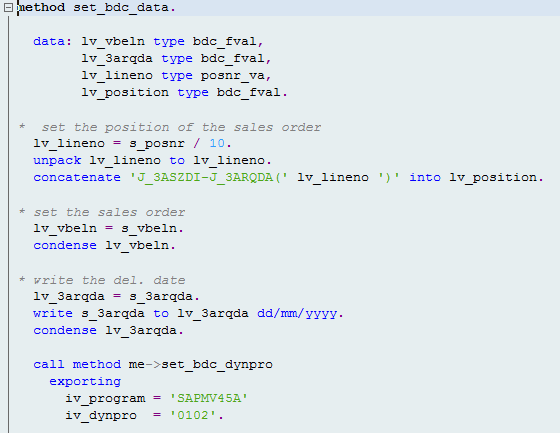
Set BDC data


Fill BDC dynpro

Fill BDC field

Call transaction

Mode:
N – Do not display dynpro
E – Show dynpro on error only
A – Show all dynpro
Update is set to “L” which implies as local.
All the messages that is returned from the transaction while executing will be imported to internal table GI_BDC_RETURN.
The post Call Transaction in BDC appeared first on SAP Integration Hub.