


Setting up and configuring SAP Proxy connectivity is a complex task with multiple steps to consider. This article looks at the Proxy Configuration steps in detail. We will discuss the prerequisites for setting up Proxy connectivity and how to test and validate Proxy settings.
Proxy configuration is done in several systems: SAP System, Net-weaver Administrator (NWA) and Process Integration/Orchestration.
Connectivity between SAP PI/PO and SAP back-end is established by configuring SAP ABAP Proxy framework with PI/PO SOAP adapter. To setup the communication between SAP ABAP Proxy with AEX SOAP adapter we use the message protocol XI 3.0. In this illustration, we will be connecting an SAP ERP 6.0 version (Netweaver 7.5) with Process Orchestration PO 7.5.
SAP Versions used in the illustration:
SAP S4 HANA Fashion 1709
SAP PO 7.5
Prerequisites for Setting Up Proxy Connectivity.
Before starting Proxy configuration in ECC back-end system and PI/PO, you need to make sure these prerequisites are fulfilled. First, check if the SAP ECC system is registered in SLD. Then, make sure the SLD RFC destinations are maintained correctly in the SAP back-end system. Last but not least, SICF settings should be completed.
SAP System Registered in System Landscape Directory (SLD).
SLD RFC Destinations are Created.
SICF Configuration Is Completed by BASIS Team.
Prerequisite 1: SAP System Registered in System Landscape Directory (SLD).
Make sure you have registered the SAP back-end ECC system in System Landscape Directory (SLD). Business System of SAP system should be created and imported to Integration Directory. The name of SAP Business System in this example is SADCLNT900.
Prerequisite 2: SLD RFC Destinations are Created.
When you register the SAP Technical System in System Landscape Directory (SLD), RFC Destinations to SLD are automatically created. Automatically generated RFC destinations names are SLD_NUC and SLD_UC. Make sure these two RFC Destinations are available in the SAP back-end system and are working.
Both of them are TCP/IP connections of type T. If they are not working you need to contact your BASIS team.

Prerequisite 3: SICF Configuration Is Completed by BASIS Team.
Make sure Services are registered in SICF by BASIS team.
Proxy Configuration Illustration Example.
As I cannot expose the actual system details, they are replaced in screen shots as follows,
PI/PO System ID is POD.
SAP back-end system ID is SAD.
The SAP Client we are trying to connect is 900.
POD server URL is <host>. You access Process Orchestration homepage via http://<host>:<port>/dir.
SAP Business System name in SLD is SADCLNT900.
Summary of Steps to Setup Proxy Communication between SAP ECC back-end and PI/PO
Create HTTP Destination for Advanced Adapter Engine (AAE) in SAP ABAP back-end system. – HTTP_POD
Create HTTP Destination to Enterprise Resource Repository (ESR) in SAP ABAP back-end system. – SAP_SPROXY_ESR
Setup HTTP RFC Destination to SLD. – SLD_POD
Configure Integration Engine Administration using transaction SXMB_ADM.
Configure SLDAPICUST.
Create HTTP Destination in PI/PO for Inbound Proxy processing. Prerequisites: HTTP services are active in SICF.
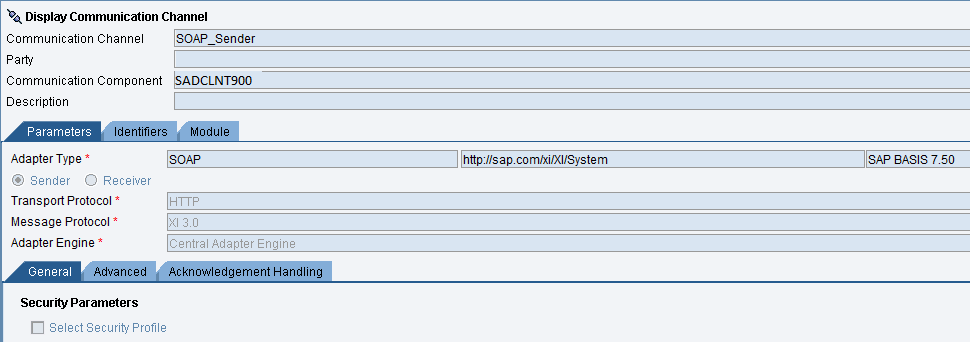
Create Proxy Sender and Receiver Communication Channels in PI/PO. Sender Channel: SOAP_Sender, Receiver Channel: SOAP_Receiver.
Step 1 – Create Destination for Advanced Adapter Engine (AAE) in SM59.
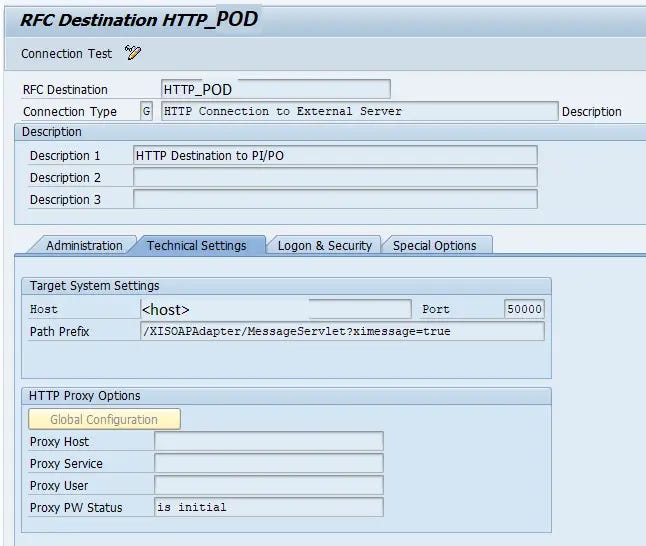
This destination of type G (HTTP Connection to External Server) is directed to Advance Adapter Engine (AAE) of Process Integration (PI) or Process Orchestration (PO).
You can name the destination HTTP_<PI/PO System ID>. Let’s assume the System ID of the development server is POD. HTTP Destination name will be HTTP_POD.
Parameters used for AAE HTTP destination.
Connection Type = G (HTTP Connection to External Server)
Target Host = <Host Name of AAE or AEX>
Port (Service No) = <HTTP Port Number of AAE or AEX host server> : Default 50000
Port for HTTP is ‘5<system number>00’ and for HTTPS — ‘5<system number>01’. Default port for J2EE server is ‘50000’.
Path Prefix= /XISOAPAdapter/MessageServlet?ximessage=true
Logon and Security.
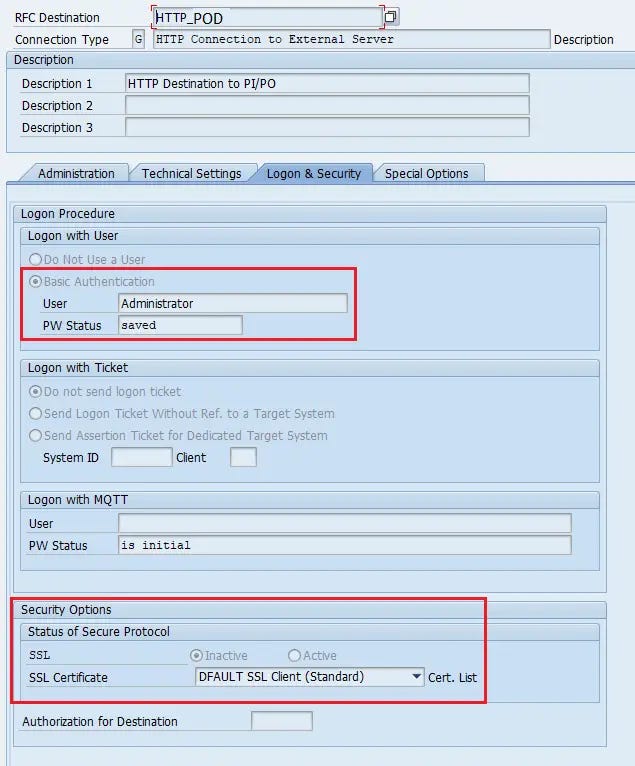
Maintain PI/PO system username and password under ‘Basic Authorization’ logon procedure.
Step 2 – Create HTTP Destination to Enterprise Resource Repository (ESR).
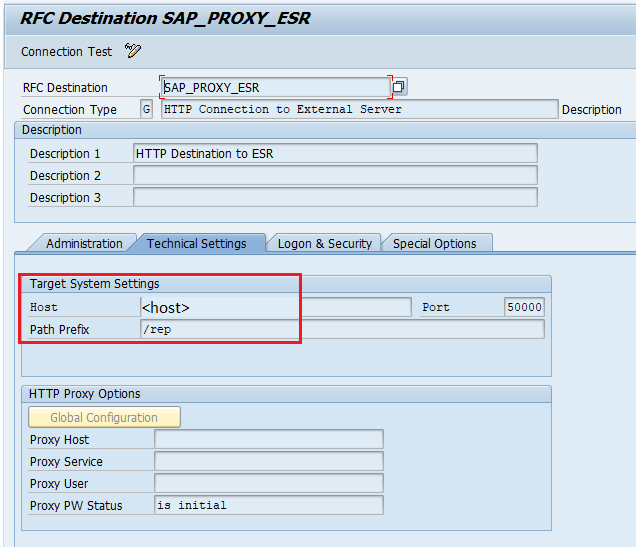
This RFC destination is used by transaction SPROXY to import Enterprise Repository objects and generate Proxy objects. You can name the RFC destination SAP_PROXY_ESR.
Parameters used for HTTP Connection to ESR.
Technical settings of this HTTP RFC destination are similar to HTTP destination to ABAP back-end.
Connection Type = G (HTTP Connection to External Server)
Target Host = <Host Name of AAE or AEX>
Port (Service No) = <HTTP Port Number of AAE or AEX host server> : Default 50000
Path Prefix = /rep
Logon and Security = Same as HTTP destination to ABAP back-end in Step 1.
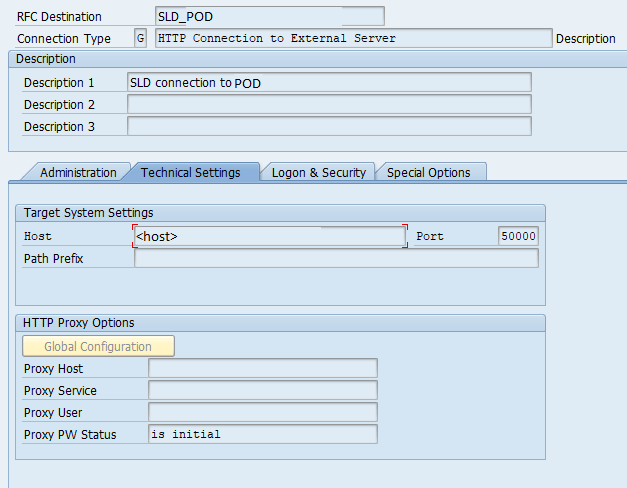
Step 3 – Setup HTTP RFC Destination to System Landscape Directory (SLD).
Create another HTTP RFC Destination to SLD from sm59. We will reuse this HTTP destination in Step 5 to setup SLD Access Data in SLDPICUST transaction.
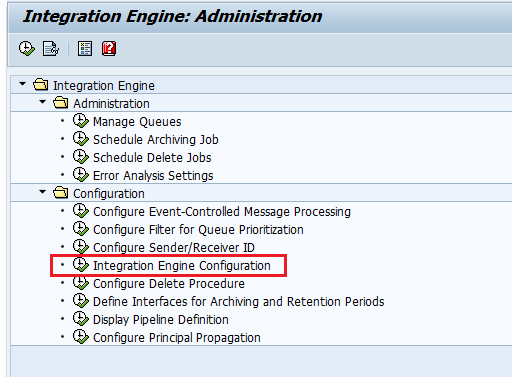
Step 4 – Configure Integration Engine Using Transaction SXMB_ADM.
Go to SXMB_ADM and select the node ‘Integration Engine Configuration’.
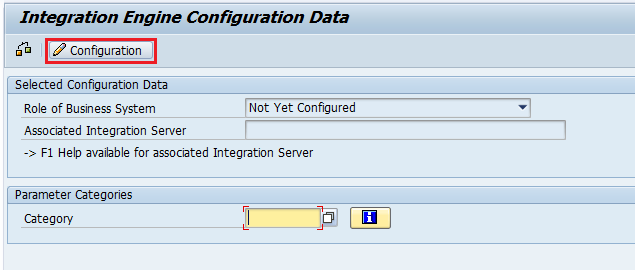
Then choose ‘Configuration’ option.
Add new entries to the configuration and define parameters ‘IS_URL‘, ‘HTTP_TIMEOUT‘ and ‘ENGINE_TYPE‘.
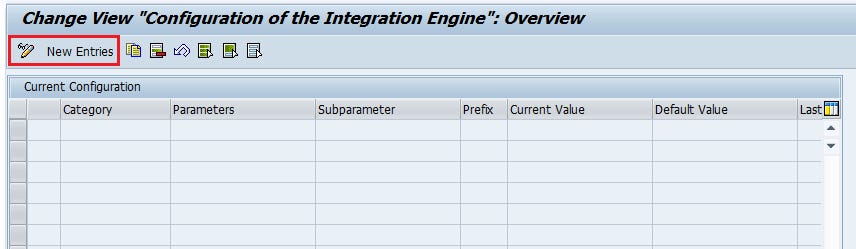

Destination name after characters dest:// is the RFC destination we created in Step 1.
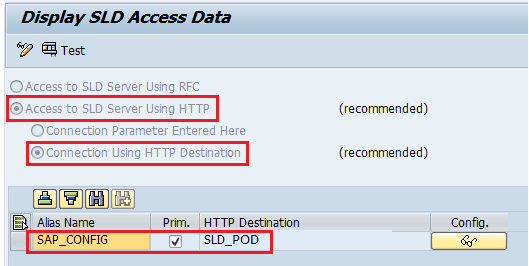
Step 5 – Setup SLD Access Data via SLDAPICUST.
Go to transaction SLDAPICUST and add the SLD HTTP Destination name as Alias Name SAP_CONFIG. Make sure to select the options Access to SLD Server Using HTTP and Connect Using HTTP Destination.
These are the recommended settings. But you can directly configure the SLD URL without HTTP destination also.
Step 6 – Create HTTP Destination in Net-weaver Administrator (NWA).
In this step we will create an HTTP Destination to SAP back-end integration server from PI/PO NWA.
Go to NWA > Configuration > Infrastructure > Destinations and create HTTP destination to Netweaver Integration Engine.
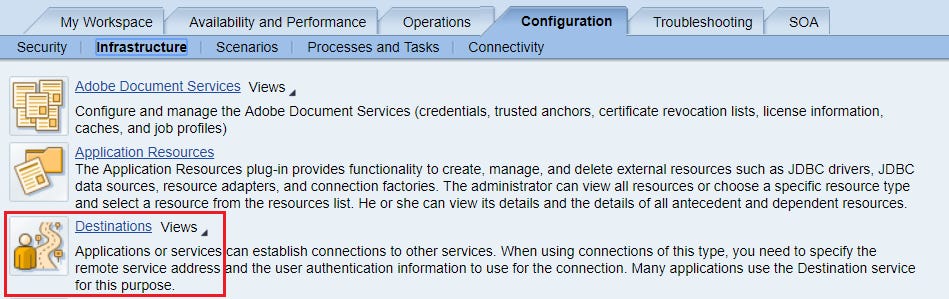
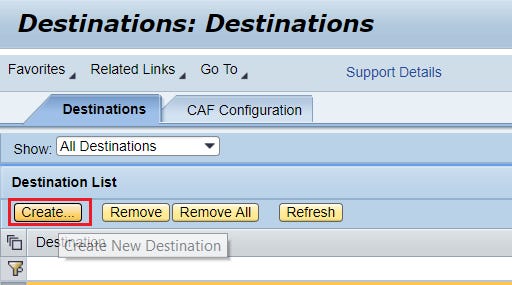
Create a new Destination using New Destination creation wizard.
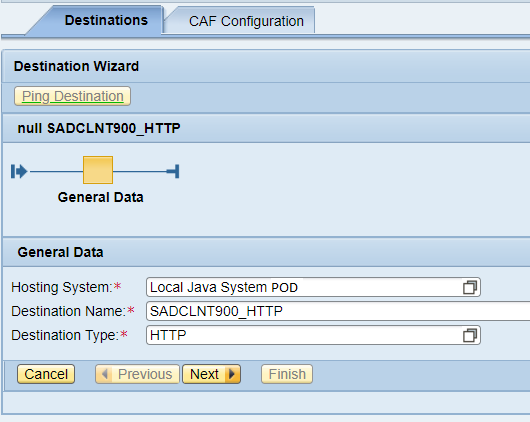
Usually, Destination Name is defined as <SAP System ID>CLNT<Client Number>_HTTP. In this example, the destination name is SADCLNT100_HTTP. Destination type is HTTP.
In the next screen define the Connection and Transport details. URL, System ID, Client and Language parameters are mandatory.
System ID is the SAP System ID (SAD in this example). And client is 900.
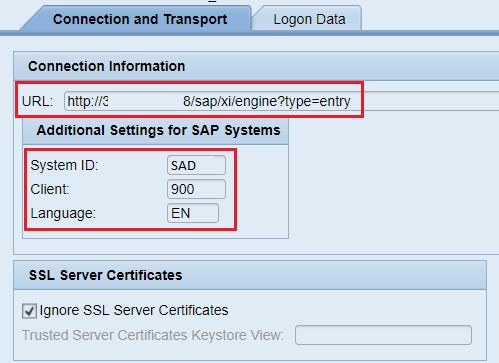
To find the URL, go to transaction SICF (SAP back-end) and choose ‘Execute’. Service tree will be displayed in the result. Expand the Service tree’s Default host and navigate to
default_host > sap > iwbep or default_host > sap > xi > engine.
Next Step is to define the logon data. In this example I will use Basic Authentication method with Username and Password.

This HTTP destination will be reused in SOAP Receiver Communication Channel in step 7.
Step 7 – Create Sender and Receiver SOAP (HTTP) Communication Channel.
Finally, create the Sender and Receiver Proxy Communication Channels in SAP PI/PO under the SAP Business System.
SOAP Sender Communication Channel.
SOAP Receiver Communication Channel.
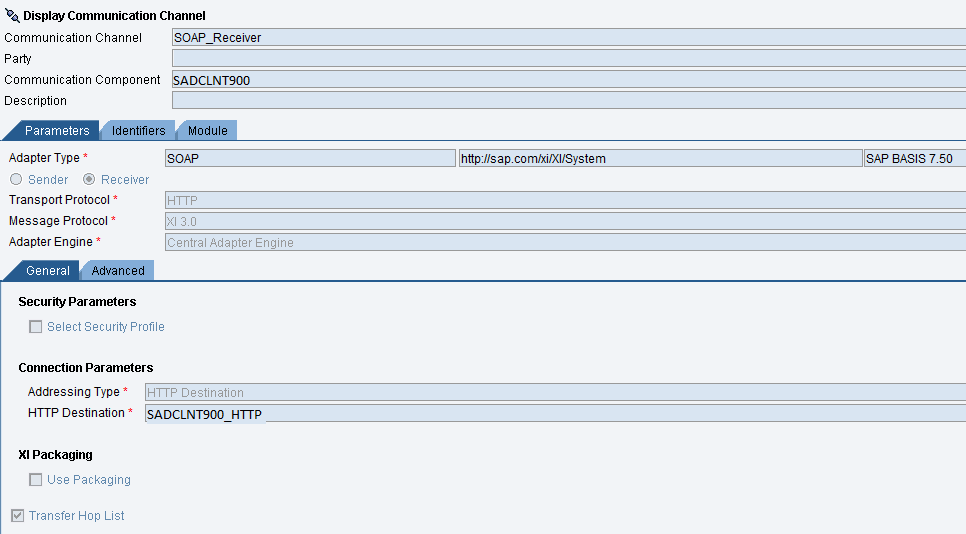
Use Address Type “HTTP Destination” and assign the HTTP Destination name we created in Step 6.
How to Test Proxy Connectivity.
There are several ways to check if the Proxy settings are configured in SAP back-end system and Process Orchestration system. If you already have a end-to-end Proxy interface developed, use these proxy debugging techniques to analyse the behaviour at runtime.
Check if RFC and HTTP Destinations Are Working Fine.
Using transaction sm59 and Connection Test, check if the RFC Destinations are functioning as expected. Repeat this step for all RFC destinations we created in previous steps.


Test SLD Status Using Transaction SLDCHECK.
Execute Transaction SLDCHECK to make sure SLD configuration steps were performed correctly. Choose Allow in the pop-up window.
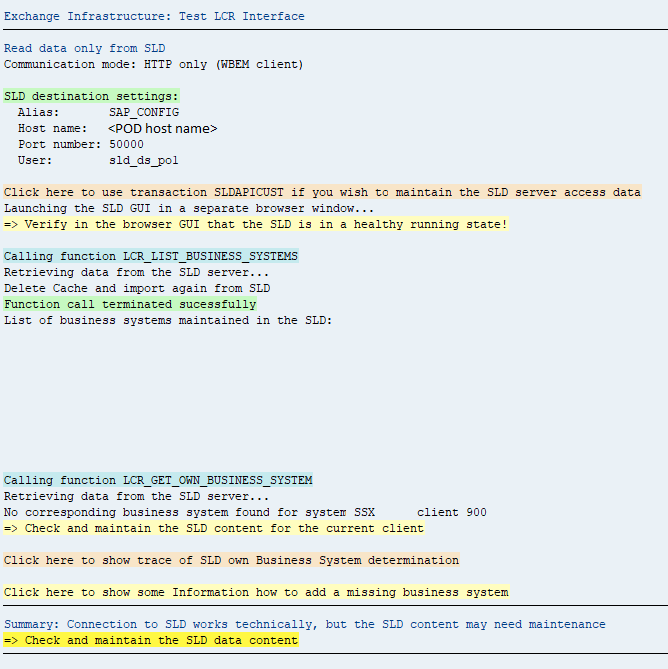
You should receive a positive response from SLDCHECK if necessary configuration is correctly executed.
Test ESR Connection Using SPROX_CHECK_IFR_RESPONSE.
Execute the program via transaction se38 to test the status of ESR Connection.
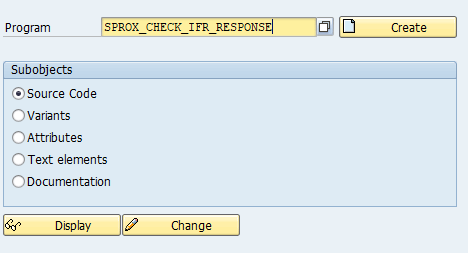

Check Proxy Objects via Transaction SPROXY.
Check if SPROXY shows the Software Components (SWCVs) and Proxy Objects included in the Namespaces.

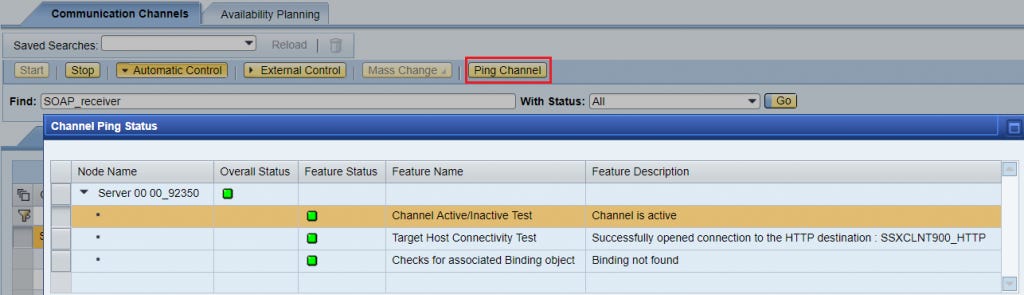
Test Communication Channels via Runtime Monitor.
Go to Configuration Monitoring Home > Adapter Engine > Communication Channel Monitor and ping the Sender and Receiver Communication Channels.
I hope you will set up connectivity between SAP PI/PO and SAP ABAP back-end system easily with the help of this guide. Moreover, you can also learn how to implement Inbound ABAP Proxies and Fault Messages in my other articles. If you have any questions on the configuration steps or settings, please leave a comment below.
The post Complete Proxy Configuration Guide for SAP PI/PO and ECC appeared first on SAP Integration Hub.