In this article, we will look at what an API proxy actually is in SAP API Management under SAP Integration Suite (APIM), and then build our very first one from scratch.
Let’s start with the concept, because it’s worth slowing down on this before touching the API Portal.
Say your backend is a service sitting at a real, callable address.
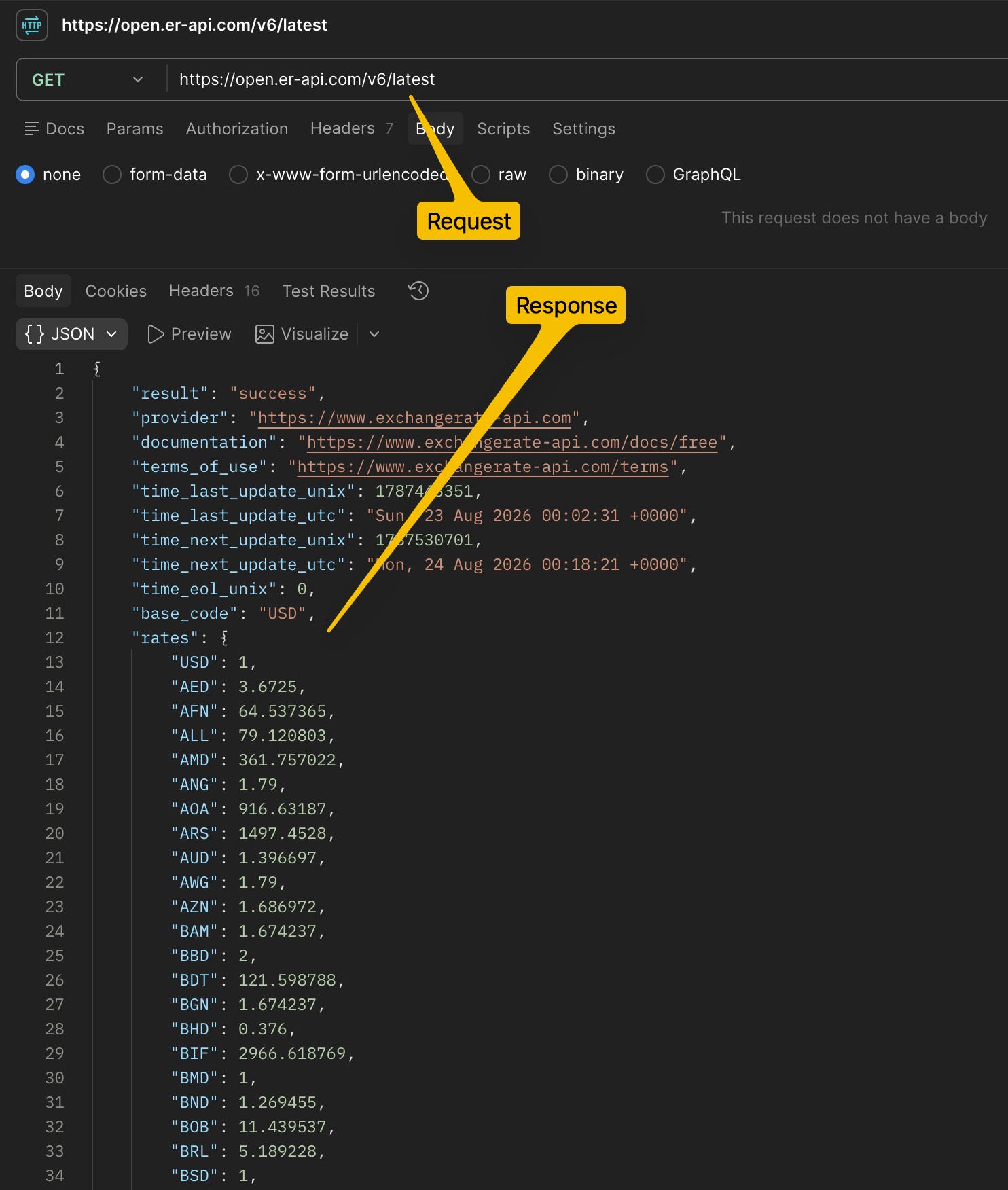
For this article, we’ll use a free exchange-rate API at https://open.er-api.com/v6/latest. If you called that URL right now, it would hand you back the latest currency exchange rates.
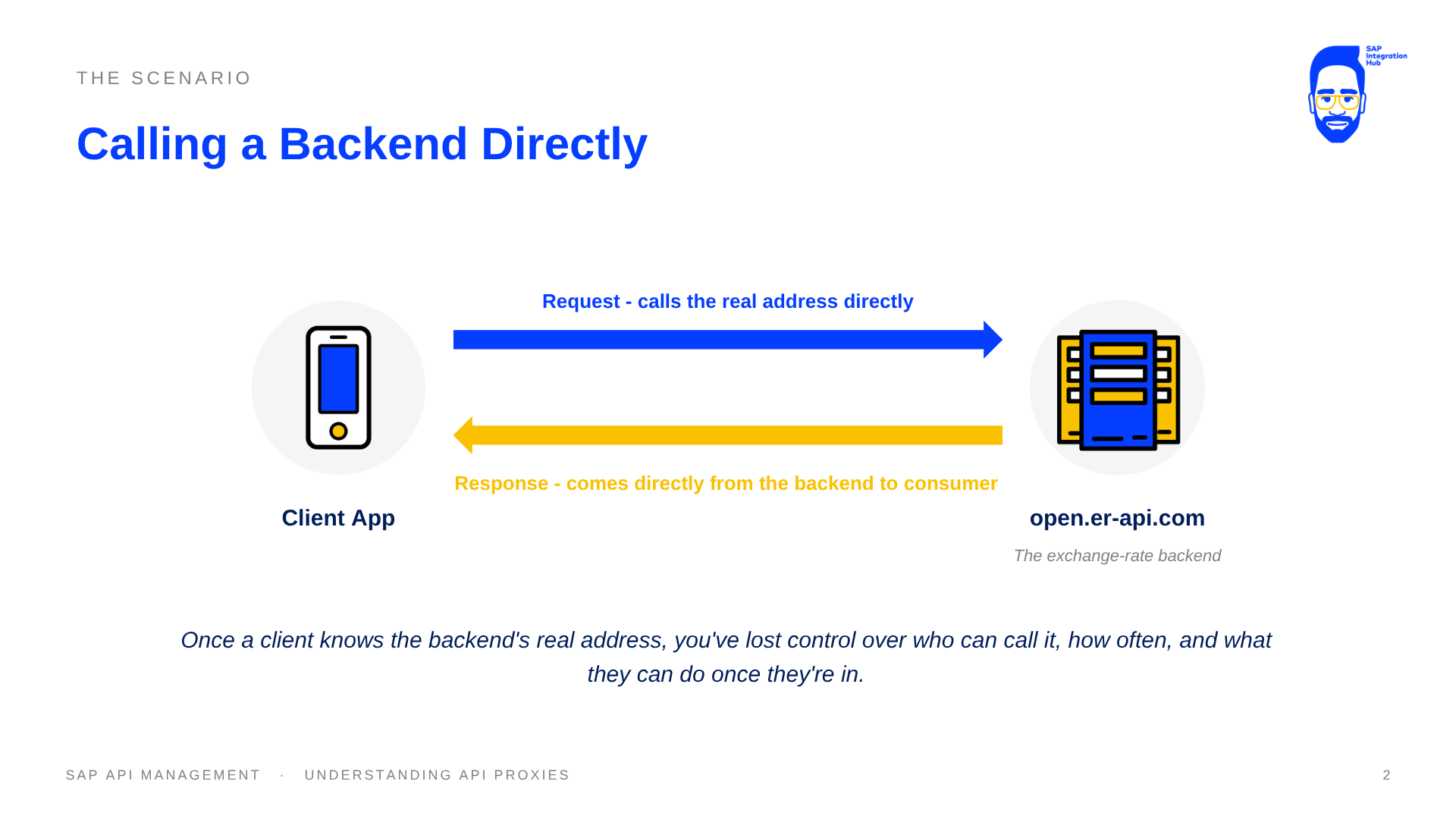
Calling the target API directly and getting the response back, with no proxy in front of it yet.
If we let every client app call that address directly, we have a problem: once a client knows your backend’s real address, you’ve lost control over who can call it, how often they can call it, and what they can do once they’re in.
So instead of exposing the backend itself, we put something in front of it.
That something is called an API proxy.
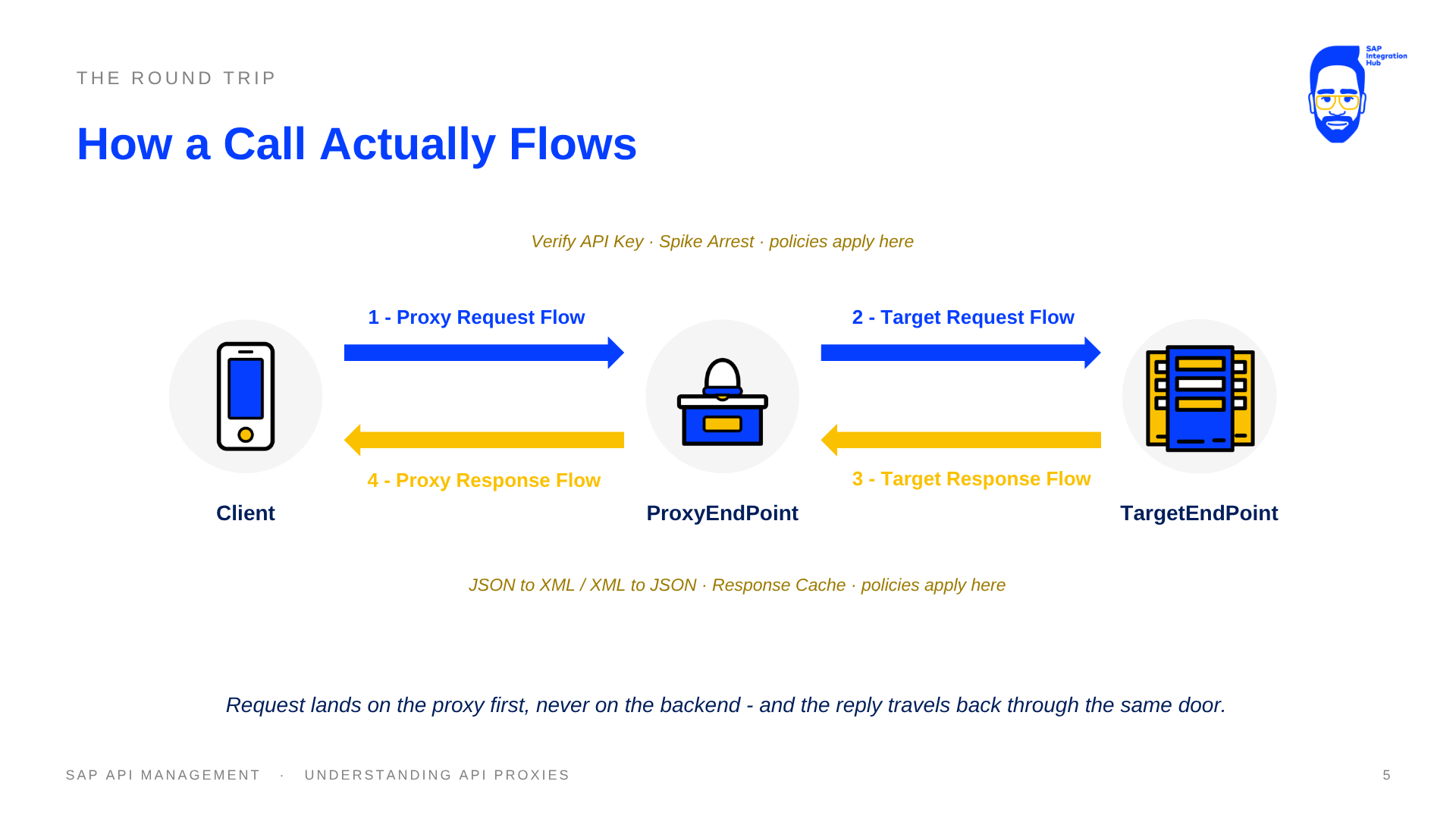
An API proxy is a facade for your APIs that you build and deploy in SAP API Management. The client app never talks to your actual API backend. It talks to the proxy, and the proxy forwards that call to the real backend on the client’s behalf.
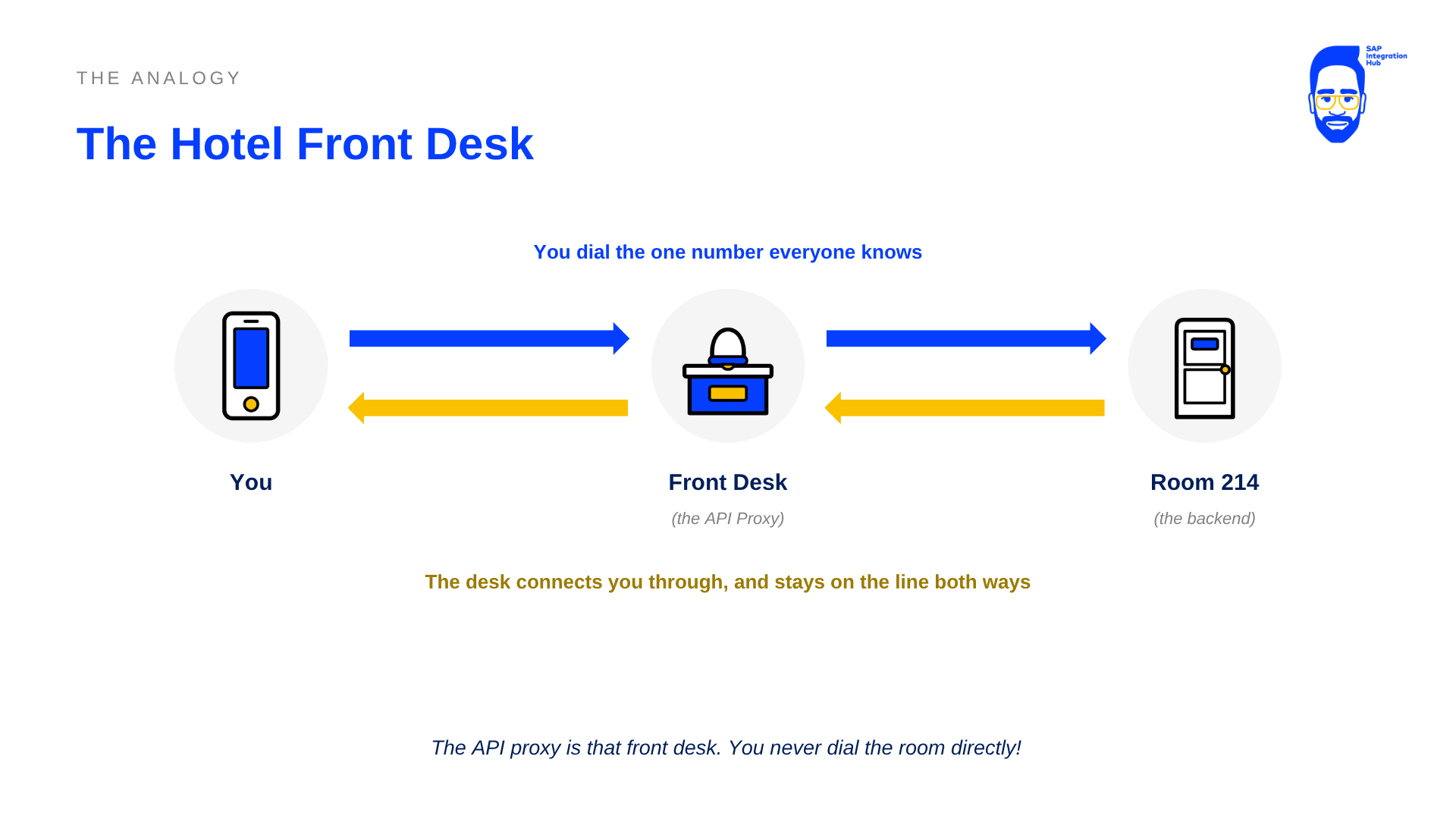
Here’s an analogy for an API Proxy: think of a hotel front desk.
If you want to contact someone staying at the hotel, you never call a guest’s room directly, and you don’t even know the room’s extension number. Instead, every call goes through one number - the hotel’s front desk. You dial the front desk, the person at the desk figures out who you’re trying to reach, and connects you through internally. The guest never has to publish their extension to the outside world, and the hotel can move that guest to a different room tomorrow without anyone outside ever noticing, because the number you dial never changes.
The API proxy is that front desk. The backend system is the guest’s room. The client app is you, calling in from outside.
API Proxy URL vs. Target API URL
This is the part that trips up most people new to SAP APIM, so it’s worth being explicit about it.
🛑 Key distinction
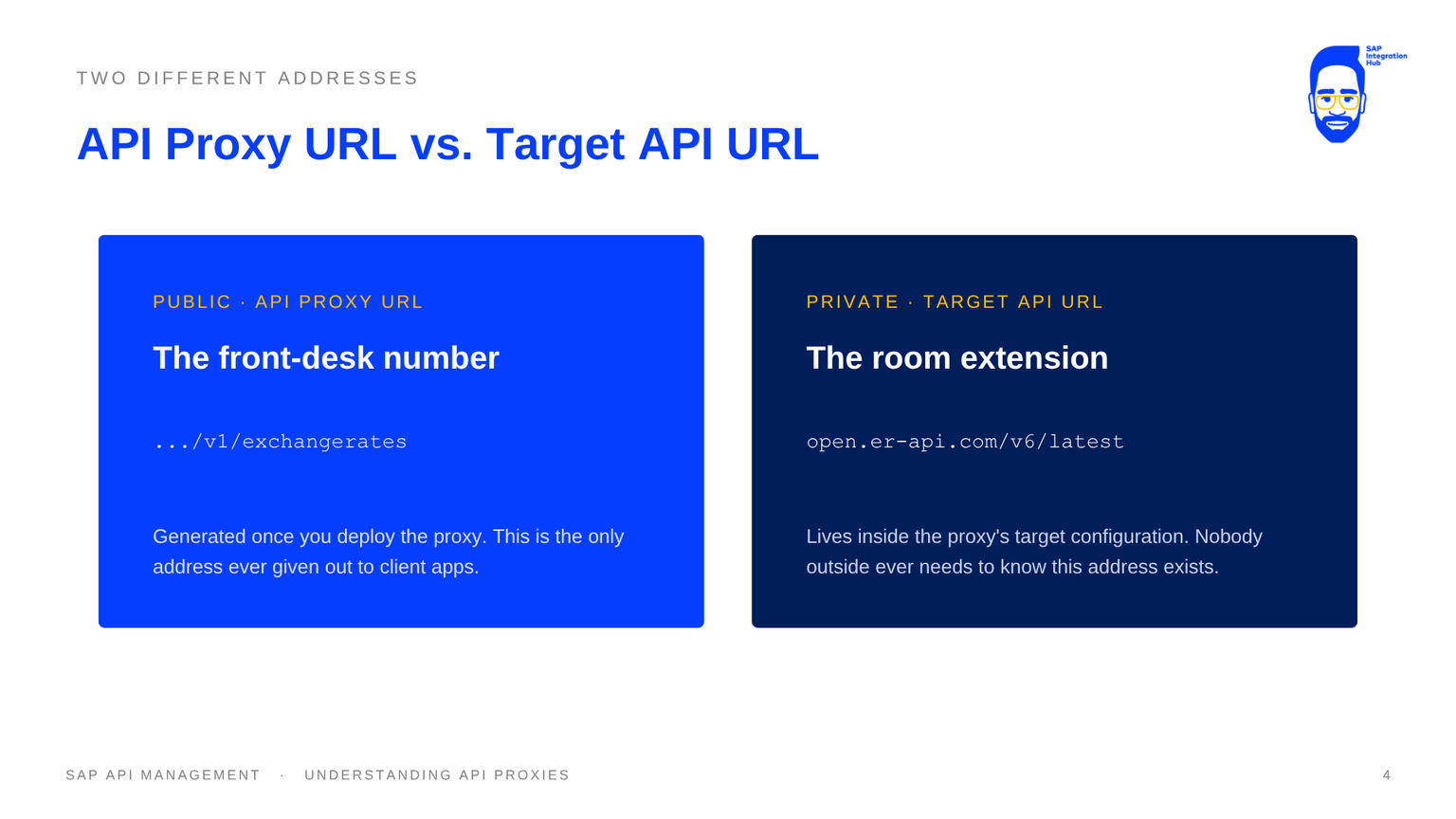
The Target API URL is your backend’s real address - the room extension. The API Proxy URL is a brand new, published address that SAP API Management generates once you deploy the proxy - the front-desk number. Clients only ever call the API Proxy URL.
The Target API URL, in our case, is https://open.er-api.com/v6/latest. This address lives inside the proxy’s target configuration and is never given out to client apps.
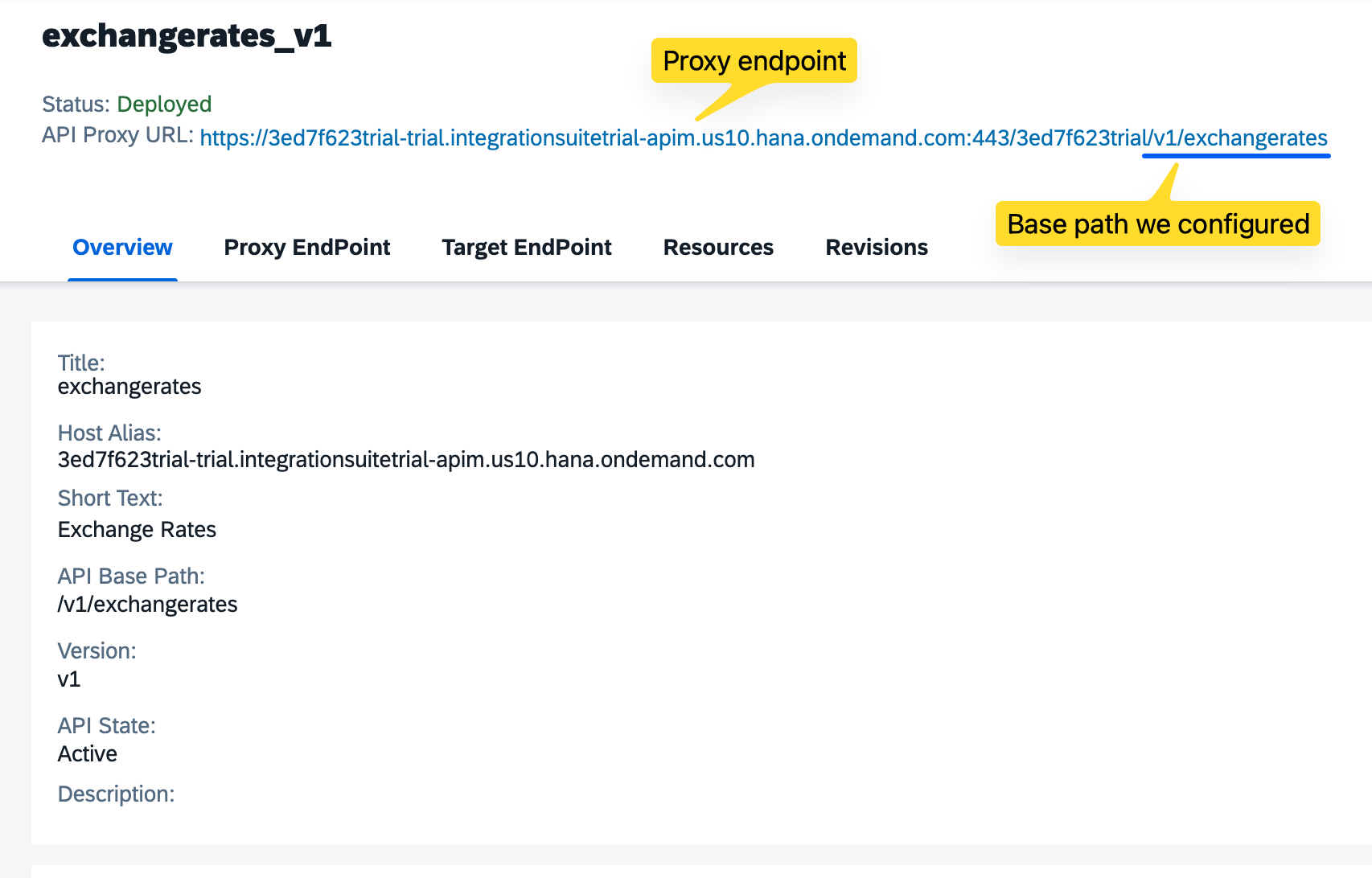
The API Proxy URL is generated by SAP API Management once you deploy, something like:
This is the only address you ever hand to a client. Nobody outside needs to know, or should know, that open.er-api.com exists at all and know that is where the actual exchange rates are extracted.
Why Use the APIM (Proxy) Layer?
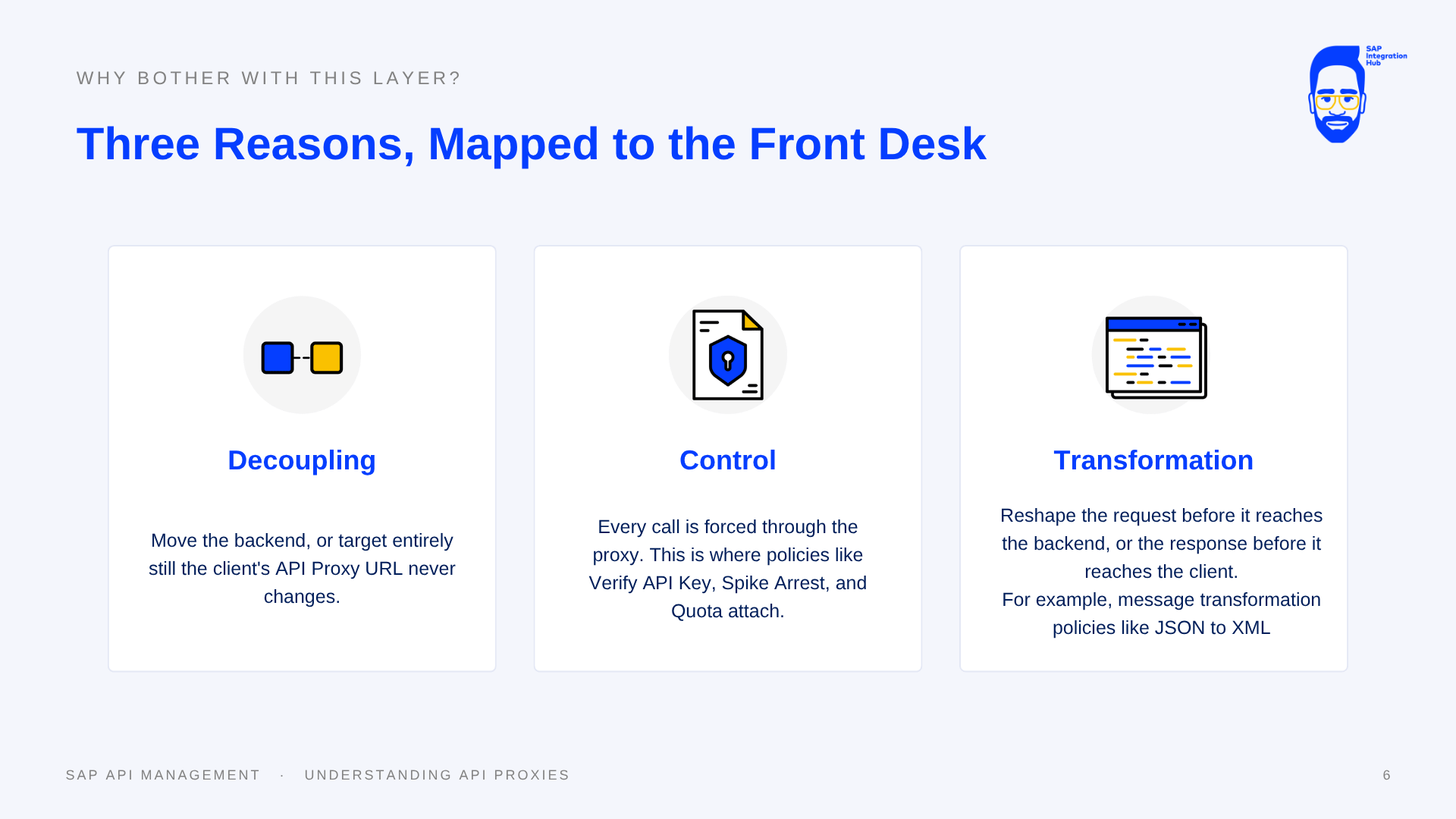
Three reasons, each mapping back to the hotel front desk:
Decoupling. The hotel can move a guest to a different room, or even a different floor, and the number you dial never changes. If you later move your backend, or swap the exchange-rate provider entirely, the client’s API Proxy URL doesn’t change - you just update where the proxy points internally.
Control. Every call is forced through the front desk - there’s no side door. This is the checkpoint where you attach policies like Verify API Key, Spike Arrest (protection againist bots), and Quota. None of that logic sits on the backend; it all sits at the proxy.
Transformation. A front desk doesn’t just connect a call - it can take a message and pass it along in a cleaner form. A proxy can reshape the request before it reaches the backend, or reshape the response before it goes back to the client, without the backend ever needing to change.
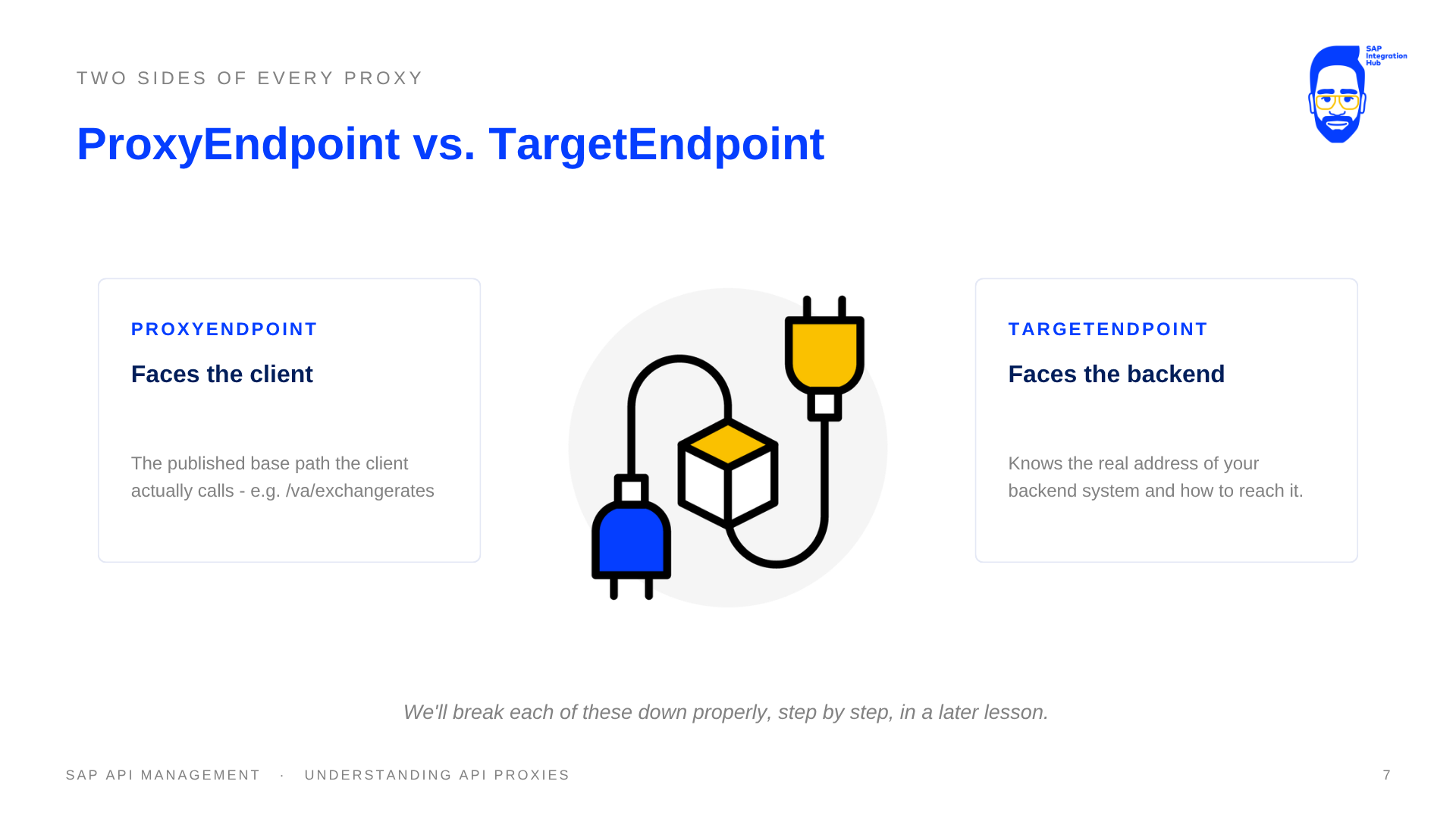
Every API proxy has two sides: the ProxyEndpoint, which faces the client (the published front-desk number), and the TargetEndpoint, which faces your backend (the real room extension). We’ll go deeper on both of these in a later article - for now, just remember which side does what.
Demo Scenario Overview
For this walkthrough, we’ll wrap the same exchange-rate backend we just discussed:
Target API URL:https://open.er-api.com/v6/latest
It’s a free, no-auth API, which makes it a good first target. There’s no credential handling to worry about yet, so we can focus entirely on the proxy mechanics.
Step 1: Create the API Proxy
Log in to the SAP API Portal and go to the Configure area. This is where all your API proxies live.
The API Portal’s Configure area, where the Create API Proxy button lives.
Click Create under the API Proxy tab. A wizard opens asking for some basic details.
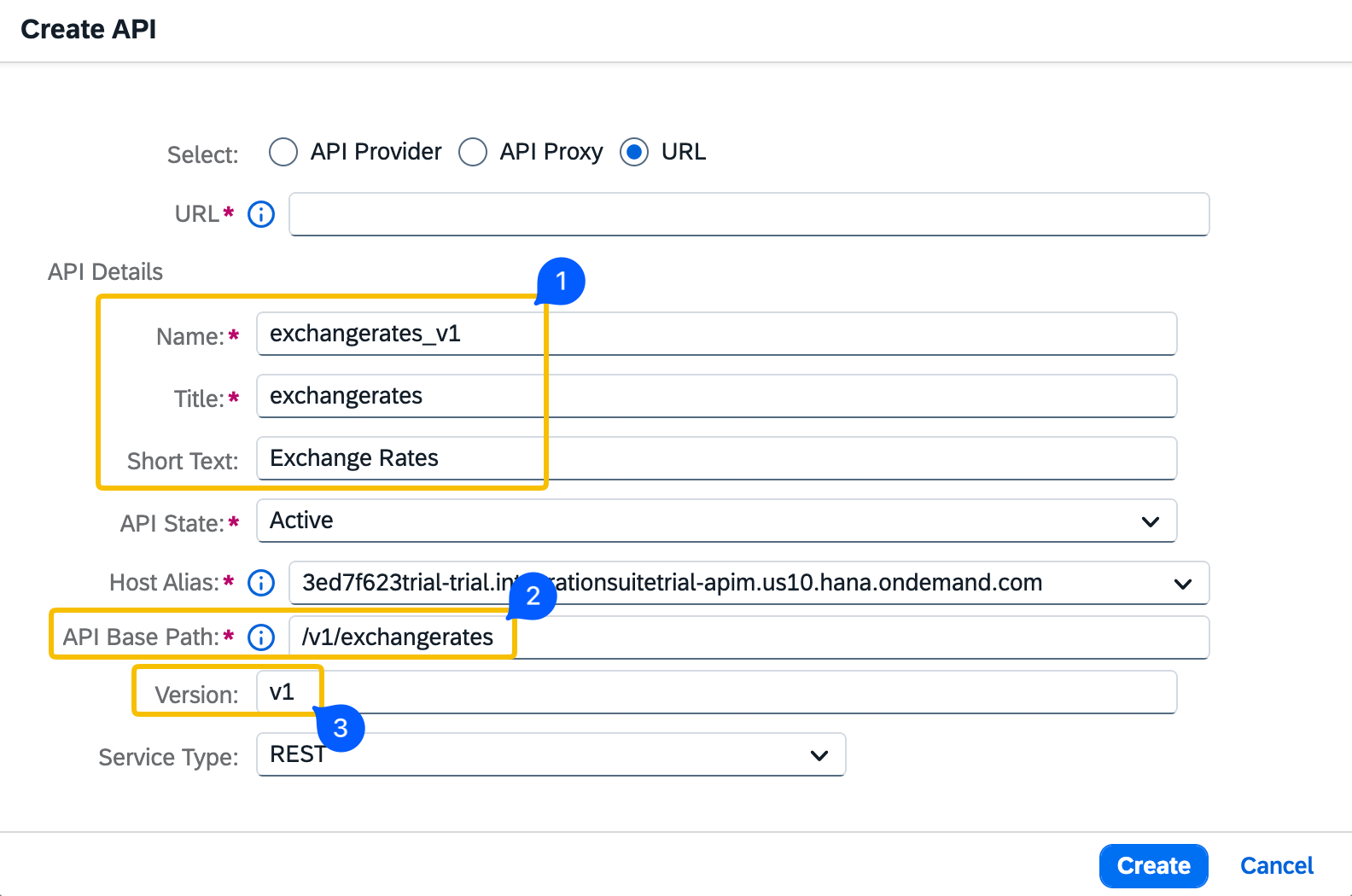
Give it a name. Since this proxy wraps the exchange-rate backend, let’s name it exchangerates.
Below the name, set the base path. This is the part of the URL clients will use to reach the proxy once it’s deployed, effectively the front-desk number.
Set the API base path to /exchangerates.
The Configure API Details step of the wizard, with the proxy name and base path filled in.
It is recommended to structure your API resources with a version ID. Therefore, let’s add the version as v1. If the version is configured, the base path of the API proxy will be automatically changed to reflect the version: /v1/exchangerates.
Congigure the target side of the API Proxy
Step 2: Configure the Target Endpoint
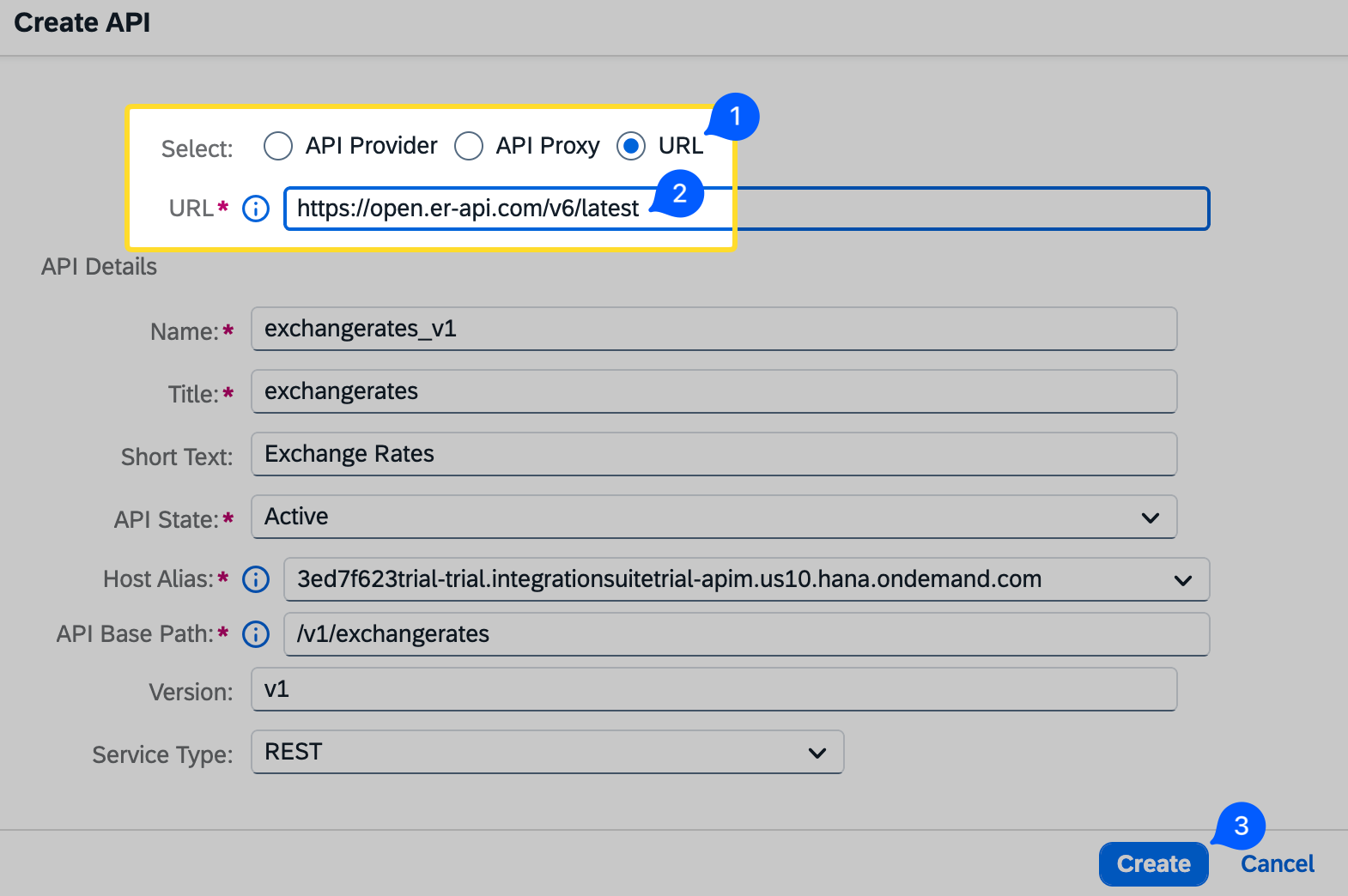
Move to the next step, where you configure where the proxy should actually forward requests. Paste in the target URL: https://open.er-api.com/v6/latest.
This is the private room extension, or the backend service URL - the client will never see this address directly
The target configuration step, with the backend URL pasted in.
We will select the target type as “URL” since the target API we configure is a pure URL.
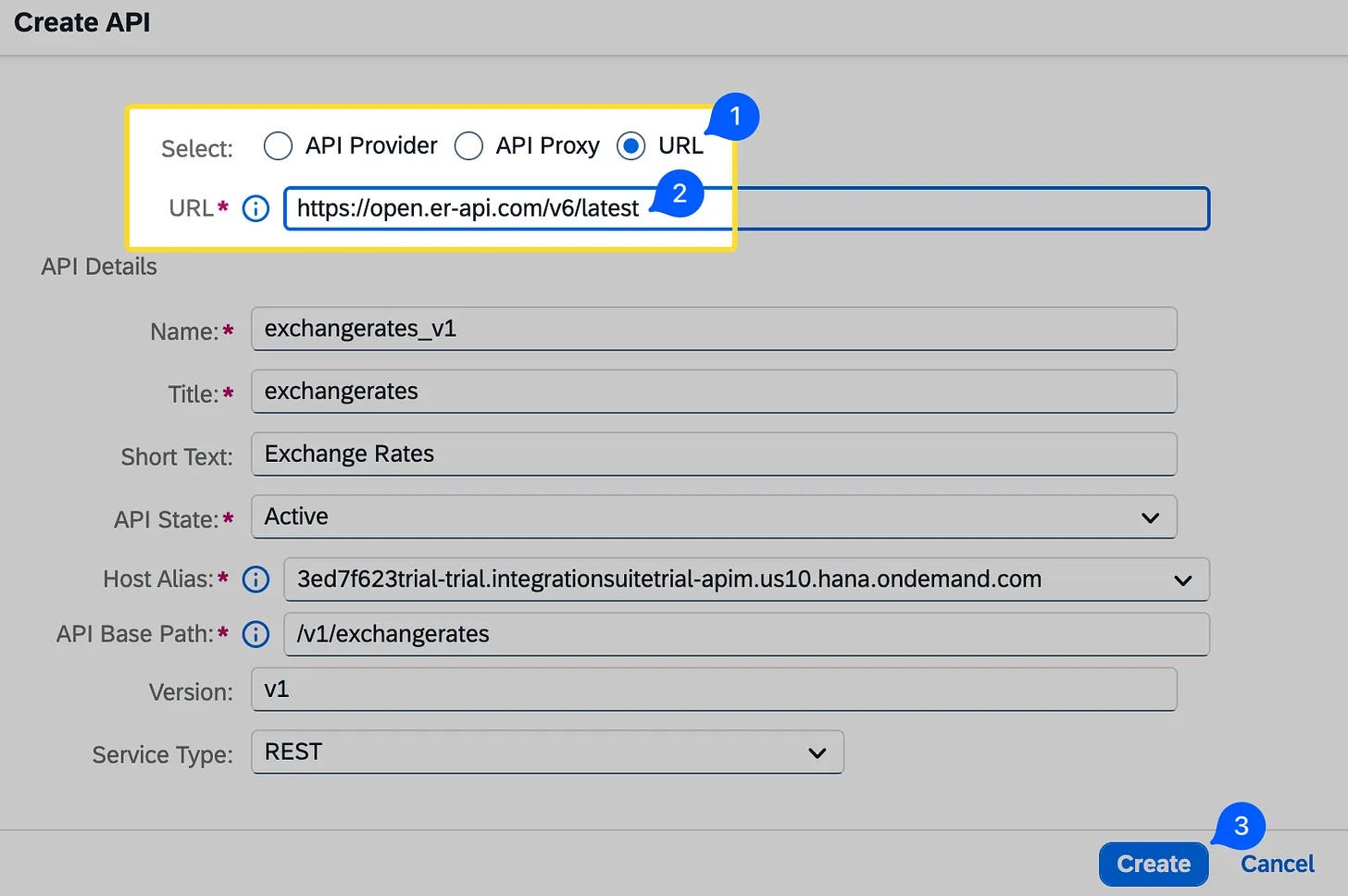
Click Create, and you’ll see a summary of everything configured: the name exchangerates, the base path /v1/exchangerates, and the target URL https://open.er-api.com/v6/latest.
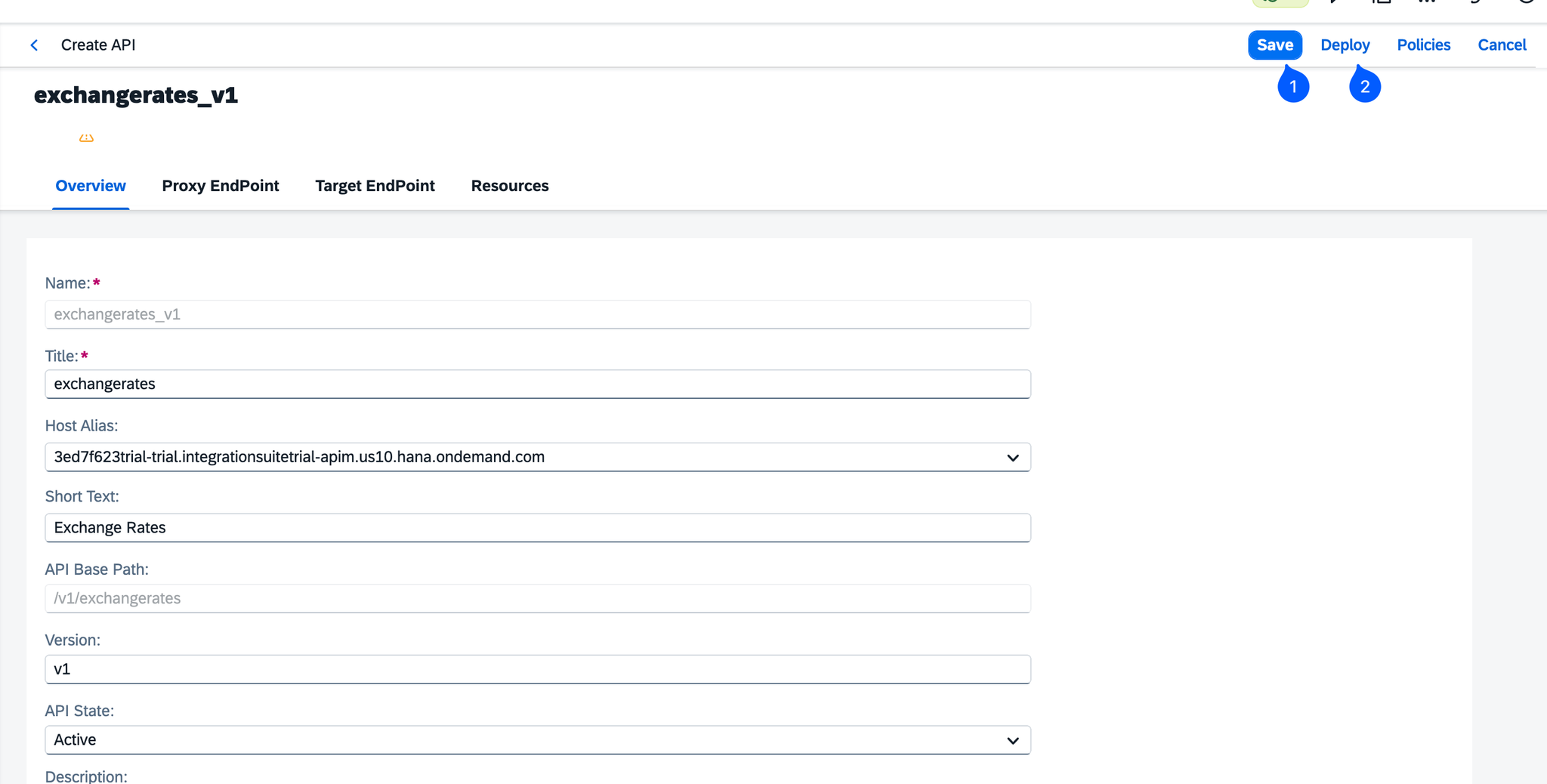
Click Save.
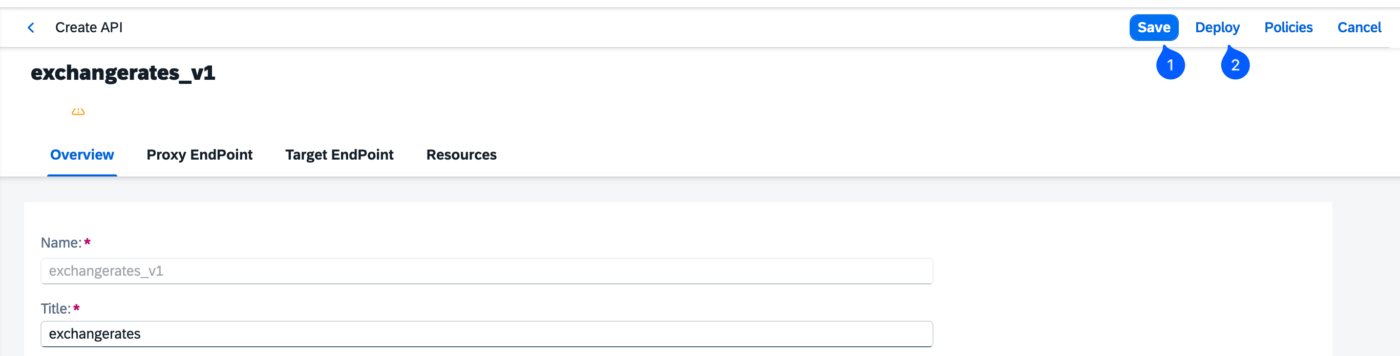
After saving, the proxy summary screen offers a Deploy option.
At this point, the API proxy has been created but it isn’t live yet. It will be in “Un Deployed” status. Creating the proxy only saves its configuration and proxy URL.
Step 3: Deploy the API Proxy
To make the proxy callable, you need to deploy it.
Deploy option of API Proxy
Click Deploy.
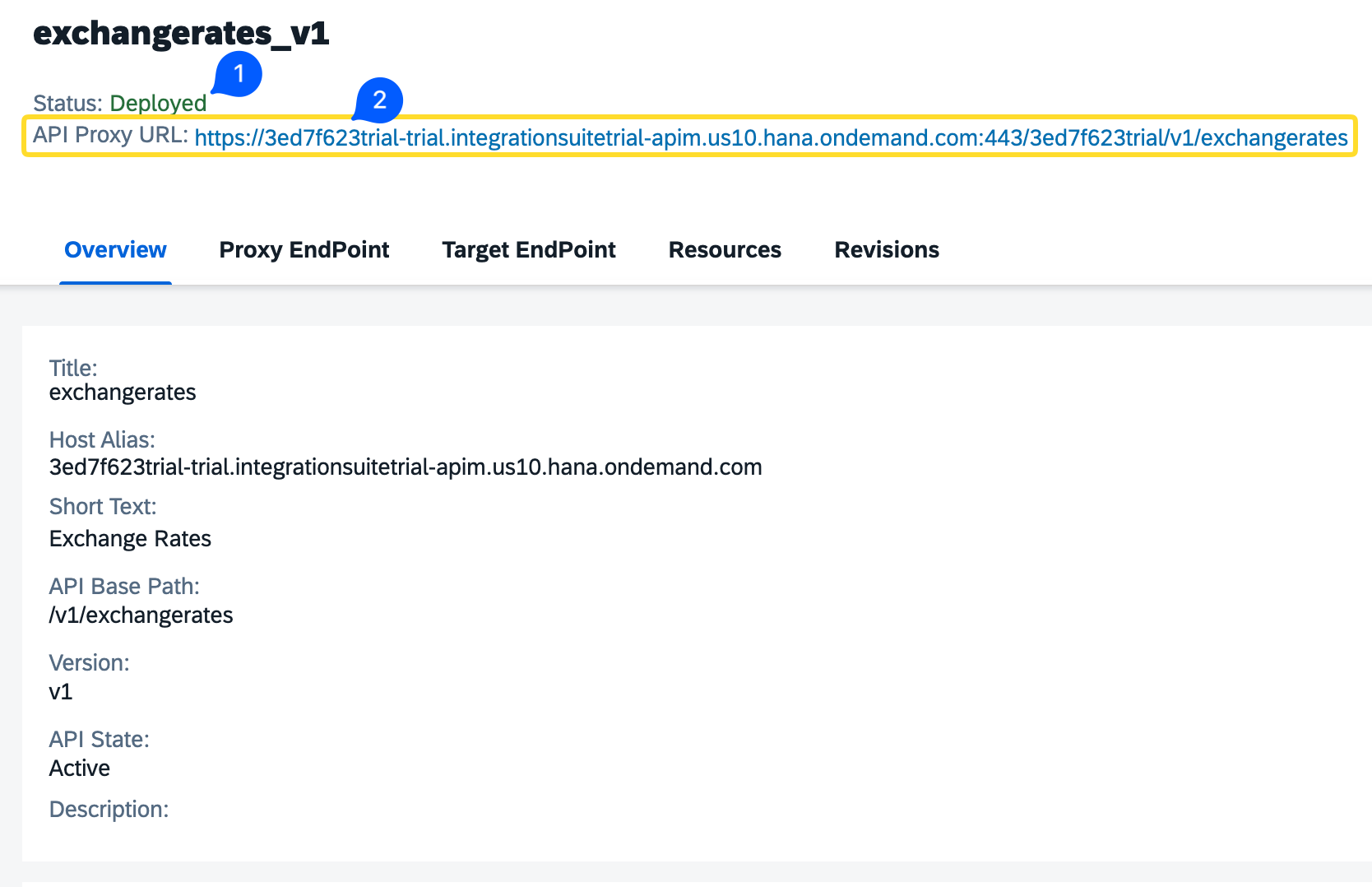
Wait for the deployment to finish. Once the status changes to Deployed, the proxy is live and reachable at its own published URL.
The API Proxy URL for trial accounts will be in this format:
The deployed proxy shown as Active, with its published URL visible.
That’s your front-desk number now. Nobody calling this URL needs to know that open.er-api.com exists behind it.
Testing the API Proxy
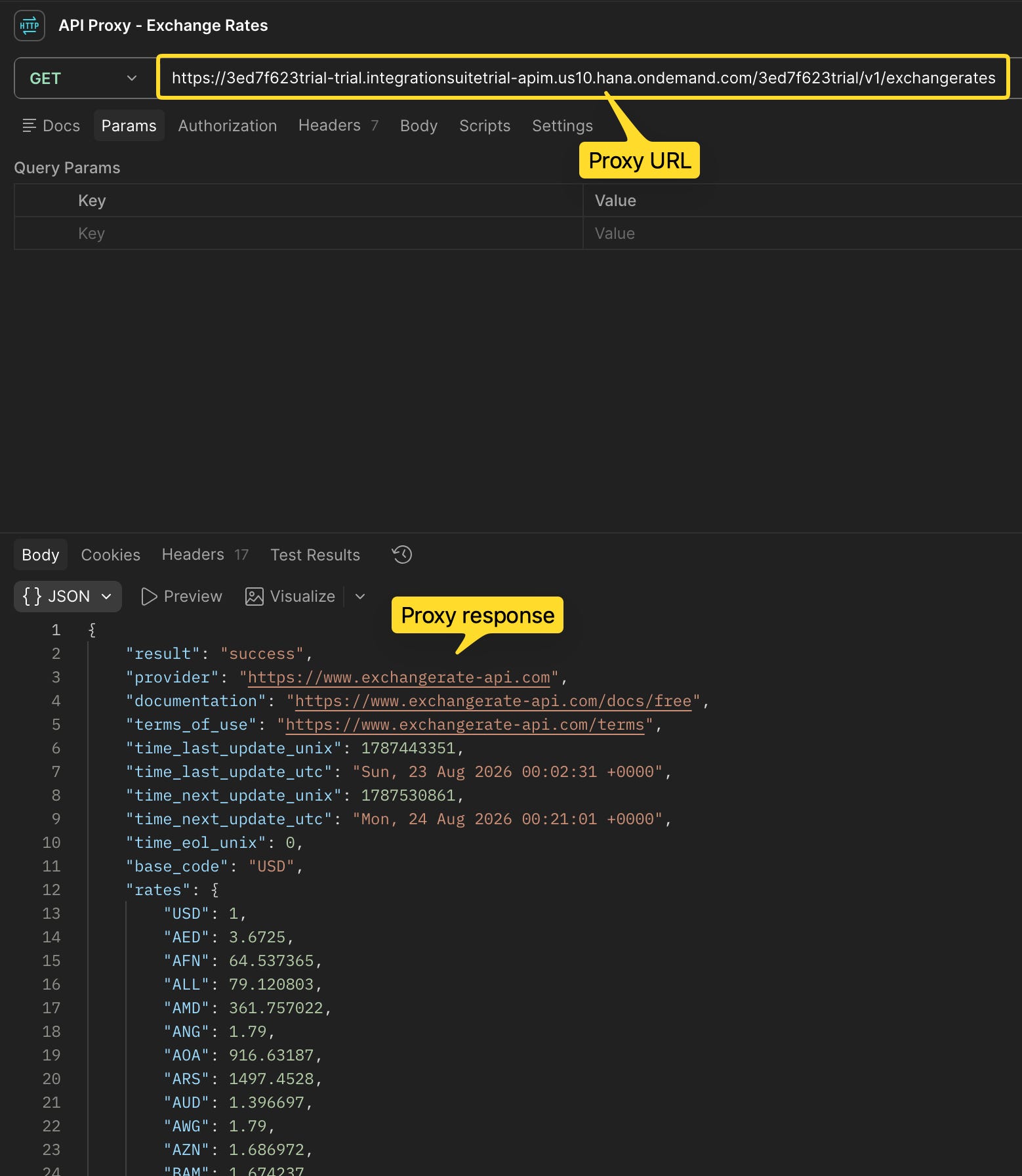
Grab the deployed proxy URL and open it in a new browser tab, or trigger it via Postman.
Locating the deployed proxy’s endpoint URL to copy for testing.
The response comes back with the latest exchange rates, exactly what the backend would have returned if called directly.
Nothing has been added or removed, because no policies have been attached yet. Right now, the proxy is doing exactly one thing: receiving the client’s request and passing it straight through to the backend, then passing the response from the backend straight back to the caller.
The proxy’s response compared against the direct backend call - identical data, nothing lost in between.
Notice the response from the backend you saw before - it should be identical to the proxy response. The same data, same structure, nothing lost in between.
That’s exactly what you want to confirm at this stage, before adding any logic on top.
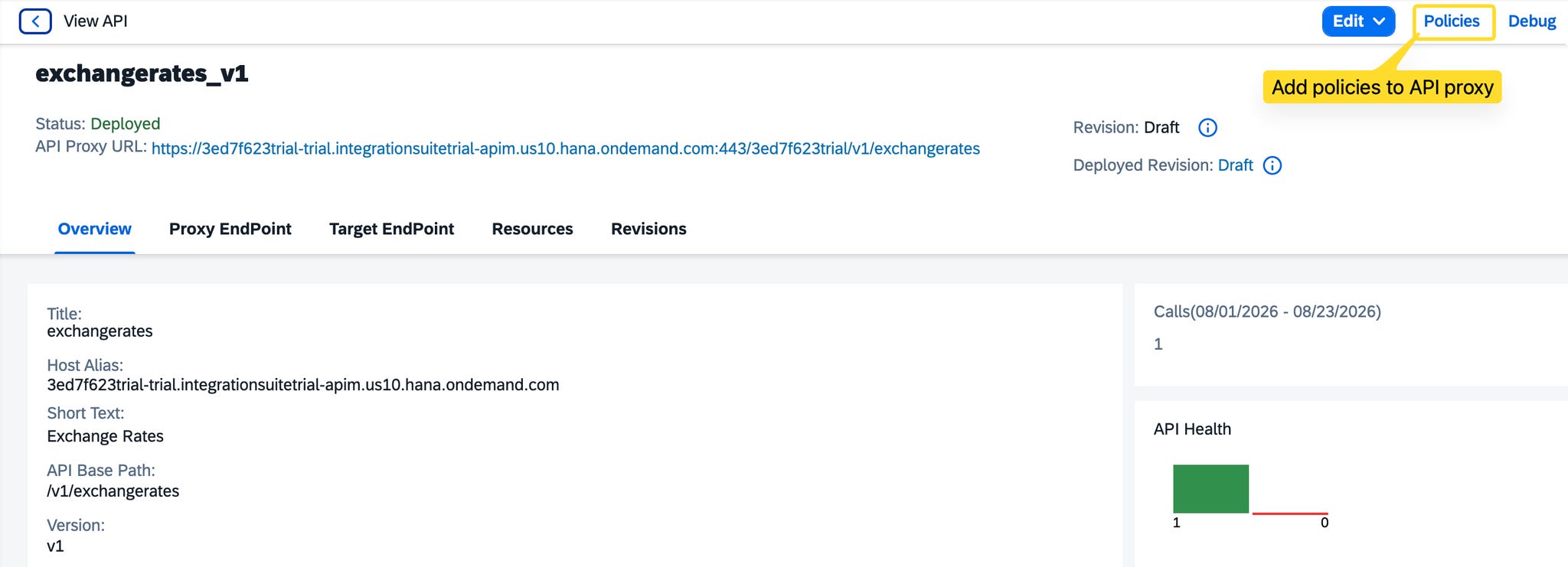
Now you can add your policies on top of it. We will look at how to add policies in another article.
Where policies get attached once the bare pass-through proxy is confirmed working.
Tips and Tricks
Keep the very first version of any proxy a bare pass-through, like we did here, before attaching any policies. It gives you a baseline to compare against once you start adding Verify API Key, Spike Arrest, or transformation policies. If something breaks later, you’ll know it’s the policy, not the underlying proxy configuration.
Double-check the base path doesn’t collide with an existing proxy on the same environment. Since the base path is what routes incoming calls to the correct proxy, an overlapping path will cause deployment or routing issues.
This bare pass-through proxy is your starting point. In upcoming lessons, we’ll start attaching policies to it, and this is exactly where the ProxyEndpoint and TargetEndpoint structure we introduced above comes into play.
If you have any questions about creating or deploying your first API proxy in SAP API Management, leave a comment on the original post. I’ll be happy to help.