


Hi All,
SAP standard search help have capabilities of displaying all possible input values for a selection field. This is a standard functionality in all verticals of SAP for standard fields. In addition standard collective search helps let the user select values using multiple paths. For example customer numbers could be filtered either with first name last name combination or using address detail.
But if there are custom requirements to add additional functionality to standard search helps, they could be enhanced using append search help method.
There are two types of search helps.
Elementary search helps
Collective search helps:
Collective search help is a combination of elementary search helps. This allows users to search input values using multiple paths.
Below article discuss how to enhance a standard search help with append search help. When there is a standard collective search help and you are required to add another search help criteria to the same, you can use this “append search help” method. Newly appended help will shown in the standard search help as another tab. We will be creating a new elementary search help with the display fields and selection criteria as per custom requirement. Then the elementary search help would be attached to the standard collective search help.
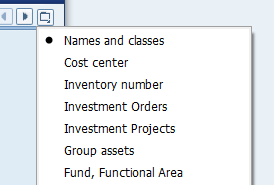
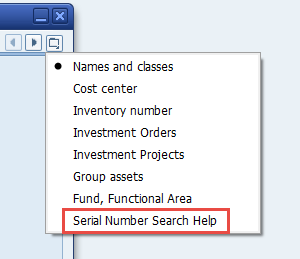
In this example standard search help ‘AANL’ which is the search help for assets would be enhanced. New custom append ‘Serial Number Help’ will be added as below.
Before append:
After append:
Summary of steps:
Create database view.
Create elementary search help.
Append standard search help.
Step 1:Create Database View.
In order to create elementary search help in step 2 we make use of a database view in this example. You can use any other method depending on your requirement.
Go to transaction SE11 and provide view name.
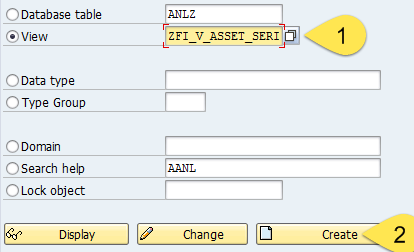
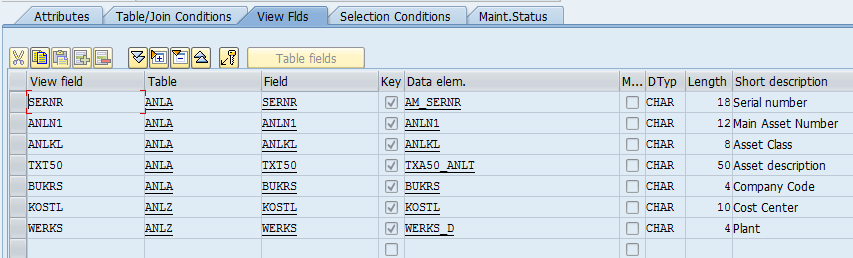
Tables used for view are ANLA and ANLZ.
Set the join conditions.
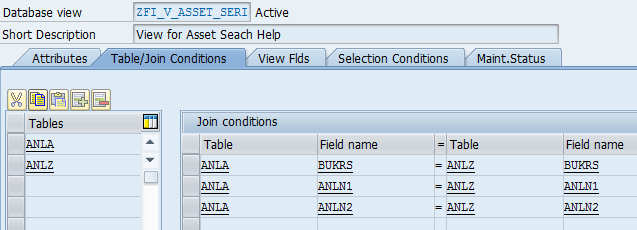
Set view fields.
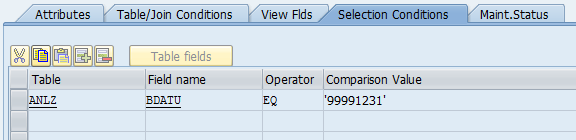
Set selection filter criteria.
Save and activate.
Step 2:Create Elementary Search Help.
Go to transaction SE11.
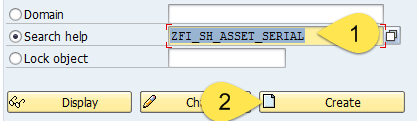
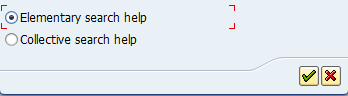
Select “Elementary Search Help” option.
Set the selection method with the database view created above.
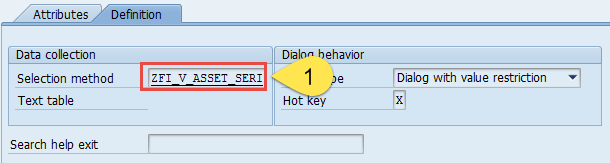
Set import and export parameters of the search help. Import parameters are the selection criteria of the search help and export parameters set the output of the hit-list.
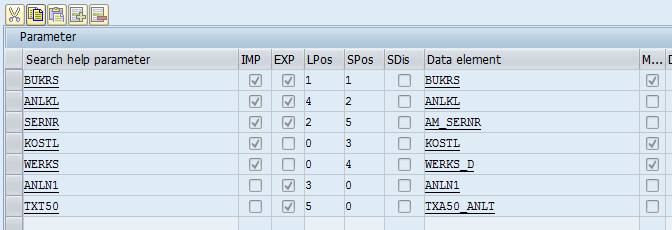
Save and active the search help.
Step 3:Append Standard Search Help.
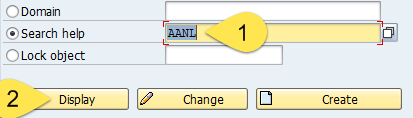
Go to transaction SE11. Set the search help name and click display.
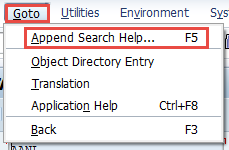
Select append from “Goto” under main menu.
Press “Create”.
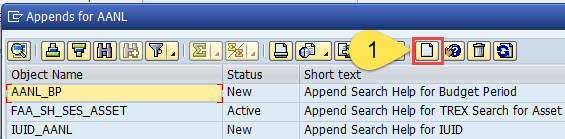
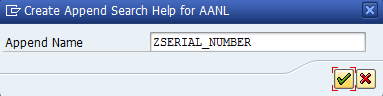
Set append name.
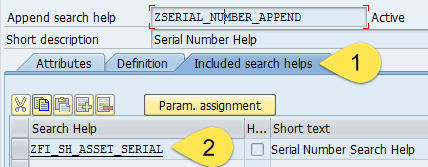
Select “Include Search Help” tab and add elementary search help created under step 2.
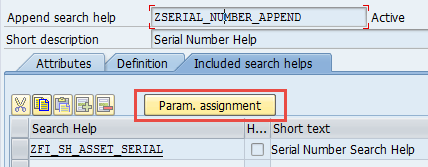
Select the elementary search help added and click “Param. Assignment”. Click propose button to get the system proposed parameters.
Save and activate.
Newly added search help will be shown in a new tab under the collective search help.
search help, elementary search help, collective search help, database view, se11, DDIC, SAP, ABAP, append, search help append, enhancement, modify, enhance search help, Isuru Fernando
The post Enhance Standard Search Help Example – Append Search Help appeared first on SAP Integration Hub.