


📚 SAP AIF Configuration Series - Guide #2
We are configuring the fixed values on top of the iDoc interface we developed in AIF previously. If you are new here and like to learn how to configure the namespaces and the iDoc Monitoring basic steps in AIF, check out the linked article first.
Introduction to Fixed Values in SAP AIF
Fixed values in SAP Application Interface Framework (AIF) allow you to assign predefined values to interface fields during message processing. This is particularly useful when a field must always contain a specific value, or when the incoming message doesn’t provide all the mandatory information required by the target application.
Scenario
In this example, we’ll use a fixed value mapping to populate the CUSTTYPE field during inbound IDoc processing. The CUSTTYPE field is mandatory and cannot be left empty. It also only accepts two valid values:
P - Passenger
B - Business
In our requirement, all customers created through this interface should initially be classified as passengers. We’ll configure a fixed value in SAP AIF that automatically assigns the value P to the CUSTTYPE field. This ensures that every IDoc processed through the interface contains a valid customer type and can be processed successfully, without requiring the sender system to provide this information. The sender system may send a blank value.
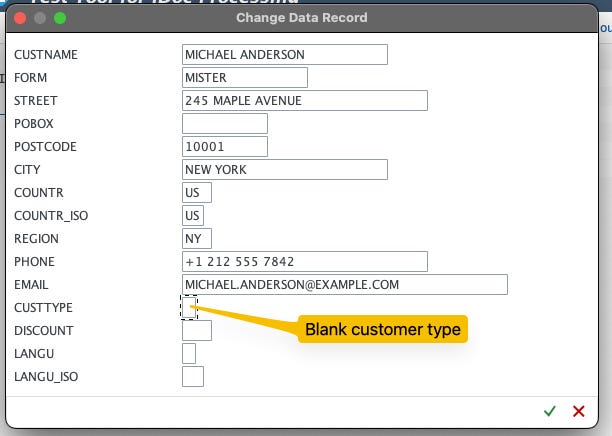
Sample IDoc segment showing the CUSTTYPE field left blank by the sender
In the following steps, you’ll learn how to configure a fixed value mapping in SAP AIF so that all customer master records created through the II_FL_CUST interface automatically receive the customer type P (Passenger) during preprocessing.
Step 1 - Configure the Interface for Preprocessing
Transaction: /AIF/CUST -> SAP Application Interface Framework -> Interface Development -> Define Interfaces
Go to Customizing for SAP Application Interface Framework (transaction code /AIF/CUST) and navigate to Interface Development -> Define Interfaces.
💡 Tip Pre-Processing must be enabled on the interface before AIF can apply any field mappings - including fixed values and value mappings at runtime. Without this flag set, the structure mapping configuration in the following steps will have no effect.
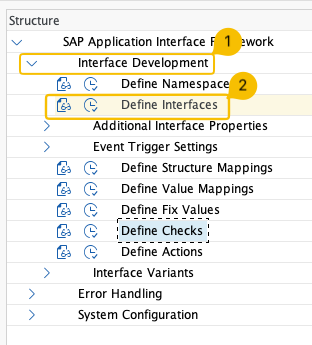
/AIF/CUST - Define Interfaces menu path
In the selection screen, enter your namespace (for example, ZDEMO) and choose Continue.

/AIF/CUST - namespace selection screen
Switch to Change Mode and open the existing interface II_FL_CUST.

/AIF/CUST - opening interface II_FL_CUST in change mode
Configure the following settings:
Deselect Move Corresponding Structures
Select Pre-Processing
Maintain the source and destination structures
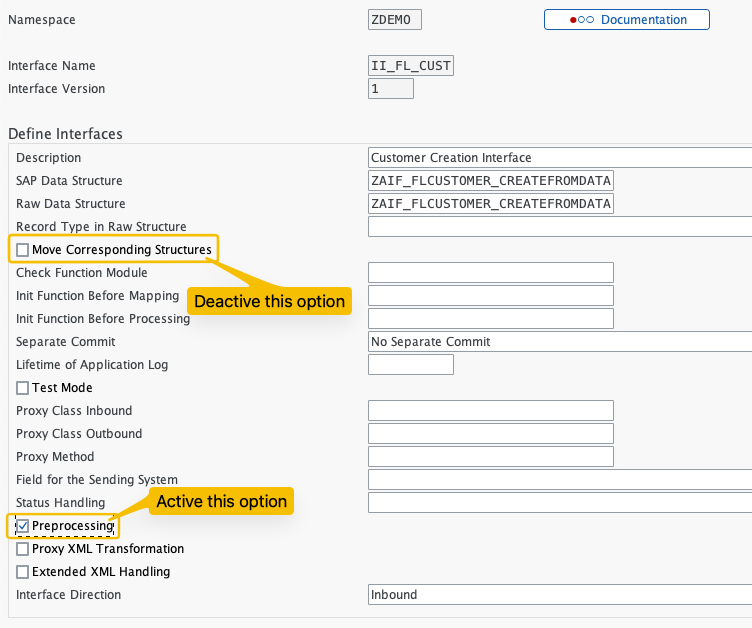
/AIF/CUST - interface settings with Pre-Processing enabled
Save your changes.
Step 2 - Define Structure Mappings
Transaction: /AIF/CUST -> SAP Application Interface Framework -> Interface Development -> Define Structure Mappings
While still in Customizing, navigate to Interface Development -> Define Structure Mappings.
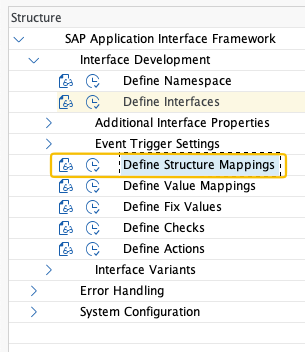
/AIF/CUST - Define Structure Mappings menu path
Enter the following values:
Namespace:
ZDEMOInterface Name:
II_FL_CUSTInterface Version:
1
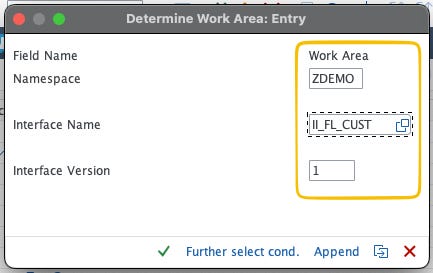
/AIF/CUST - structure mapping selection screen with namespace/interface/version fields
Choose Continue.
💡 Tip
Notice that in this example, the fixed value is created under the combination Namespace / Interface / Version (
ZDEMO/II_FL_CUST/1). As a result, this fixed value is specific to this interface version and cannot be reused by other interfaces within the same namespace. This approach is useful when the fixed value is only relevant to a particular interface and should not be available elsewhere. SAP AIF also allows you to create fixed values at the namespace level. Namespace-level fixed values aren’t tied to a specific interface and can therefore be reused across multiple interfaces within the same namespace. For example, if several interfaces in namespaceZDEMOrequire the same customer type, status code, company code, or any other constant value, it’s more efficient to create the fixed value directly under the namespace.
Select New Entries and create a mapping for the root node of your interface structure.
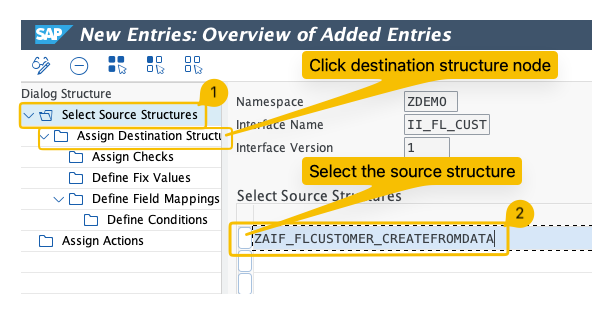
/AIF/CUST - New Entries for structure mapping
Select the root structure that was generated for your interface.
Save the entry.
💡 Tip
The source structure you select here should be the root-level DDIC structure that was generated for your IDoc basic type in the DDIC generation step. If you’re unsure of the name, you can look it up in
SE11or check the objects created during the/AIF/IDOC_GENrun.
Step 2.1 - Assign Destination Structure
Select the newly created source structure and double-click Assign Destination Structure.
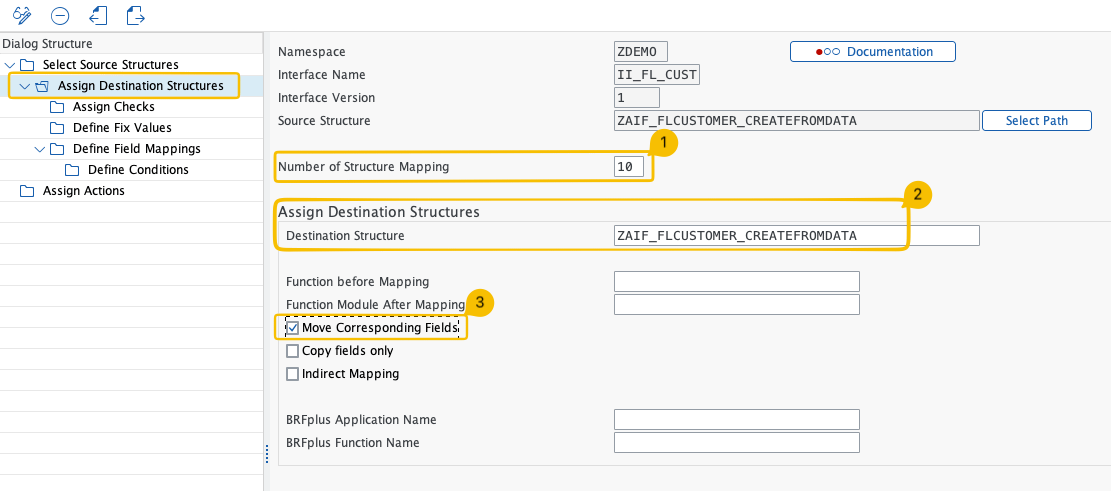
/AIF/CUST - Assign Destination Structure option
⚠️ Warning
Make sure to first select the source structure and then the destination structure; otherwise, the configuration cannot be created properly.
Create a new entry with the following values:
Number of Structure Mapping:
10Destination Structure: Root structure of the interfaceMove Corresponding Fields: Selected
Save your changes.
