


Although we should always try to reuse iDoc Message Types and iDoc Types provided with standard SAP content, there could be scenarios where you need to create a completly new Message Type and iDoc type with your own custom processing logic. Let’s look at how to create and configure a completely new custom iDoc Type in SAP.
SAP Versions used in the illustration:
SAP S4 HANA Fashion 1709
Scenario or Requirement for Custom iDoc Type:
Let’s assume you have an external Human Resource Management system and you want to transfer employee information to SAP from this external HR system using iDocs.
Overview of Steps to Create Custom iDoc Types.
Register logical system – bd54 or sale
Create custom iDoc segments – we31
Define custom iDoc type – we30
Create iDoc type
Assign segments to iDoc Basic type
Configure segment properties
Create custom Message Type – we81
Assign iDoc Basic type to Message Type – we82
Create Function Group – se80
Develop iDoc processing Function Module – se37
Define iDoc processing Function Module
Code iDoc data processing ABAP logic
Assign FM to Message Type/Basic Type combination – we57
Configure characteristics of processing FM – bd51
Configure custom inbound Process Code – we42
Create inbound Process Code
Assign processing FM to Process Code
Assign iDoc Message Type to inbound Process Code
Setup Partner Profile – we20
Create Partner Profile
Configure inbound parameters of the Partner Profile
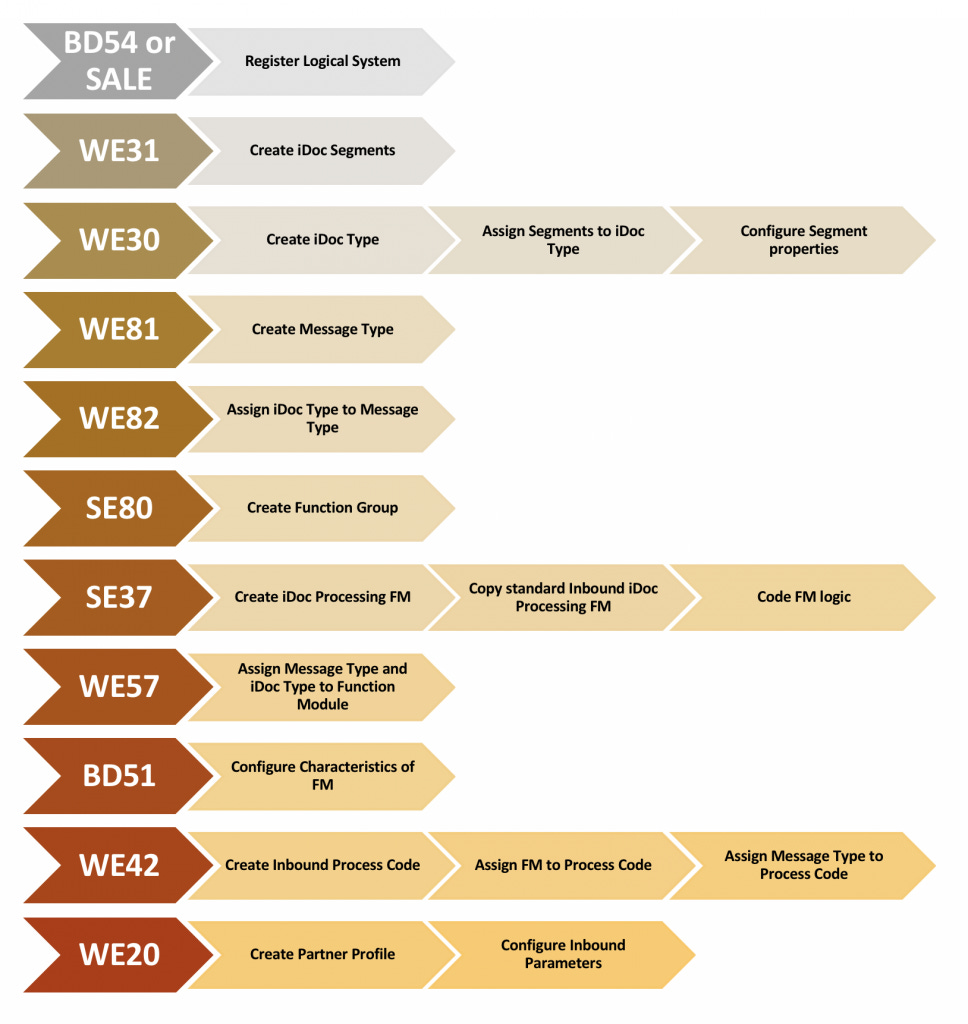
Let’s look at these steps in detail.
Step 1: Define iDoc Sender System as a Logical System in SAP.
First, let’s register the external HR system as a Logical System in SAP. Go to ALE transaction ‘SALE’ and select ‘DefineLogical System’ under ‘Logical Systems’.
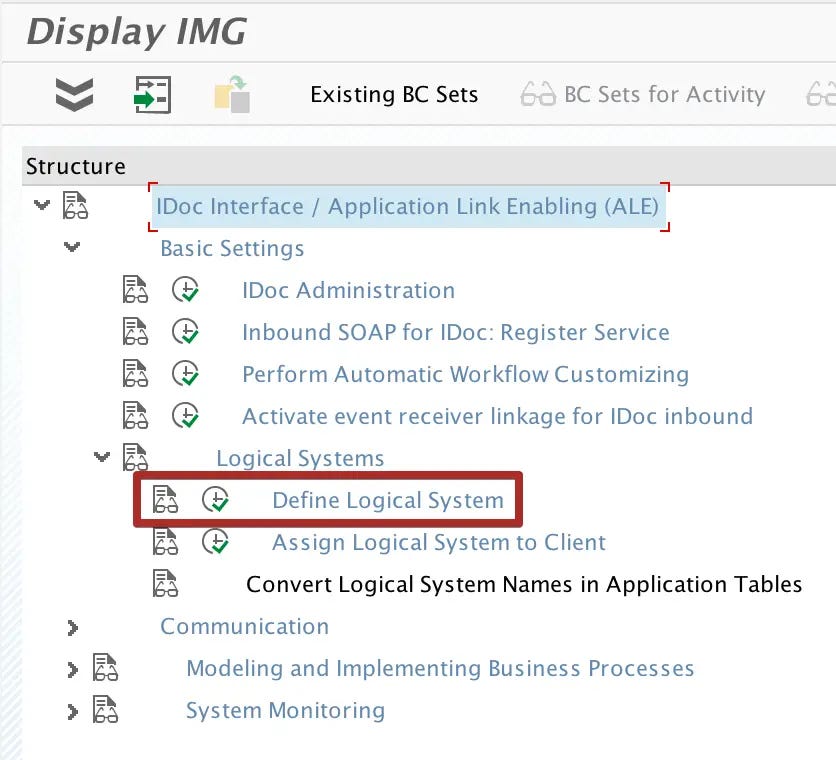
Let’s register the HR system as ‘TESTHR’.

You could also directly register the Logical System using transaction bd54.
Step 2: Create iDoc Custom iDoc Segments using Transaction We31.
Go to iDoc segment creation transaction we31 and create two new segments ‘ZEMP_HDR’ and ‘ZEMP_DESIGNATION’.
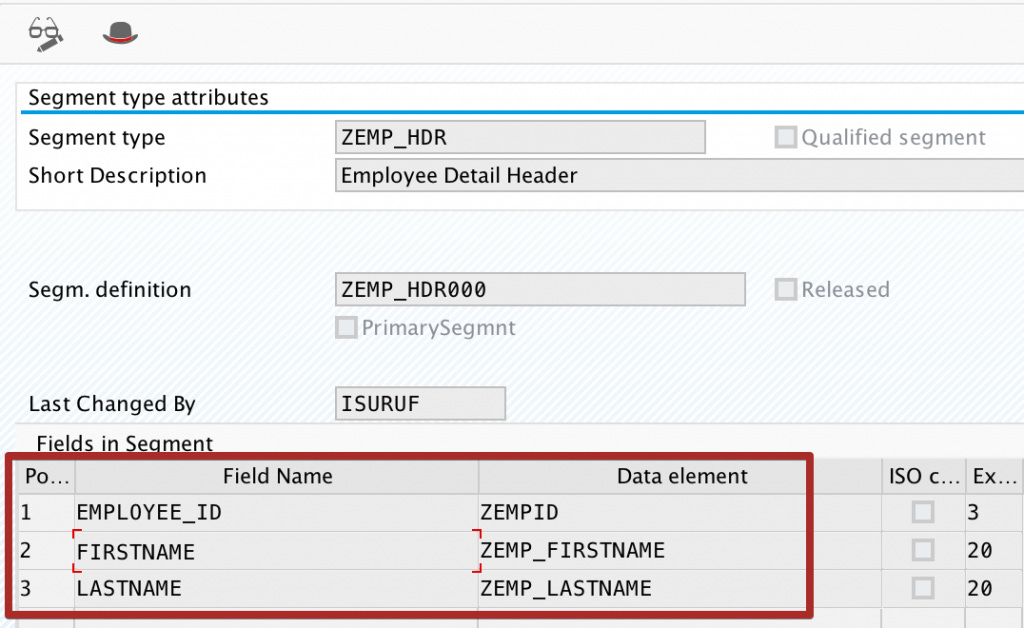
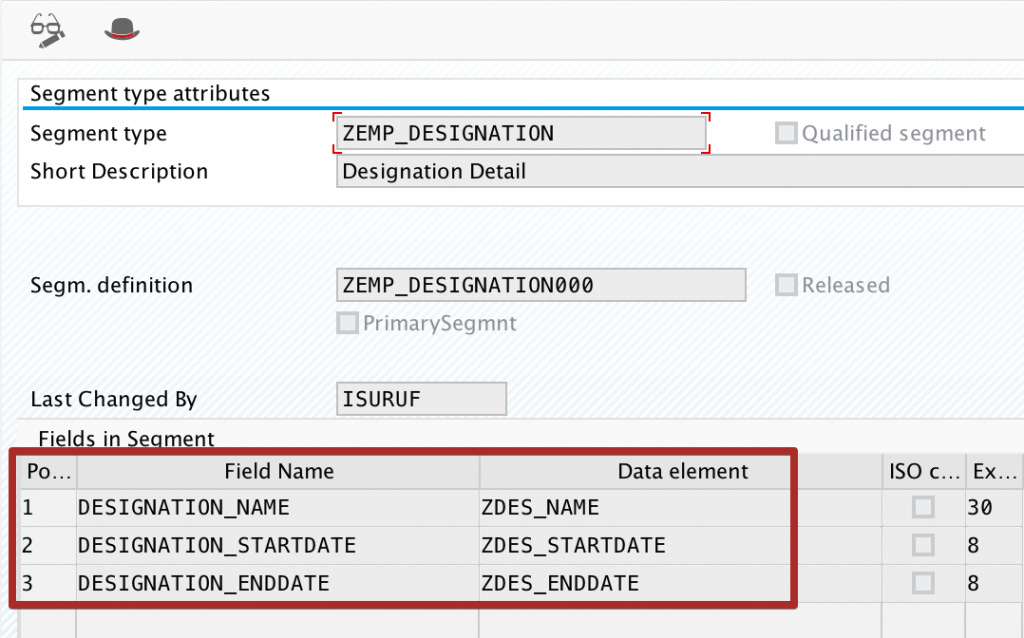
Using Segment Editor configure the fields of each segment. Set the field names and assign a data type for each field.
Step 3: Create Custom Z iDoc Basic type using Transaction we30.
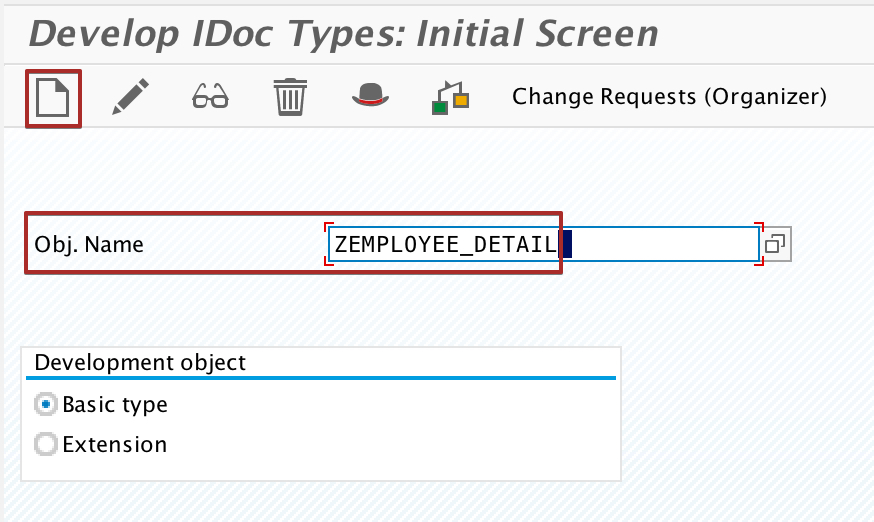
Go to iDoc Basic Type creation transaction we30 and create custom iDoc type ‘ZEMPLOYEE_DETAIL’.
Select ‘Create New’.
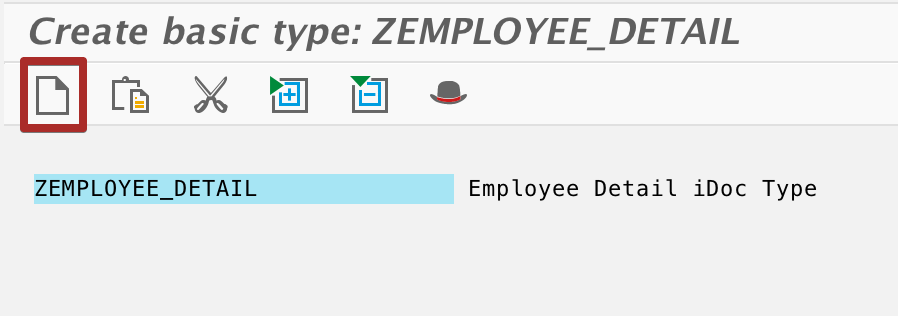
Using Create button, add segments created in the previous step to iDoc Basic Type.
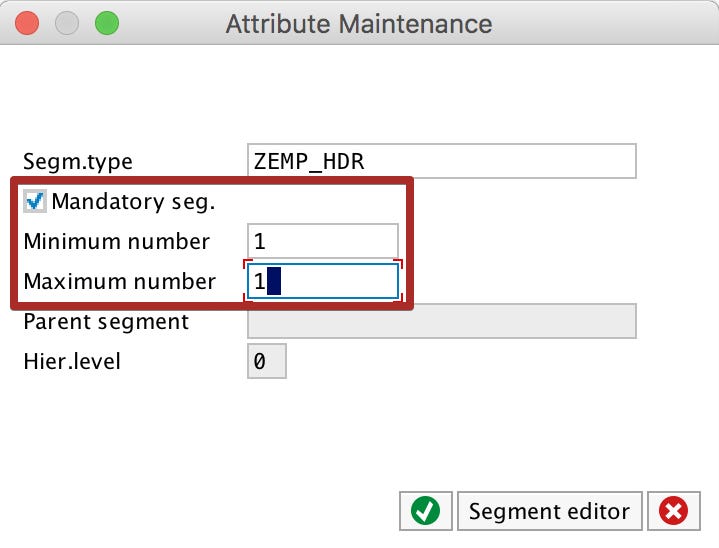
Set iDoc segment properties ‘Maximum Number’ and ‘Minimum Number’. These two settings correspond to maximum number of occurrences and minimum number of occurrences of the iDoc segment. If you want to configure a segment as mandatory, set the ‘Minimum Number’ as one.
Step 4: Create Message Type using Transaction we81.
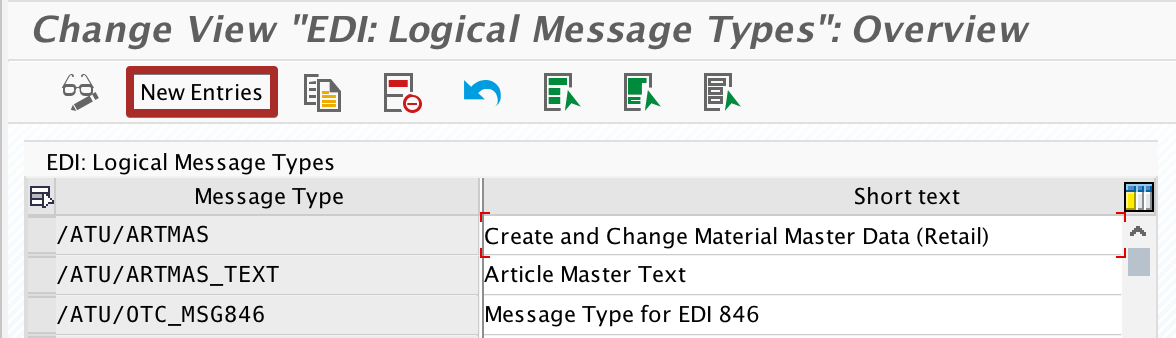
In change mode, add new entry and set the Message Type name as ‘ZMSG_TY_EMPLOYEE_DETAIL’.
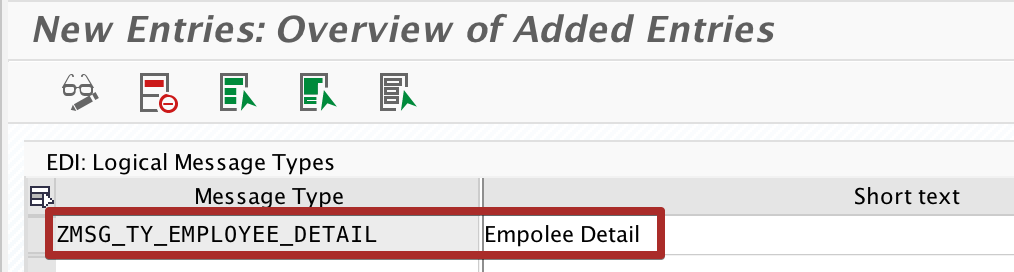
Step 5: Assign Message Type to iDoc Type Using Transaction we82.
Assign the Message Type ‘ZMSG_TY_EMPLOYEE_DETAIL’ created in step 4 with iDoc type ‘ZEMPLOYEE_DETAIL’ created in step 3. Notice, you also have to set the release version of your SAP system with the configuration.
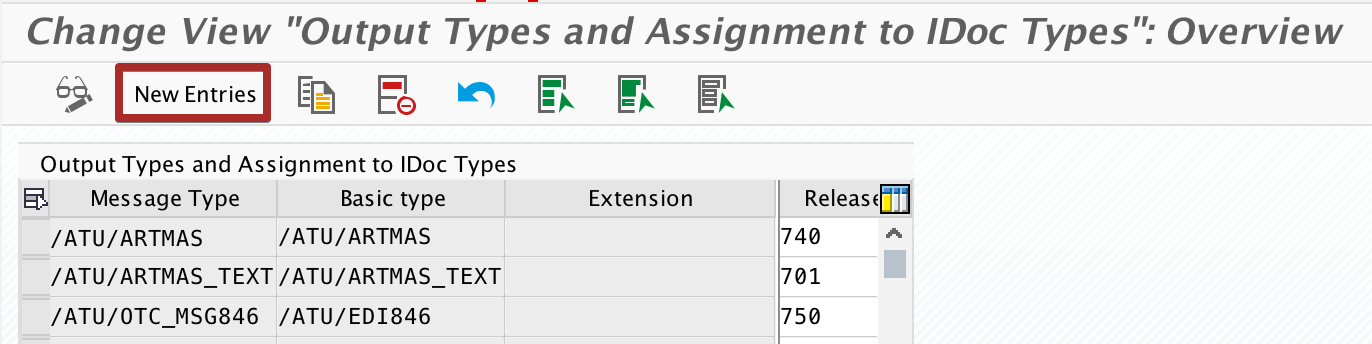
Step 6: Create Function Group in Transaction se80.
To assign the iDoc processing Function Module, create Function Group ‘ZEMPDETAIL_INBOUND_IDOC’ using transaction se80.
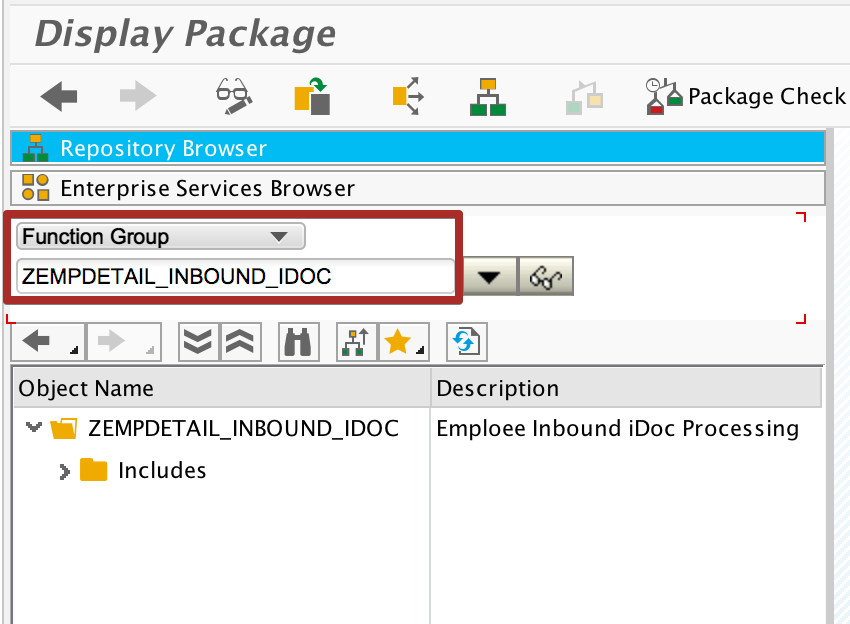
Step 7: Create Inbound iDoc Processing Function Module in se37.
We need a Function Module to process inbound iDocs in SAP. Inbound iDoc function modules should be in a certain format. That is, all inbound iDoc processing function modules have the same signature (import, export, tables and changing parameters). Only application/business logic of the function module is different in order to handle different Message Types and iDoc Types.
Signature of the inbound iDoc processing Function Module should be in below format.
  IMPORTING
     VALUE(INPUT_METHOD) LIKE  BDWFAP_PAR-INPUTMETHD
     VALUE(MASS_PROCESSING) LIKE  BDWFAP_PAR-MASS_PROC
  EXPORTING
     VALUE(WORKFLOW_RESULT) LIKE  BDWF_PARAM-RESULT
     VALUE(APPLICATION_VARIABLE) LIKE  BDWF_PARAM-APPL_VAR
     VALUE(IN_UPDATE_TASK) LIKE  BDWFAP_PAR-UPDATETASK
     VALUE(CALL_TRANSACTION_DONE) LIKE  BDWFAP_PAR-CALLTRANS
  TABLES
      IDOC_CONTRL STRUCTURE  EDIDC
      IDOC_DATA STRUCTURE  EDIDD
      IDOC_STATUS STRUCTURE  BDIDOCSTAT
      RETURN_VARIABLES STRUCTURE  BDWFRETVAR
      SERIALIZATION_INFO STRUCTURE  BDI_SER
  EXCEPTIONS
      WRONG_FUNCTION_CALLED
Find any standard inbound iDoc processing Function Module using transaction we57 and copy it to a custom Z function module in transaction se37. In this example I am using the standard Function Module ‘BAPI_iDoc_Input1’ to create my custom Z function module.
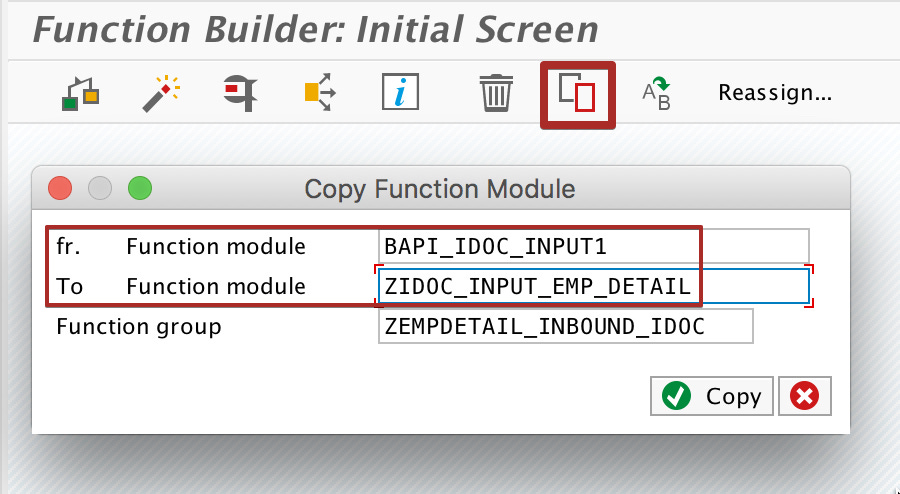
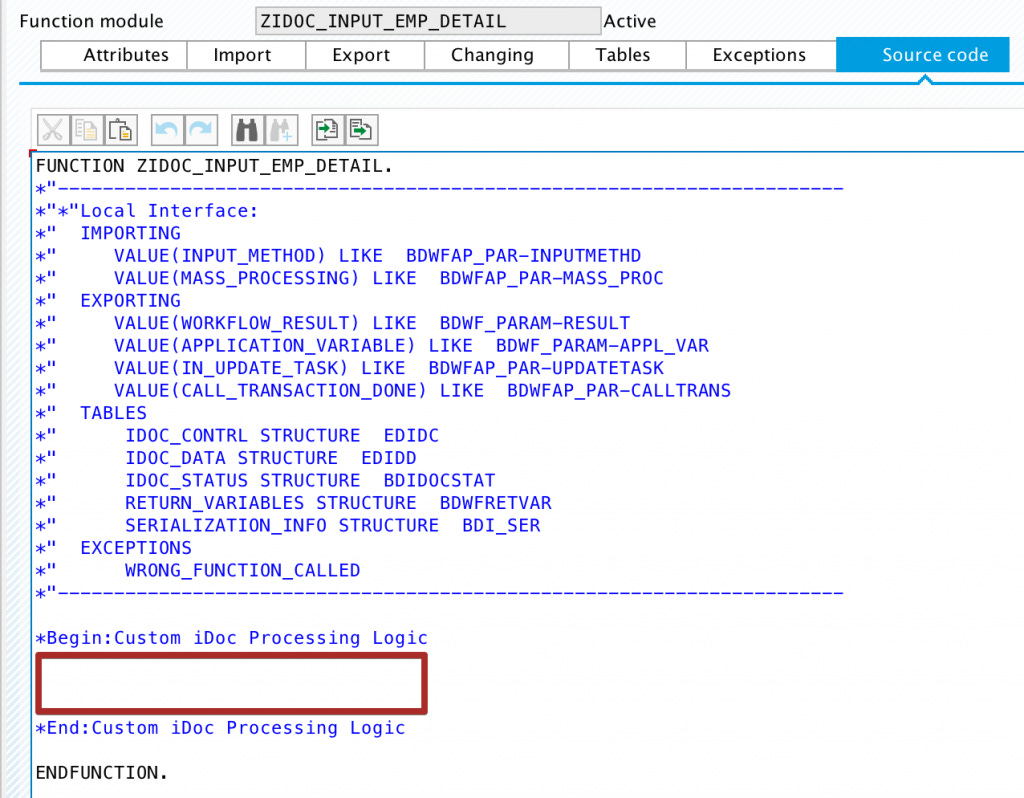
Write your own ABAP logic using IMPORT and TABLES parameters. Table IDOC_DATA contain iDoc segment data.
Step 8: Assign Message Type and iDoc Type to Function Module using Transaction we57.
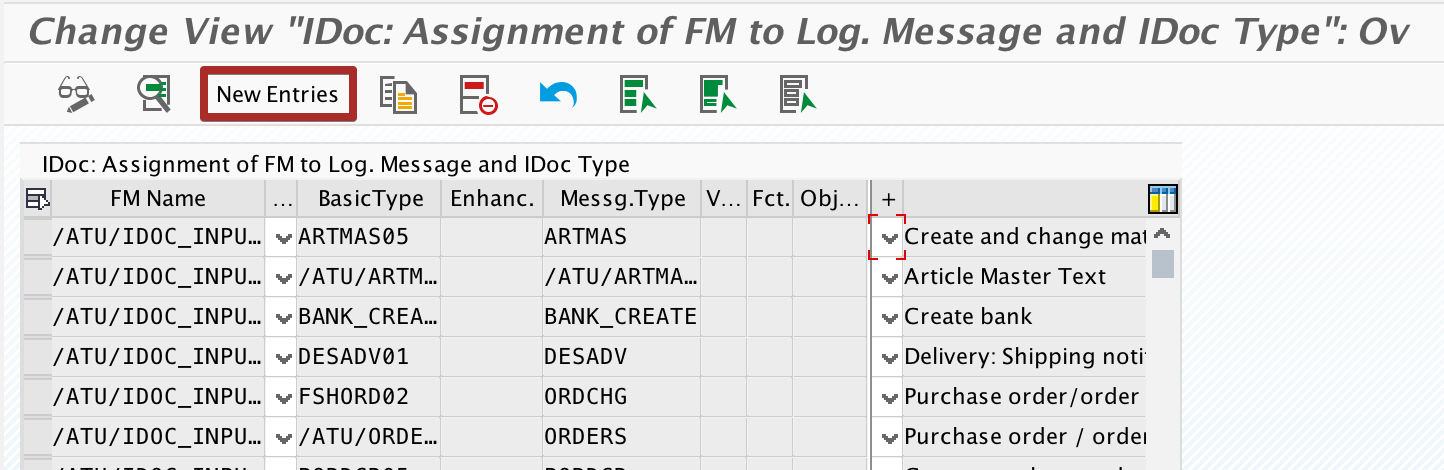
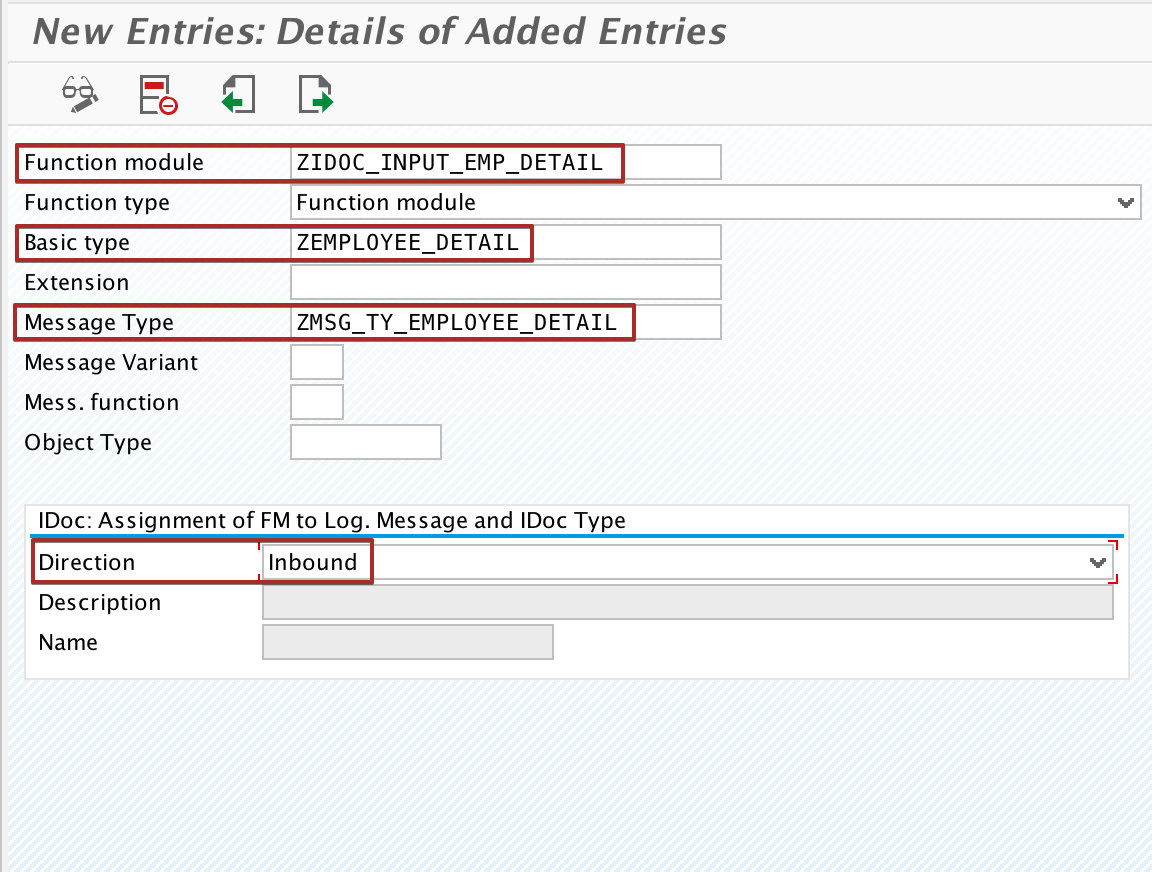
Step 9: Using Transaction bd51 Configure Characteristics of Inbound Function Module.
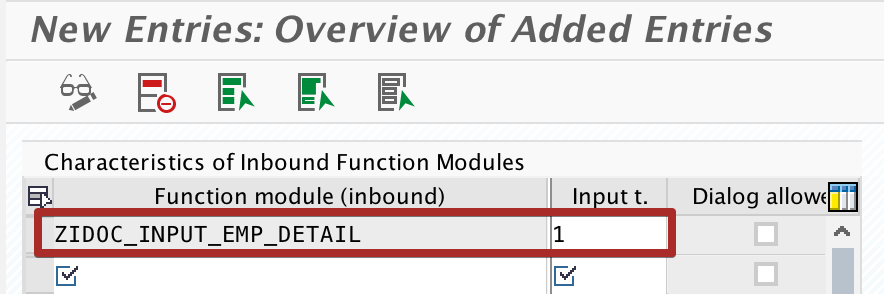
Step 10: Create Inbound Process Code in Transaction we42.
Create inbound process code ‘ZEMP_DETAIL_POST’ using custom iDoc Function Module created in step 7 and assign the Logical Message ‘ZMSG_TY_EMPLOYEE_DETAIL’ to Process Code.
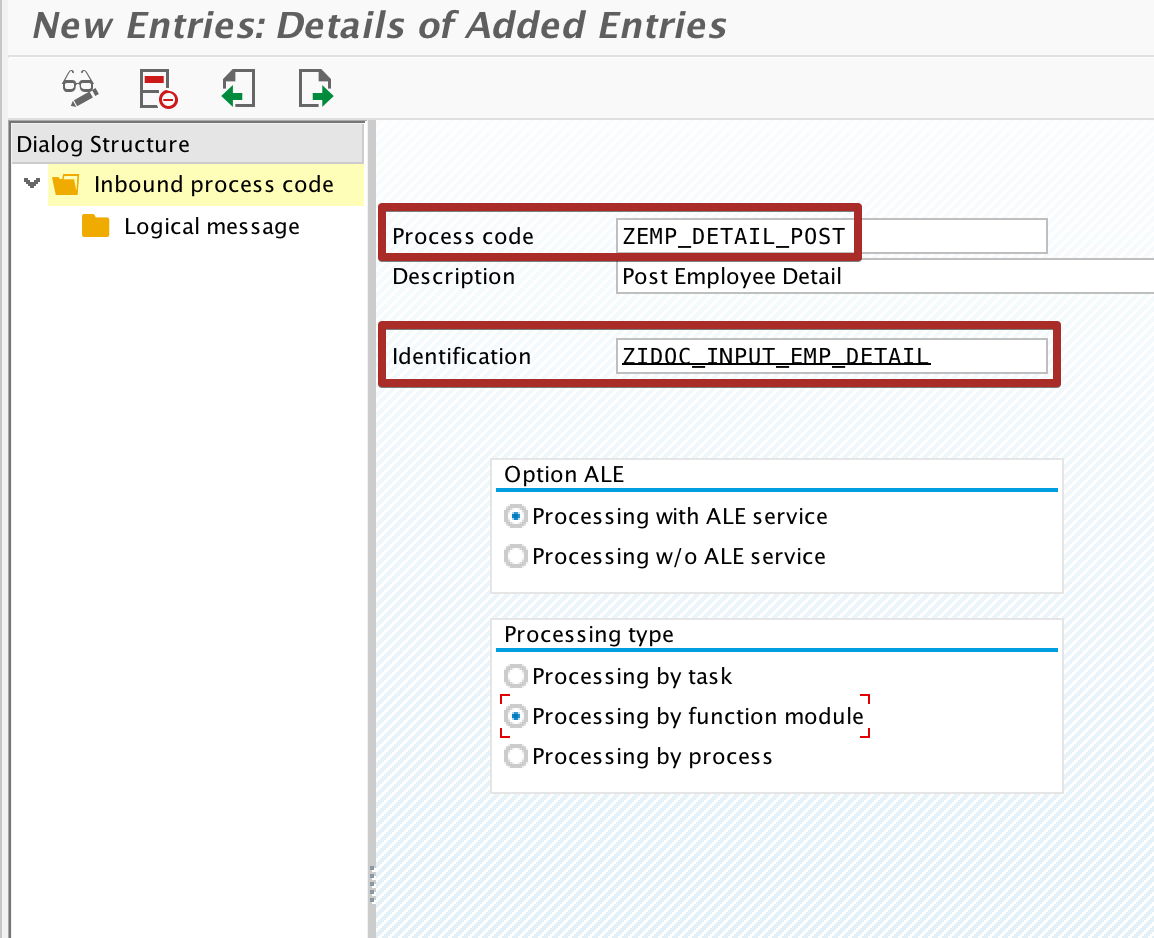
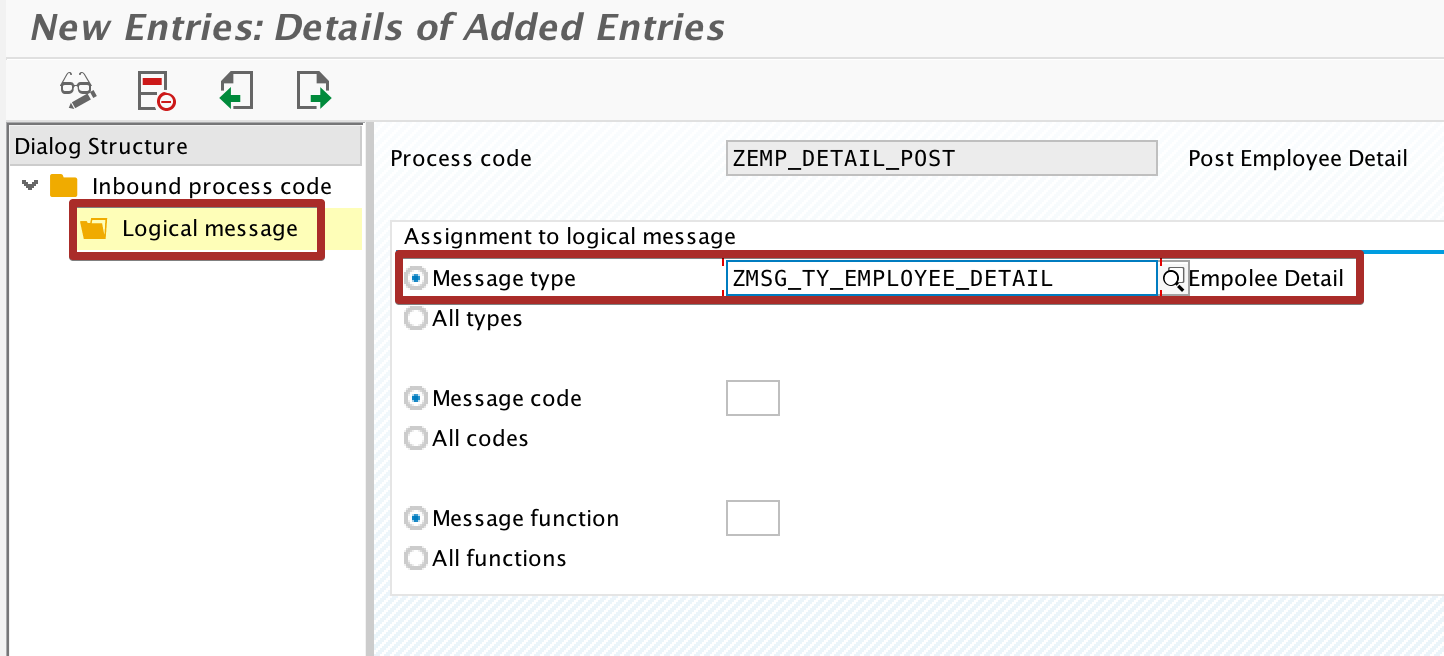
Step 11: In Transaction we20 Create Partner Profile.
Create Partner Profile in transaction we20 with the same name of the Logical System we had registered in Step 1.
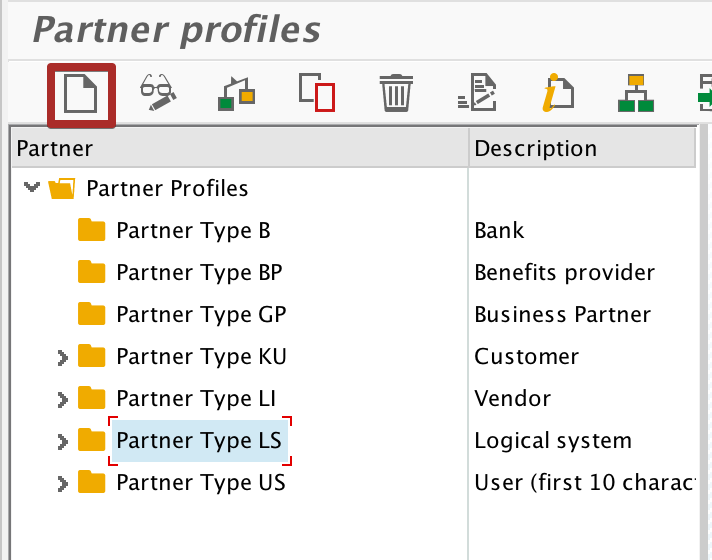
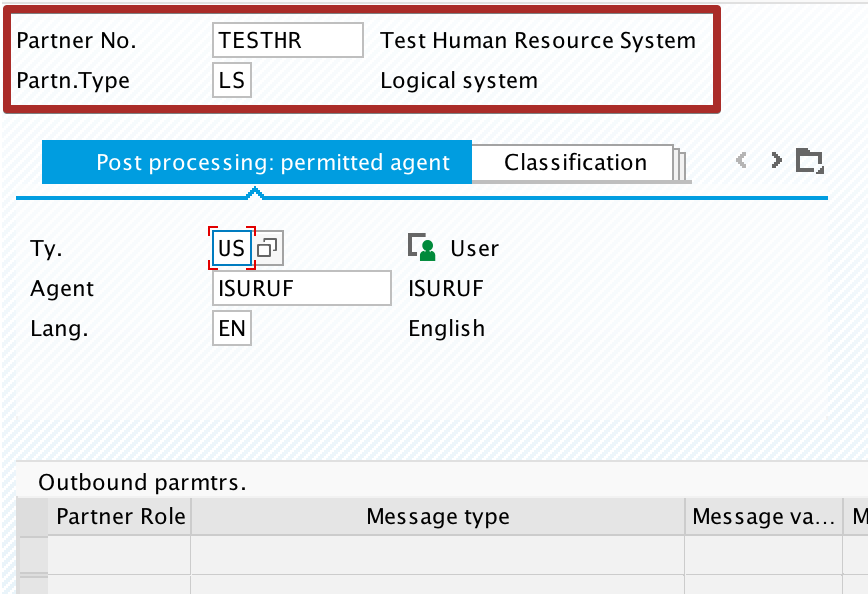
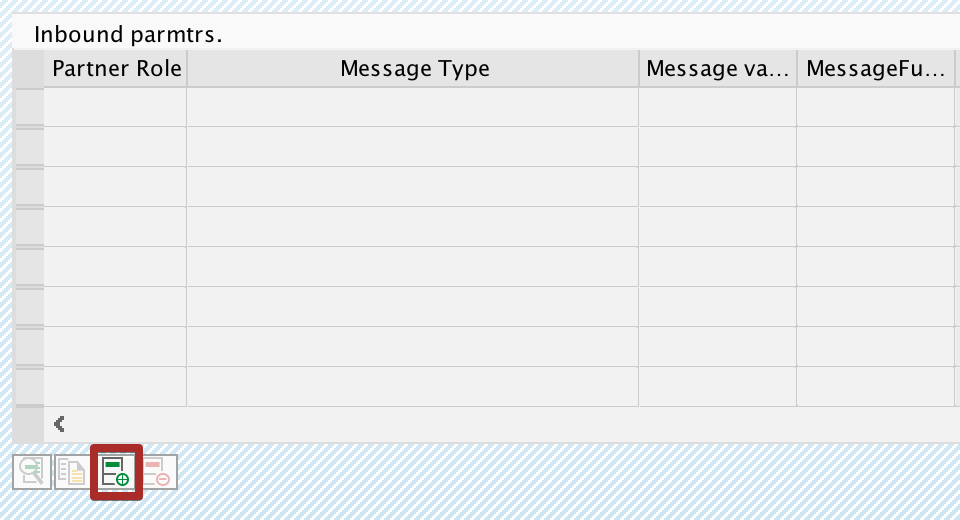
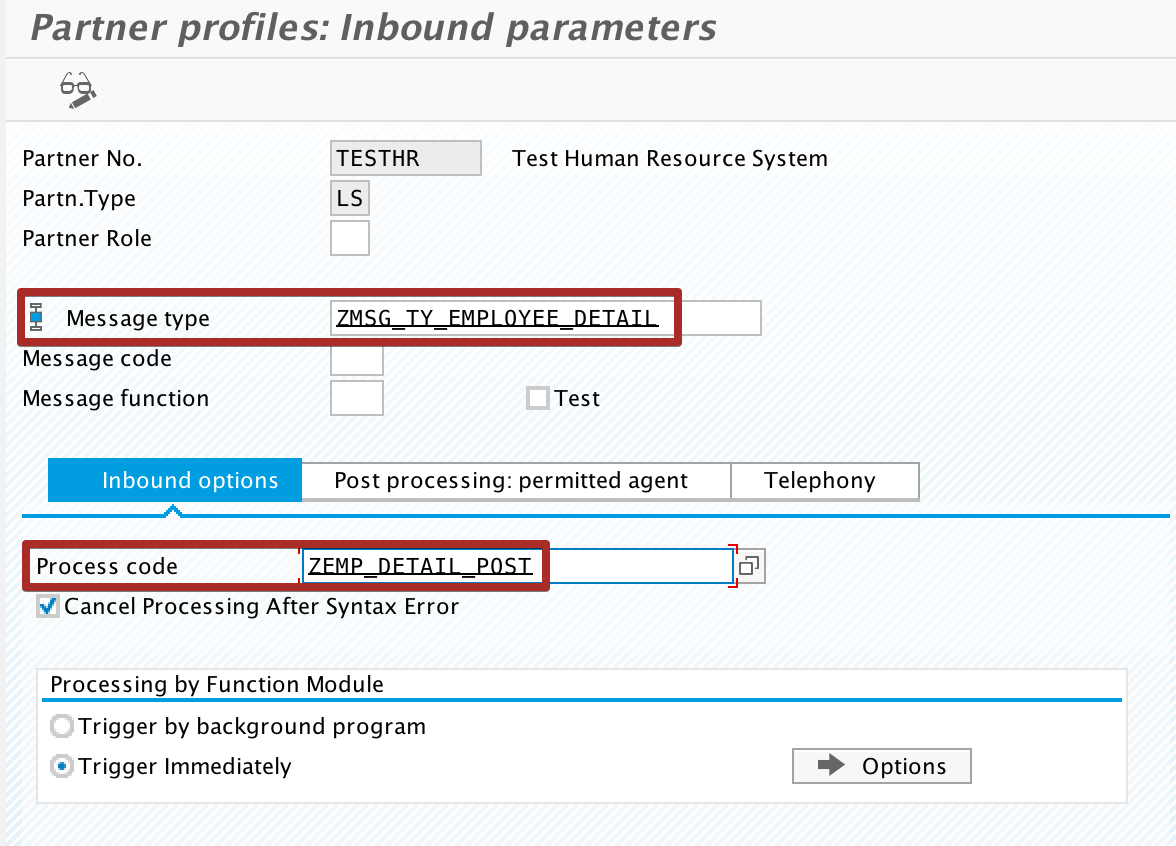
Step 13: Configure Inbound Parameters of Partner Profile using Transaction we20.
Configure Inbound Parameters with the Custom Message Type. Then assign the custom Z process code created in previous steps.
Step 12: Using iDoc Test Transaction we19 Create Test iDoc.
To test the newly created custom iDoc type, use transaction we19 and select test using ‘Basic Type’.
Fill data to the iDoc segment by double-clicking on each segment and executing the iDoc using ‘Inbound Function Module’ option.
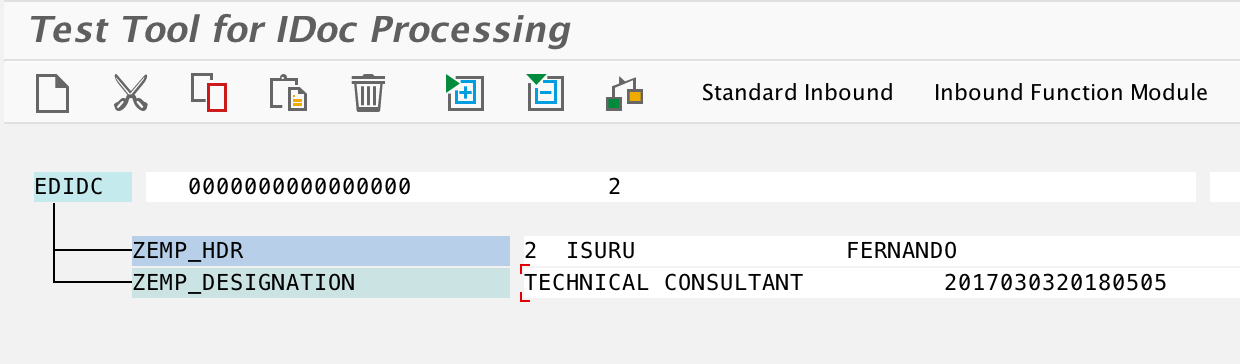
You can check the status of the iDoc created in we02 or we05.
Please leave a comment if you have any questions about Custom iDoc Creation steps.
The post How to Create and Configure Custom iDoc Type in SAP appeared first on SAP Integration Hub.