


Lets look how to transport LSMW Objects between clients.
LSMW (Legacy System Migration Workbench) is a tool that supports legacy system data migration to SAP systems. Legacy data can be imported, transformed and saved to SAP via iDocs, BAPIs, Batch Data Input (BDC) or as Direct Input.
This article discuss ways you can transport LSMW objects between systems. If you are looking for more detail on LSMW and how to develop data migration scenarios, check my step by step guide on BDC LSMW configuration.
You can transport LSMW in several ways.
File Export and Import Method.
Transport Using Transport Requests.
Step by Step Guide on How to Transport LSMW Objects using Each Method.
Method 1: File Export and Import.
Step 1: Select LSMW Project and Objects.
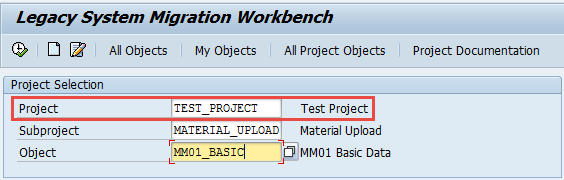
Go to transaction LSMW in your source client and select the project.
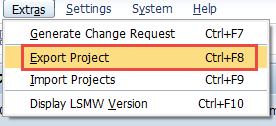
Select “Extras>Export Project” from main menu area.
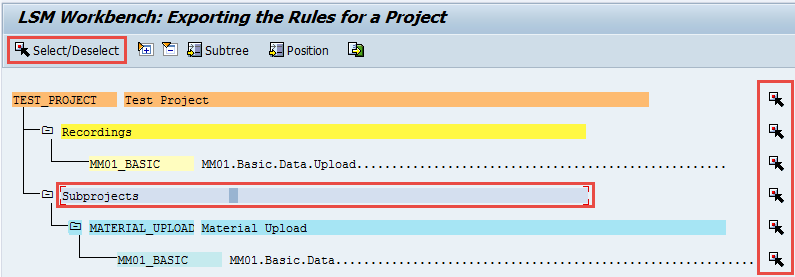
Select the objects you intend to transport. You can select which recordings, sub-projects you want to transport by clicking on node area or by selecting “select/deselect” option.
Step 2: Export Selected LSMW Objects to Text File.
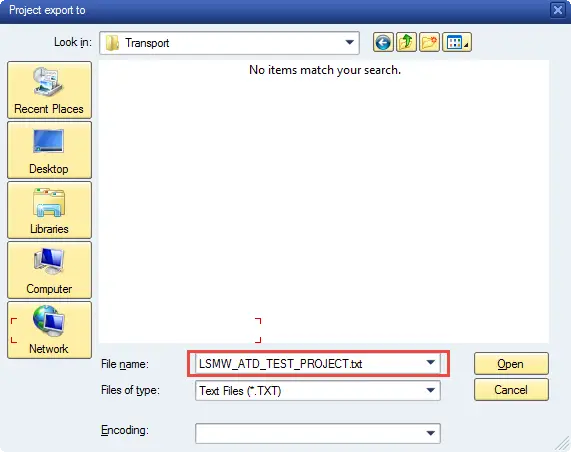
Select “Export” option.

Save files to local location.
Step 3: Import LSMW Files at Target Client.
Now execute transaction LSMW in your target client.
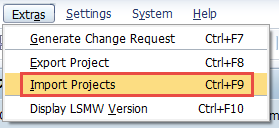
Select the exported file in the previous step using “Extras>Import Project” menu option.
Method 2: Transport LSMW Objects using Transport Requests.
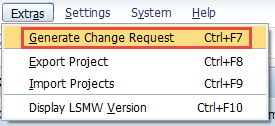
Simply attach the project to transport request using menu area “Extras>Generate Transport Request”.
Then release the created transport requests and transport them accordance with company’s change management rules and regulations.
If you require more information on any of the steps discussed here, please leave a comment.
The post How to Transport LSMW Objects? appeared first on SAP Integration Hub.