


Let’s discuss how to install and set up NWDS version 7.5 for PI/PO development. Although this is a simple guide on how to set up NWDS, it will be helpful for PI/PO developers who only worked with PI/PO swing clients and for people who are new to PI/PO space.
SAP Versions used in the illustration:
SAP S4 HANA Fashion 1709
SAP PO 7.5
NWDS 7.5 SP11
Follow the steps below to install NWDS and configure it for PI/PO development.
Step 1 – Download Netweaver Development Studio
Download NWDS from SAP marketplace using a S-user. The file size of the latest 7.5 SP11 version I downloaded is about 2 GB.
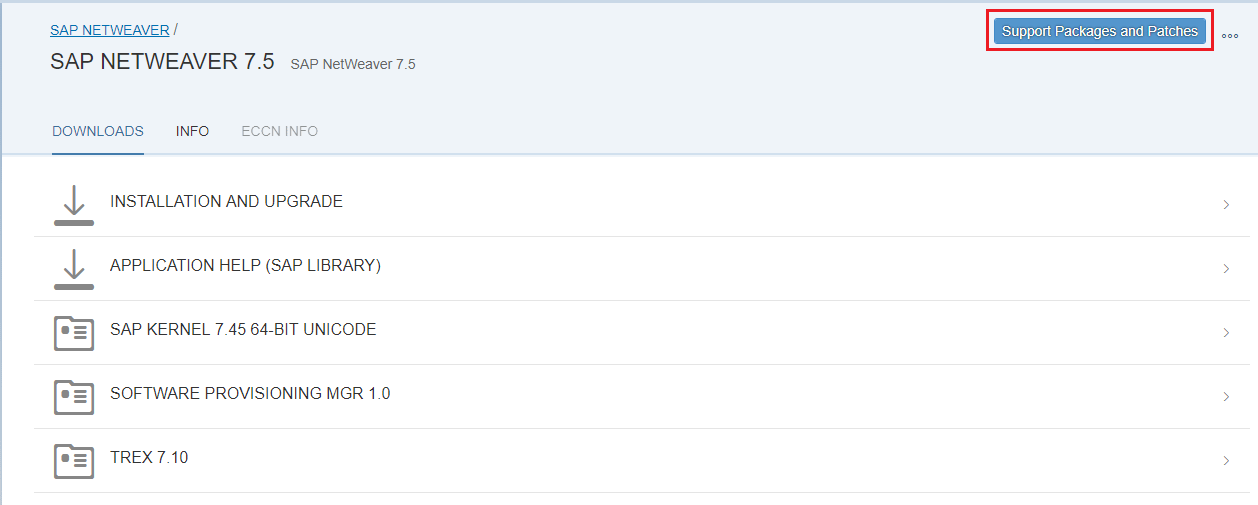
To download NDWS 7.5 Go to link https://launchpad.support.sap.com/#/softwarecenter and follow,
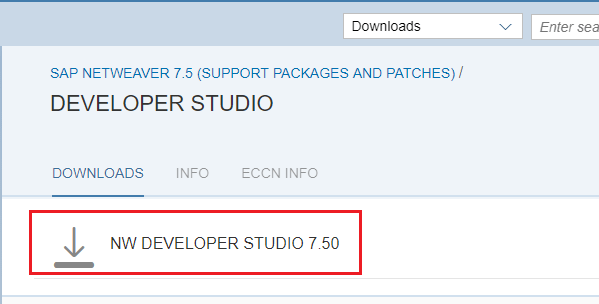
By Alphabetical Index (A-Z) -> N -> SAP NETWEAVER -> SAP NETWEAVER 7.5 -> Click on the blue “SUPPORT PACKAGES AND PATCHES” button at the top right corner -> DEVELOPER STUDIO -> NW DEVELOPER STUDIO 7.5
Step 2 – Install JDK
Download and install JDK. I have installed JDK version 1.8.0_162.
Step 3 – Configure eclipse.ini
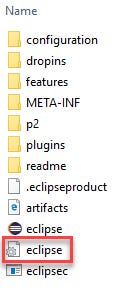
We need to configure the .ini file with the javaw.exe file location. Usually this file is under C:/Program Files/Java/<JDK version>/bin folder. Find the location where JDK is installed in your local machine if you can’t find it in the default location.
Edit the .ini file in notepad and assign the javaw.exe file location as shown below. I have highlighted the lines I added to the eclipse.ini file.

Step 4 – Configure NWDS Connections
Now configure NWDS connections preference to your PI/PO server.
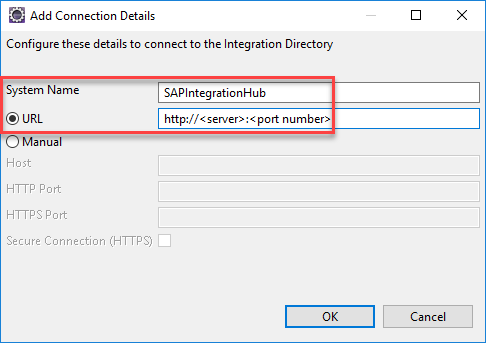
Go to Process Integration > Change Preferences > PI Tools Configuration > Connections and add a new connection.
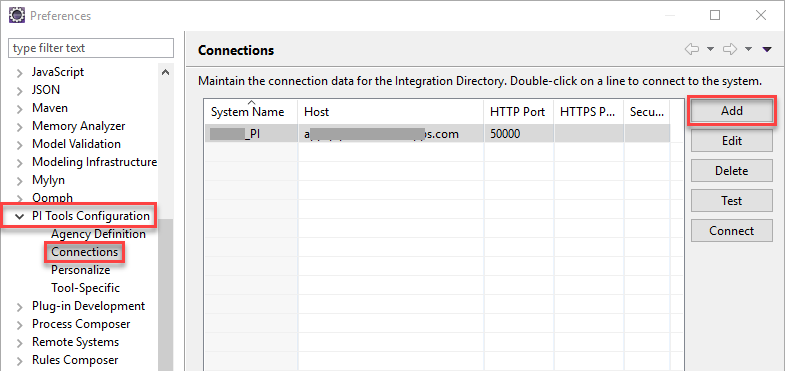
Assign the URL in format http(s)://<host>:<port number>.
Step 5: Connect Your PI/PO Server from NWDS
Using the “Connect” button connect to the new PI/PO server added in previous step.

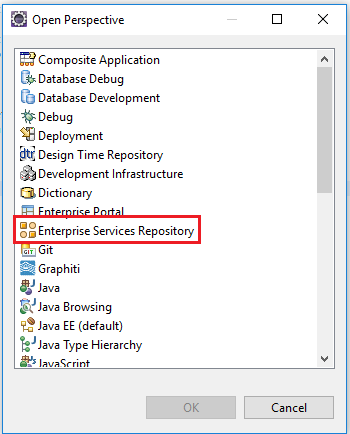
To access ESR and ID perspectives use the menu path Windows -> Perspective -> Open Perspective -> Other
Access Enterprise Service Repository (ESR)
To access ESR perspectives use the menu path Windows -> Perspective -> Open Perspective -> Other -> Enterprise Service Repository
Access Integration Directory (ID)
To access ID perspectives use the menu path Windows -> Perspective -> Open Perspective -> Other -> PI Explorer
Now you can carry out developments directory in NWDS, and objects will be reflected in swing clients.
Common Issues and Troubleshooting Steps
While installing NWDS over the years on different laptops, I came across some common issues. Here are some of these issues and how to fix them.
Issue 1 – Eclipse Executable Launcher Unable to Locate it’s Companion Library
Usually, this issue pops up if the NWDS zip file downloaded from the marketplace is not unzipped properly. Also, it can be due to long file paths of Eclipse libraries.
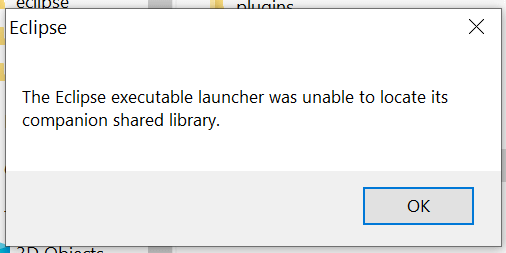
When unzipping the content of the NWDS zip file, use WinRAR instead of the Windows extract option or WinZip. I used WinRAR Portable Version.
Also, extract the content of NWDS directly to your C: drive. If you extract the NWDS to a path like C:/<user>/Desktop/NWDS, the file path could be too long for the launcher to handle. Therefore, install NWDS directly in C: drive in a path such as C:/NWDS. You can always create a shortcut of the launcher on the desktop.
Issue 2: Unsupported JVM Version
Full description of this issue is as follows,
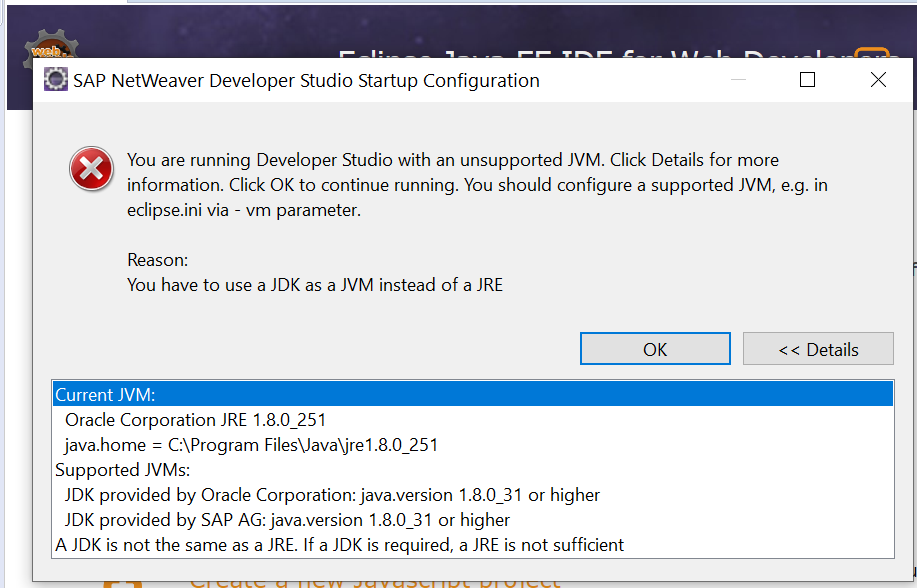
To fix this issue, you need to update the eclipse ini file with the JDK bin folder and javaw.exe file path. This is illustrated in Step 3 of this article.
If you have any questions of how to install NWDS for PI/PO development, please leave a comment below.
The post How to Install NWDS for PI/PO appeared first on SAP Integration Hub.