


In the article, I will show you how to develop, configure and test a plain EDI to iDoc integration scenario step by step using B2B Integration Cockpit (Add-on). Not only will we configure an example EDI file to iDoc interface, but also look at the advantages of using B2B Integration Cockpit; prerequisites for B2B integration; ways of monitoring/testing B2B Integration scenario; and the use of other EDI message formats.
The topics covered under this article are as follows,
Advantages of using B2B add-on for plain EDI Scenarios
Prerequisites for implementing EDI integrations using B2B Cockpit
Example B2B integration scenario overview
Step-by-step plain EDI to iDoc interface development guide
Testing and monitoring a plain EDI to iDoc integration Scenario
Other EDI Message Formats and B2B Integration Cockpit
Advantages of Using B2B Integration Cockpit (Add-on) for Plain EDI Integration Scenarios
There are multiple advantages of using B2B Integration Cockpit for EDI integration instead of traditional integration methods.
A few of the main advantages of B2B Add-on are,
Reusability of standard EDI message types
Central repository for all custom content conversions
Functionality provided by EDI separator
Trading Partner and Number Range Objects (NRO) management
Reusability of Standard EDI Message Types
With the installation of B2B Integration Cockpit (Add-on), SAP provides a collection of standard EDI formats that can be reused in integration scenarios. Using EDI content manager you can access these standard EDI messages in formats Edifact, EANCOM, Ansi X. 12, Odette, Tradacoms, and VDA.
Go to the message editor in the EDI content manager to view EDI message types and versions provided under each EDI format.
Central Repository for All Custom Content Conversions
EDI content manager of the B2B Add-on allows us to manage all content conversions from one central location. Whether we are talking about delimited files, fixed-length files or other EDI formats, content conversion modules to transform these file formats into XMLs can be built and managed under one central location. This method is a much more organized way of keeping different file formats integrated than using the adapter module content conversion method.
Functionality Provided by EDI Separator
EDI separator (a B2B Add-on’s component) provides valuable functionality such as splitting bulk EDI files and generating 997 EDI acknowledgments.
Trading Partner and Number Range Object (NRO) Management
Organizations can now manage all EDI partners integrated via the EDI Tradepartner platform of the B2B Integration Cockpit.
Most EDI integration requires sequential number ranges to represent EDI data segment values. Using B2B cockpits Number Range Object (NRO) functionality, organizations can manage these number ranges efficiently.
Prerequisites for Implementing EDI Integrations Using B2B Cockpit
Before you can configure EDI integrations via B2B Integration Cockpit make sure,
B2B Add-on is installed in SAP PI/PO
Business Systems are configured in SLD
iDoc connectivity is set up
NWDS is installed and connected (Optional)
Prerequisite 1 – B2B Integration Cockpit (Add-on) Installed
B2B Add-on is compatible with SAP PI or PO versions higher than 7.1. Ever since the inception of B2B Add-on in 2012, the tool required a separate license. The good news is since the release of SAP Process Orchestrator SP4 B2B Integration Cockpit does not require an individual license.
Although SAP included the license of B2B cockpit, before you can start developing interfaces, you still need to install the components of B2B Integration Cockpit such as B2B Toolkit, B2B Mapping Kit, and EDI runtime content. If you are yet to install the B2B cockpit in your PI/PO system, follow the B2B Integration Cockpit installation steps in my previous article.
Prerequisite 2 – SLD (System Landscape Directory) Configured
Our aim is to integrate an EDI partner with SAP back-end system. Hence, you need to register the Technical System of the SAP system in SLD. Then, configure the Business System.
Assign the SAP back-end Business System with corresponding Product and Software Component Version (SWCV).
Prerequisite 3 – iDoc Connection Established
Since we can leverage the existing ALE/iDoc functionality, this is how most EDI business processors are integrated with SAP: either as outbound iDocs from SAP or inbound iDocs to SAP. Therefore, you need to establish the iDoc connectivity between PI/PO system and back-end SAP system.
You should already have the iDoc sender and receiver Communication Channels configured. In SAP PI versions 7.31 or newer, iDoc_AEE adapter is available to configure iDoc connectivity between systems. I have given iDoc sender and receiver Communication Channel parameters in Step #6.
Prerequisite 4 – NWDS Installed (Optional)
Although installing NWDS is optional, at this point it is better to get the hang of the Eclipse tool for your interface development. Not only will NWDS make the development lifecycle more effective, but the interface development more user-friendly, too! iFlow configuration via NW BPM makes it easier to develop the Integration Directory objects. The use of NWDS for integration development is certainly the preferred method going forward.
B2B Integration Scenario Overview
In this example, we will implement an interface to integrate an EDI partner who communicates purchase orders via a plain file format with SAP. EDI partner sends plain, comma-separated CSV files from an sFTP server to PI/PO.

First, PI/PO B2B Integration Cockpit converts the plain CSV file to XML. In the next step of the integration pipeline, the converted source XML is being mapped to target iDoc structure. Finally, PI/PO iDoc_AEE adapter-receiver Communication Channel transfers the iDoc to SAP back-end system.
Purchase orders are posted in SAP S4 HANA back-end system using iDoc message type PORDCR and iDoc basic type PORDCR05.
EDI Partner (sFTP File Sender) > B2B Add-on (plain to XML content conversion) > SAP back-end system (iDoc receiver)
SAP PI/PO, SLD and B2B Integration Cockpit object names are as follows,
EDI Plain File Sender Detail:
Sender file formatComma-delimited CSVMessage sender protocolFile/sFTPEDI plain file sender Business ComponentBC_FILE_SENDERsFTP sender Communication ChannelSFTP_s_PurchaseOrderOutbound Service InterfacePurchaseOrder_Out_AsyncNamespaceurn:SAPIntegrationHub.com:PurchaseOrderSender XML’s External DefinitionEX_PurchaseOrder
iDoc Receiver SAP System Detail:
SAP Business SystemSADCLNT200iDoc Receiver Communication ChanneliDoc_rInbound iDoc Service InterfacePORDCR.PORDCR05
B2B Add-on Objects:
EDI content-typePlainControl keyCSV_to_XMLMessage TypePurchaseOrder
Cross Component ESR Objects:
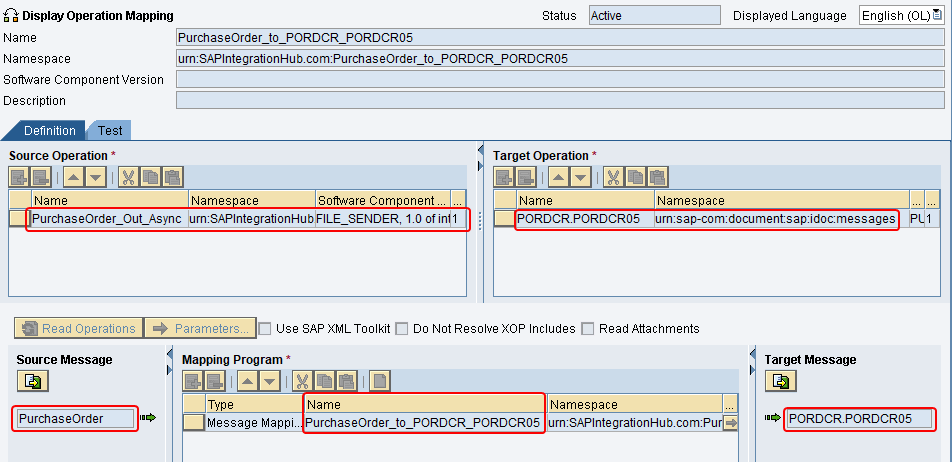
Message Mapping namePurchaseOrder_to_PORDCR_PORDCR05Operation Mapping namePurchaseOrder_to_PORDCR_PORDCR05
B2B Interface Development Steps in Detail
Let’s look at how to build a plain CSV to iDoc B2B integration scenario using the B2B Integration Cockpit in detail.
Configure B2B plain to XML Content Conversion
Import XSD to ESR
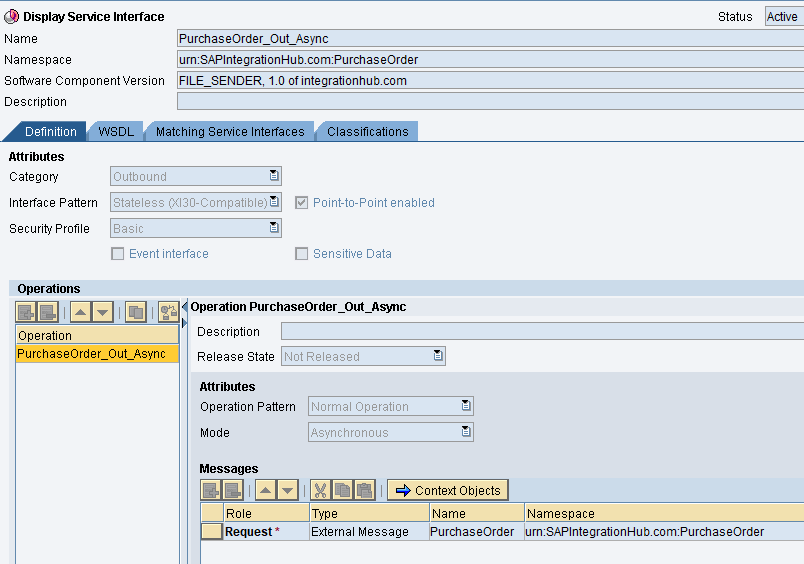
Create File Sender Outbound Service Interface
Import iDoc Metadata to Sender SWCV
Define Message Mapping between B2B Converted XML to iDoc
Configure Sender and Receiver Communication Channels
Build the Integration Scenario using iFlow
Step 1: Configure B2B Plain to XML Content Conversion
The very first step of the integration development is to build an EDI content conversion module in B2B Integration Cockpit. In this example, we need to create a custom plain to XML converter module.
Steps to create a custom plain to XML content conversion in B2B Add-on are as follows,
Create a Control Key Association
Define Message Type (PurchaseOrder)
Generate a Set (Row Types) of the Message
Add Fields to Sets
I have illustrated the content conversion steps in detail in my previous article.
Using this plain converter module in B2B we can transform the custom EDI CSV file format to XML. We will be mapping the converted XML format to iDoc in the Message Mapping program.
Step 2: Import XSD to ESR
Now that we have generated the converter module, we need to obtain the XSD schema of the XML generated after the B2B conversion. This XSD will represent the sender Message Type (External Definition) in the file sender Outbound Service Interface.
Generate the XSD via EDI Content Manger
To generate the XSD, first, go to EDI Content Manager in B2B Integration Cockpit and select the Control Key ‘CSV_to_XML’ of the content conversion module with the Message Type ‘PurchseOrder’. Then, choose option plain>XSD-Generator from the main menu.
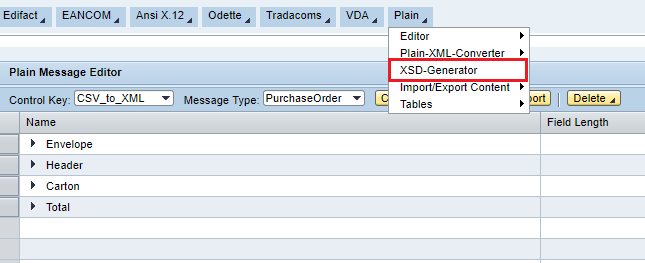
In the next screen, select the Control Key name and plain Message Type of the content conversion module we configured in Step 1. In the same screen assign the Namespace and the XSD root element name.
I will assign the Outbound Service Interface Namespace ‘urn:SAPIntegrationHub.com:PurchaseOrder’ as the Namespace and XSD root element can be PurchaseOrder.
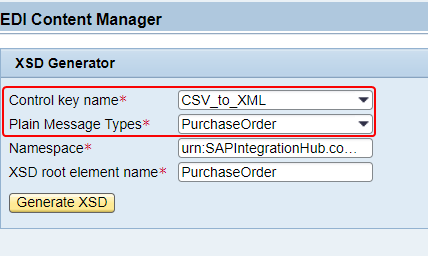
Now hit the ‘Generate XSD’ button, and the system will display multiple options for you to either download or display the generated XSD. Download the XSD schema file to your local PC.
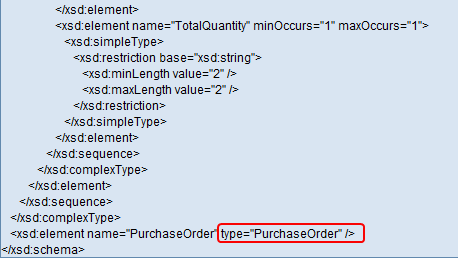
Tip and Trick: XSD generated from the EDI Content Manager will contain ‘Plain’ as the type of the root element of the XSD.

You cannot create an External Definition directly from the XSD generated by the B2B Add-on. Before you can upload the XSD to ESR, you must change the type of the XSD element to ‘PurchaseOrder’ and remove the text ‘Plain’.
Create External Definition Using the Generated XSD
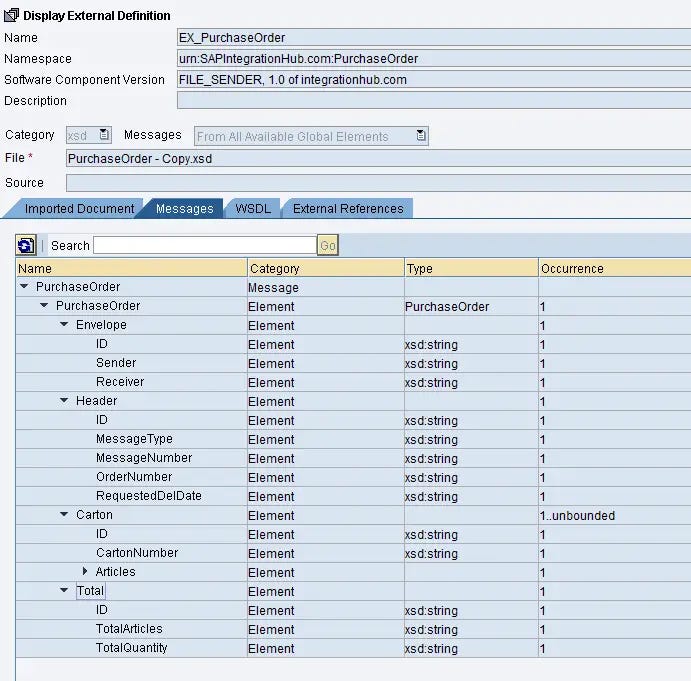
Import the generated XSD (after adjusting the type) as an External Definition in ESR.
Step 3: Create File Sender Outbound Service Interface
Build the Outbound Service Interface for the Purchase Order EDI file sender. The request message type of the Outbound Service interface should be the External Definition we created in the previous step.
Step 4: Import iDoc Metadata to Sender SWCV
Right-click on the target SWCV ‘Imported Objects’ navigation menu to import the iDoc metadata to ESR.

In this example, we will use the iDoc Message Type PORDCR and iDoc Basic Type PORDCR05.
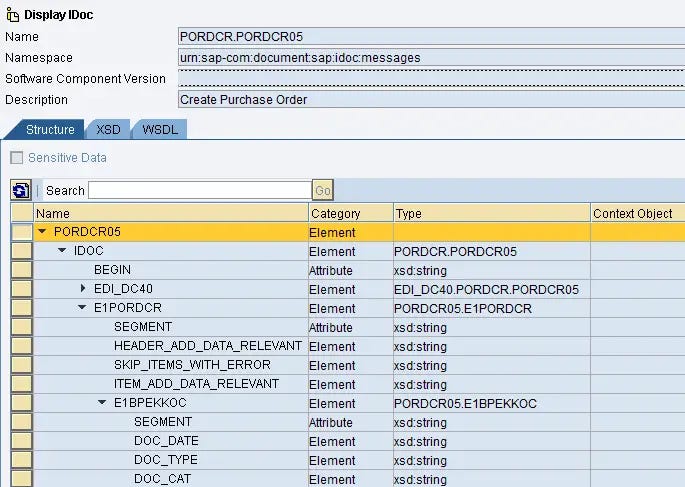
iDoc PORDCR.PORDCR05 will be the Inbound Service interface.
Step 5: Define Message Mapping Between B2B Converted XML to iDoc
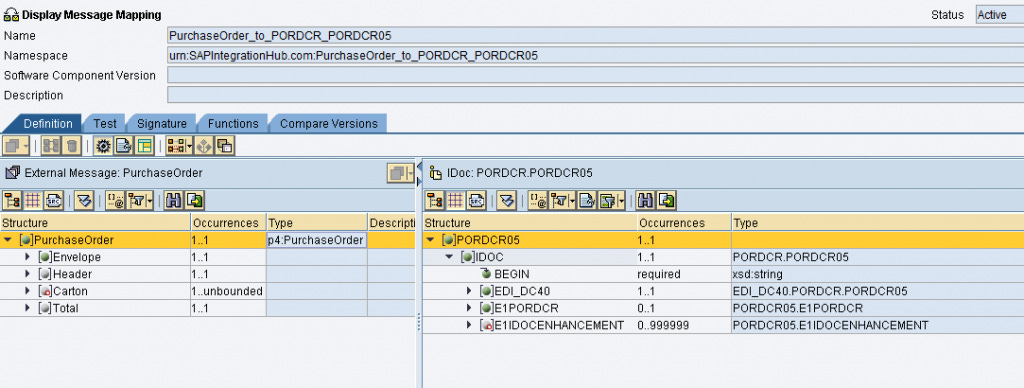
Using the sender message type which is the EDI External Definition EX_PurchaseOrder and receiver iDoc type PORDCR.PORDCR05, build the Message Mapping program between plain file format and iDoc.

Map the iDoc segments and fields as per your integration needs. If you need more information on how to define the iDoc Control Record from PI/PO Mapping program, read my previous tutorial.
Step 6: Configure Sender and Receiver Communication Channels
Let’s configure the Sender sFTP adapter and iDoc_AEE receiver to define the Communication Channels.
Sender sFTP Communication Channel Configuration
We will use Adapter Module ‘localejbs/PlainConverterModule’ to convert the plain file format to XML at the sender adapter.
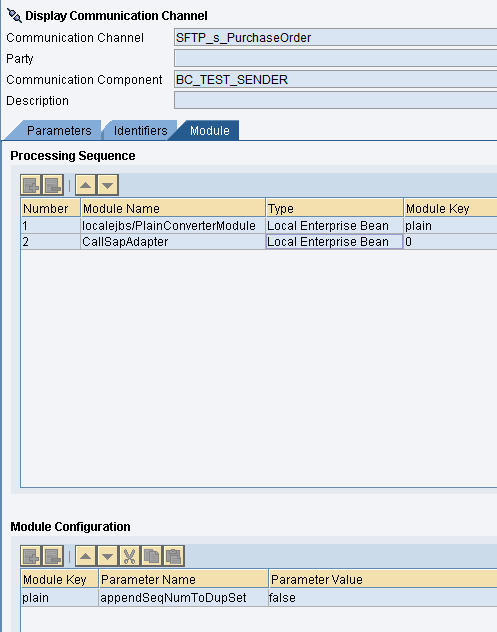
Configure the other parameters of the sFTP Communication Channel such as host, port, etc. based on your needs.
Tip and Trick: PlainConverterModule’s parameter ‘appendSeqNumToDupSet’ suppresses the B2B converter from appending a sequence number to the XML segment names of repeating rows.
When you test the EDI to XML content conversion using the EDI Content Manager, you can notice a sequence number added to repeating segments of the output XML.
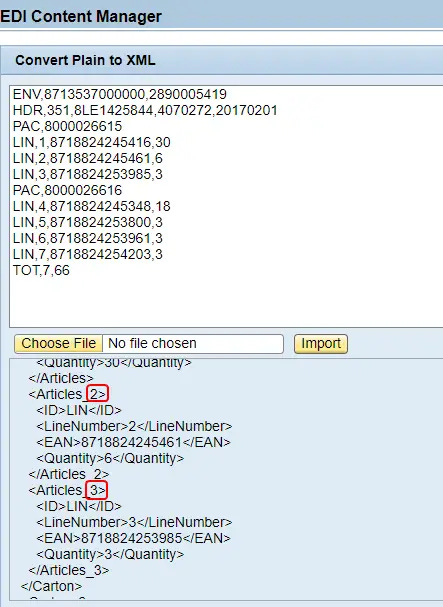
Parameter ‘appendSeqNumToDupSet’ of adapter module ‘PlainConverterModule’ suppresses the sequence number from being generated from the B2B Converter Module.
Receiver iDoc Communication Channel
Assign the HTTP destination of SAP back-end system configured in Netweaver Development Admin (NWA) to the iDoc Communication Channel.
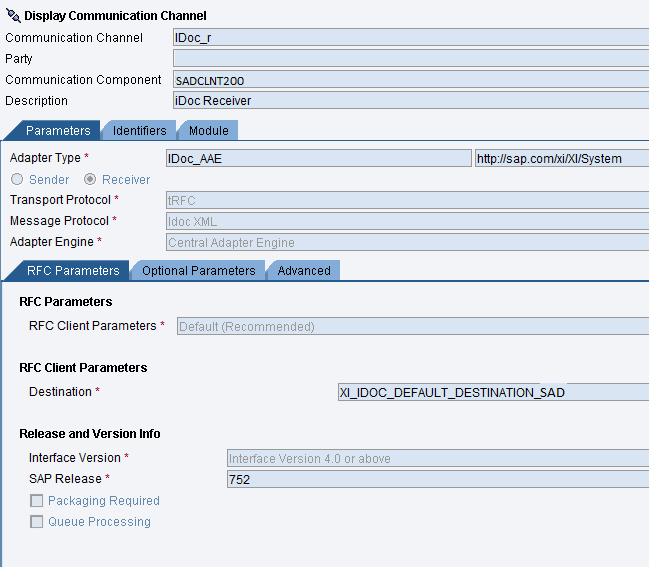
Step 7: Build the Integration Scenario Using iFlow
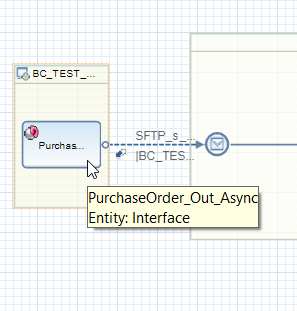
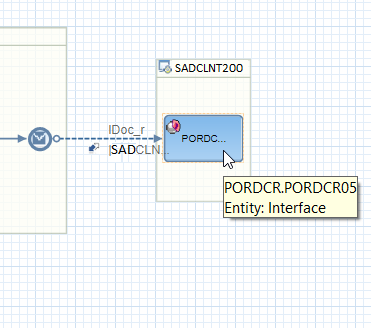
Finally, we can build end-to-end integration scenario between the plain EDI file sender system and SAP HANA back-end system. Here is how the complete iFlow created in Eclipse NWDS looks like.
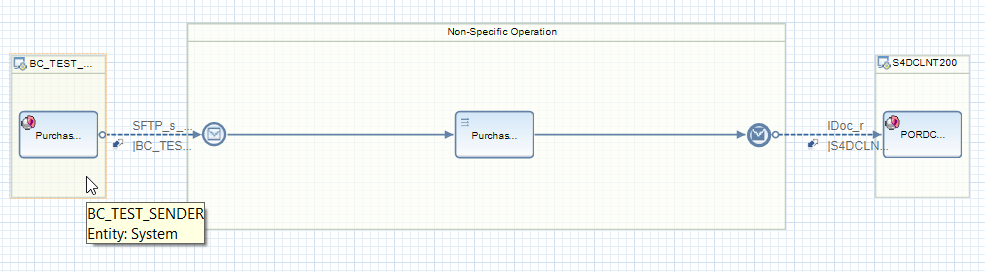
How to Test and Monitor the Plain EDI to iDoc Integration Scenario
You can test the EDI interface by completing two steps. First, we can test the EDI plain to XML convertor module using the EDI Content Manager of the B2B Integration Cockpit. Then, you can test the complete end-to-end integration by uploading CSV files to the sender sFTP server.
Test the Plain to XML Content Conversion via EDI Content Manger
Trigger the end-to-end integration from sender sFTP adapter
Issues Faced While Developing the B2B EDI Interface and How to Troubleshoot
While developing the integration scenario I came across several errors. Some of them are generic, but I thought it will be useful to list them down in case you come across similar issues.
Technical issues faced and how to troubleshoot them,
iDoc: Preparing iDoc number list for the sender failed due to Sender Partner Number not being available.
Adding control record to payload failed due to iDoc structure of the incoming message not being correct – element IDOC has no non-white space child elements.
Error before sending due to iDoc parser error.
Trouble finding a matching set-pattern.
iDoc: Preparing iDoc number list for the sender failed due to Sender partner Number not being available.
The issue was that Sender Partner was not allocated to iDoc control record field /IDOC/EDI_DC40/SNDPRN from the Sender Business Component BC_FILE_SENDER. I used the iDoc control record mapping technique dynamically setting the control record information at message processing runtime by disabling the control record fields in the Message Mapping. But Adapter Specific Identifiers were not defined correctly in the sender Business Component. Specifically, the iDoc Adapter Logical System in the Business Component was missing.
To resolve this issue, assign the Adapter Specific Identifiers to the sender Business Component or Business System.
iDoc structure of the incoming message is not correct – element IDOC has no non-white space child elements.
This issue occurs when no data segments are mapped in the target iDoc structure, i.e. the iDoc data segments were null. The same error can also occur if data segments are not correctly assigned from the mapping program. Double-check if the target iDoc data segments are mapped correctly.
Error before sending due to iDoc parser error.
If the receiver iDoc Control Record is not correctly mapped, this issue will occur.
Trouble finding a matching set-pattern.
I came across this error while testing the end-to-end EDI integration from the sender adapter by uploading a plain CSV file to the sFTP server.
When creating the plain to XML content conversion in EDI Content Manager, we configured the Message Type parameter ‘New Line’ as ‘Line Feed (Unix)’.
The conversion worked perfectly in the plain to XML convertor test tool in B2B Integration Cockpit.

However, when it comes to end-to-end testing, the error occurred. To avoid it, the line feed should be changed to ‘Line Feed (Windows)’.
Other EDI Message Formats and B2B Integration Cockpit
Standard EDI Messages
In this example, we integrated a comma-separated plain CSV file using B2B Integration Cockpit. Since the plain file format is custom, we had to define a custom content conversion module to convert the plain file to XML. But, for global standard EDI message formats SAP has already provided standard content conversions and EDI message formats which can be reused in your integration scenarios.
EDI Message Formats in B2B Add-on
Using B2B Add-on, you can build EDI interfaces with EDIFACT, EANCOM, Ansi X. 12, Odette, Tradacoms, VDA, and plain EDI message formats. Go to EDI Content Manager and select the option ‘Message Editor’ under ‘Editor’ of each EDI message format to view the standard EDI formats provided by SAP. You can reuse these Control-Key associations and EDI Message Types in B2B interfaces.
EDI Separator
If you have a scenario where integration involves bulk EDI messages, you can use EDI_Seperator to split the bulk EDI messages to individual EDI messages.
You can also use EDI separator to generate 977 EDI acknowledgments from SAP PI/PO.
If you have any questions on B2B Content Conversion, EDI Integration or B2B Integration Cockpit in general, please leave a comment below!
The post B2B Integration Scenario (EDI to iDoc) Using B2B Cockpit of SAP PI/PO appeared first on SAP Integration Hub.