


Parameterized mapping is a great way to leverage your mapping program to have multiple applications. SAP introduced this technique first in SAP PI version 7.1. Parameterized mapping allows you to transfer values to mapping program or values from the mapping program. Similar to how we use import and export parameters in a function, parameters can be added to SAP PI/PO mapping programs using parameterized mapping technique.
Parameterized mappings are supported in Graphical Message Mappings, Java Mappings and XSLT Mappings.
SAP Versions used in the illustration:
SAP PO 7.5
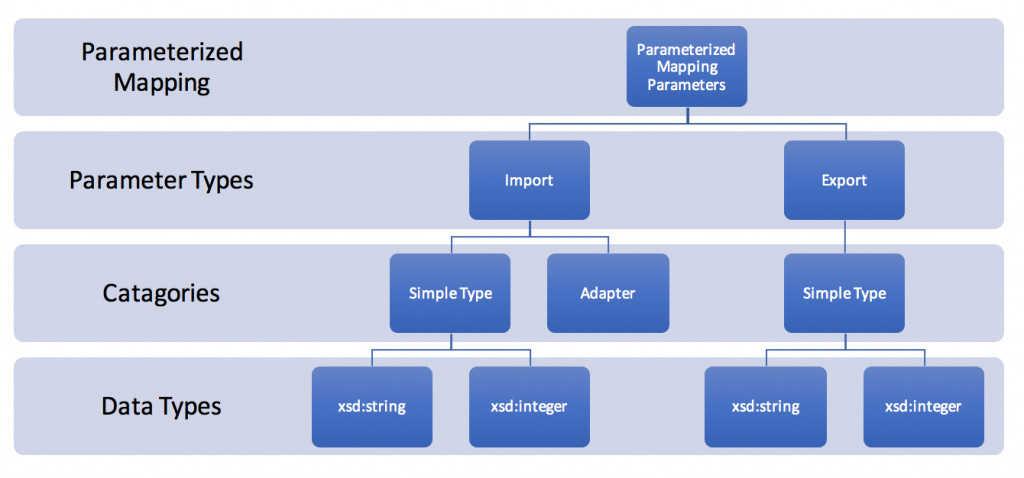
Types of Parameters in Parameterized Mapping:
Import: Values can be passed to mapping program using import parameters before the mapping program is executed. Values for import parameters can be assigned from transformation steps or interface determination.
Export: Export parameters allow us to transfer values from the mapping program after it has been executed by the integration pipeline process or by monitoring. You can only assign values to Export parameters using User Defined Functions (UDF).
Categories of Parameters in Parameterized Mapping:
Simple Type: Simple types can be used as either import or export parameters. Data types of parameters of Simple Type are xsd:string and xsd:integer.
Adapter: Parameter category “Adapter” can be only used as an Import parameter. Adapter parameters are mainly used when you are implementing a mapping lookup. For example, in a JDBC look up scenario you can set the JDBC communication channel name which is used for JDBC look up function in the interface determination.
Step by Step Guide on Parameterized Mapping Configuration:
Example Scenario:
Lets create a simple file to file scenario with two parameters. We will use the import parameter “Parameter_1” to assign a value to output data structure field “Att1“. Value for import parameter “Parameter_1” will be maintained in the Integration Configuration Object (ICO) at design time of Integration Directory.

Step 1 – Create Parameters in Mapping Program.
Go to Signature tab of the mapping program and create parameters.

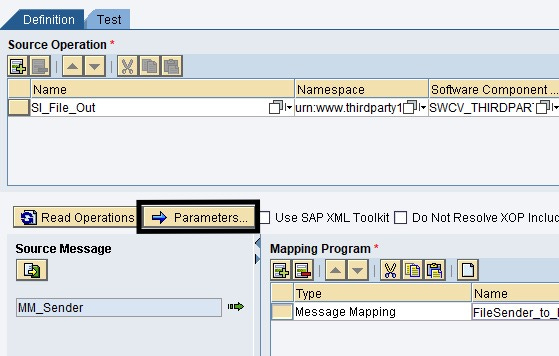
Here I have created two parameters but we will only be using import parameter “Parameter_1“.

Step 2 – Map the Import Parameter to Required Output Field.
Graphical mapping element constant can be used to assign import parameter to required output element. Select properties of constant mapping element to select the parameter name from the drop down menu.


Step 3 – Create Parameters in Operation Mapping.
Since massage mapping is executed by PI/PO runtime through a corresponding Operation Mapping, we need to create parameters in Operation Mapping and bind them or map them to message mapping parameters.
Create Operation Mapping Parameters:
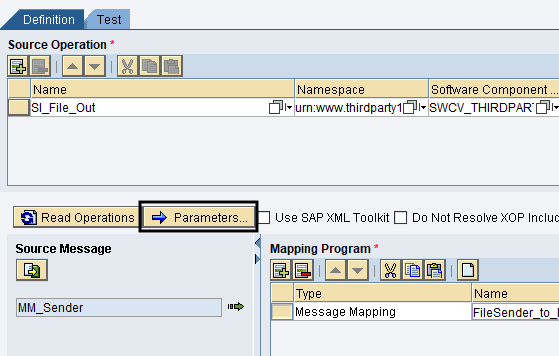
Again, we will be creating two parameters, but we’ll only use “Import_p1” import parameter for this example.

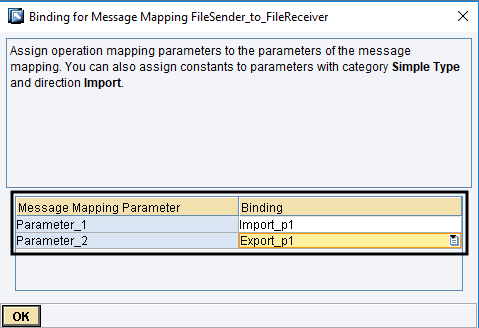
Step 4 – Bind Operation Mapping Parameters with Message Mapping Parameters.
Select binding and map Operation Mapping parameters with Message Mapping Parameters.
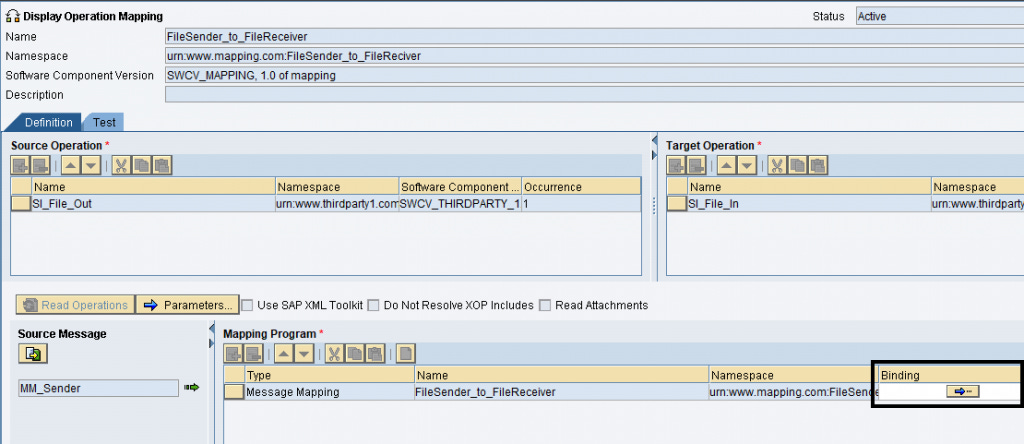
Map Message Mapping parameters with Operation Mapping parameters.
Step 5 – Set Value to Import Parameter at Design Time.
Go to Integration Directory and assign a value to import parameter in Integration Configuration Object (ICO) or Receiver Determination (in dual stack).
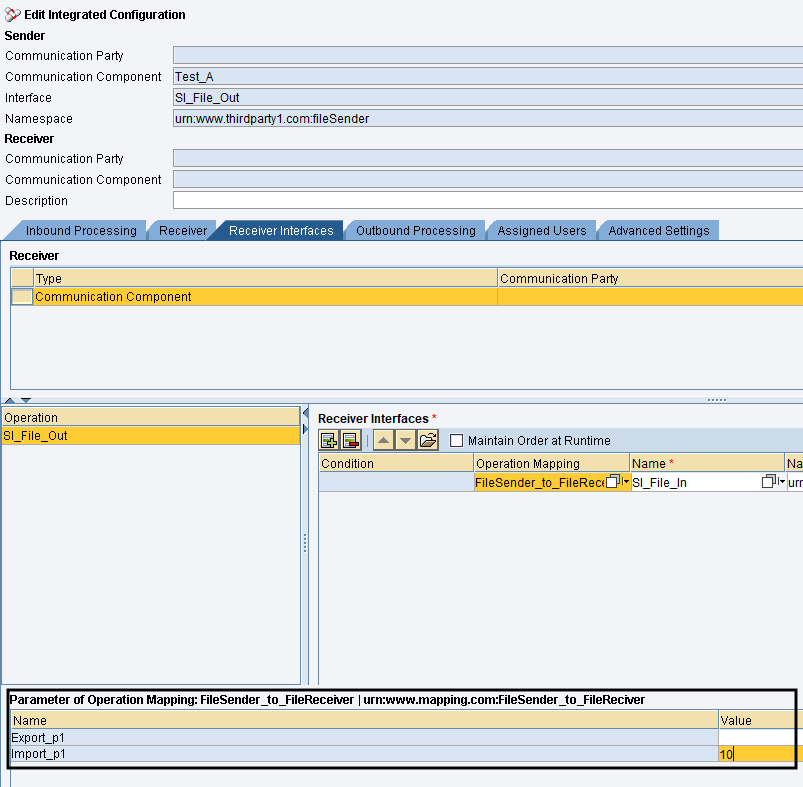
In newer Single stack version of PI or PO, parameters can be accessed under the Receiver Interfaces tab of Integration Configuration Object (ICO).
Let’s assign constant value “10” to import parameter “Import_p1” which is mapped to Message Mapping parameter “Parameter_1”.
Test Result:
Test message.
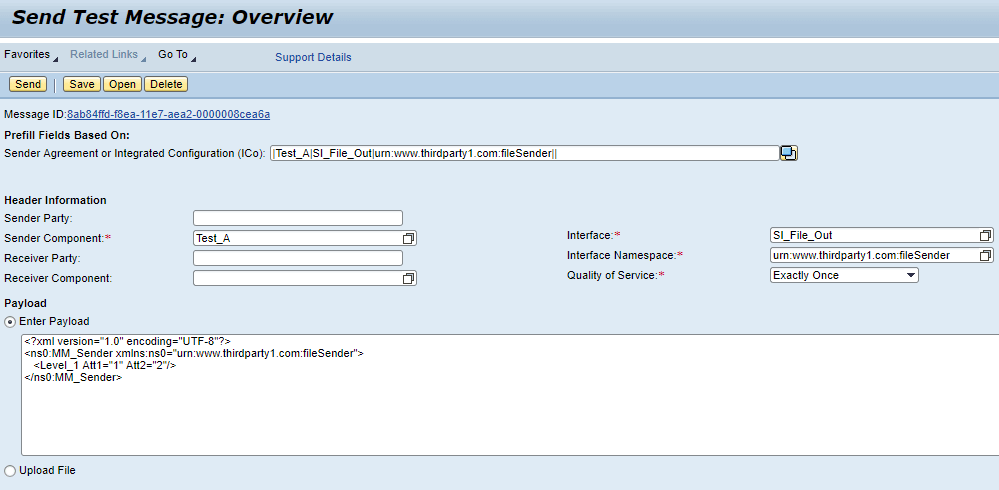
Value “10” maintained in the ICO for Import parameter ‘Import_p1‘ is assigned to attribute “Att1”.

If you have any questions about Parameterized Message technique or need clarifications on any of the steps, please leave a comment below.
The post Parametarized Mapping Example in SAP PI/PO appeared first on SAP Integration Hub.