


Let’s look at how to register an ABAP back-end systems in SAP Netweaver System Landscape Directory (SLD). After your BASIS team registers the Technical System of the SAP ABAP system in SLD, you have to take a few steps to make it usable in Integration Scenarios.
SAP Versions used in the illustration:
SAP PO 7.5
Prerequisites to Register SAP ABAP System:
ABAP back-end system should be registered as a Technical System by BASIS team. Technical Systems are usually registered in naming convention format <System ID>CLNT<Client Number>.
Steps to Register SAP ABAP Back-End System in SLD:
Register Product of the ABAP System.
Register Software Component Version of the Back-end system.
Assign Software Component created to the Technical System.
Register Business System of ABAP Technical System.
Import Business System to Integration Directory (ID).
Import Software Component Version to Enterprise Resource Repository (ESR).
SAP ABAP System Registration Steps in Detail:
Step 1: Register Product of the SAP ABAP System.
There are different types of SAP Systems. They range from SAP Human Resources Management System (HRMS) to SAP Apparel and Footwear Solution (AFS) to SAP Master Data Management (MDM). Depending on the SAP product you are trying to install in SLD, choose a meaningful name for the Product in format <Company> <Product Name> or <Company> SAP <Product Name>.
Let’s assume that Technical System of the HRMS system is registered by BASIS team as HRMCLNT200.
<Company> is the name of the company which owns the SAP product. For example, if you are registering the SAP HRMS system of Nike, you can name the product as ‘NIKE HRMS’ or ‘NIKE SAP HRMS’ version 1.0 of nike.com.
Go to http://<host>:<port>/dir and select System Landscape Directory (SLD).

Choose Products.

Click ‘New’.

Select the Action type as ‘Create New product and Version’.

Maintain values for Product Name, Product Vendor and Product Version.

Assign Instance Name.
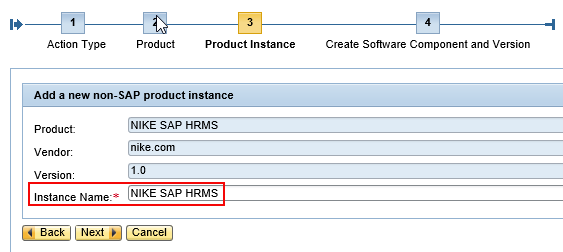
Click “Next” and maintain the detail of the Software Component Version.
Step 2: Register Software Component Version of the SAP ABAP Back-End System.
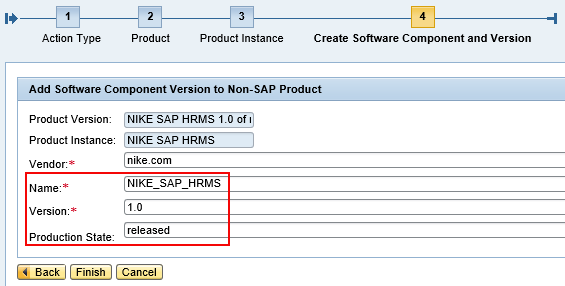
A Product can have different Software Component Versions. Register the Software Component Version in format <Company>_SAP_<Product Name>. For example Software Component Version for Nike HRMS system can be created as ‘NIKE_SAP_HRMS’ version 1.0 of nike.com.
Step 3: Assign the Software Component Created to Technical System.
Assign the Software Component Created in Step 2 to Technical System of the ABAP back-end system.
Let’s assign ‘NIKE_SAP_HRMS version 1.0 of nike.com’ to Technical System HRMCLNT200.
Go to Technical Systems in SLD.

Select the Technical System (HRMCLNT200) of the ABAP back-end and go to ‘Installed Software’ tab.
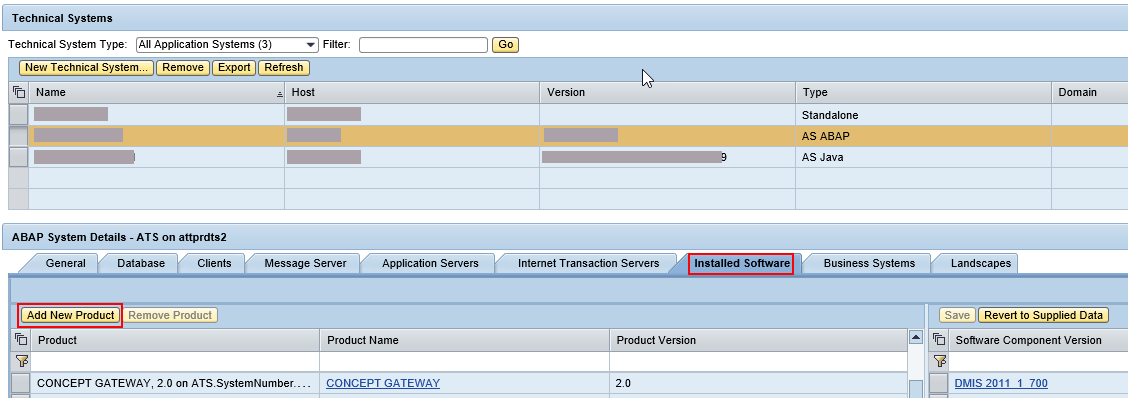
Select the Software Component Version registered in Step 2. Maintain it as Installed.

Save the changes to Technical System.
Step 4: Register Business System of SAP ABAP Technical System.
SAP systems with tangible Technical Systems installed in the System Landscape should be set up as a Business Systems. Other third party systems which are outside of your System landscape should NOT be registered as Business Systems in the SLD. They should be created directly in Integration Directory as Parties and Business Components.
SAP Business Systems can be named as <System ID><Client Number>_<Stage>. <System ID> is the unique System Identification Number and <Stage> can be either D, Q or P. D for Development, Q for QA system and P for Production system.
Let’s register HRMS Business System of HRMS Technical System HRMCLNT200 as HRM200_D. Maintain the correct ‘Business System Group’ under Transport tab.

Select New Business System.

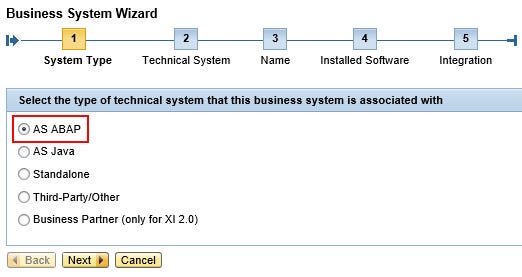
Select Technical System Detail of the Back-end ABAP system. In this example, the name of the Technical System is HRMCLNT200. Therefore System will be ‘HRM’ and Client will be 200.

Assign the name of the Business System.

Select Installed Products from the list of products. Since we assigned the Product and Software Component to the Technical System in Step 3, they will be inherited automatically to the Business System. Deselect any product you do not want to assign to the Business System.
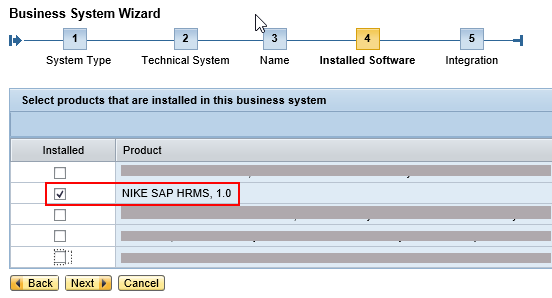
Select the Integration Server of the Business System. Assign the Development Integration Server to Development Business System HRM200_D and Quality Integration Server to HRM200_Q. This is also related to Transport Groups. PI/PO determines the corresponding Business System names from a combination of Transport Groups and Integration Server assigned to the Business System when you transport Integration Directory objects from one landscape to another. For example when you transport from Development environment to quality environment, HRM200_D should be converted to HRM200_Q in quality server.

Step 5: Import Business System to Integration Directory.
Go to Integration Directory and Import Business System Created in step 4.
Right Click of Business System and Select ‘Assign Business Systems’.

Select the Business System from drop down menu. If you cannot view the Business System created in Step 4 in the list, clear SLD cache. To do that, go to Environment in the main menu of Integration Directory and select ‘Clear SLD Date Cache’.

Activate Business System.


Go to Adapter Apecific Identifiers of the Business System to confirm Logical System of the iDoc adapter is correctly configured.
Step 6: Import Software Component Version to Enterprise Resource Repository.
As a final step, let’s import the Software Component Version created in Step 2 to Enterprise Resource Repository (ESR).
Click create new and select


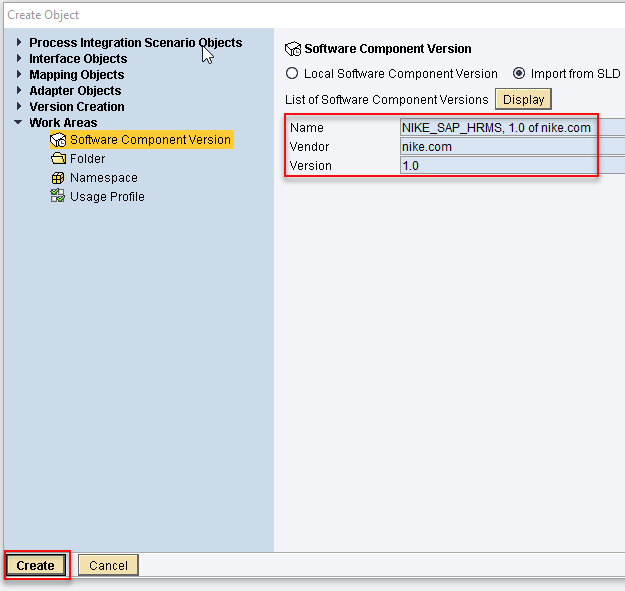
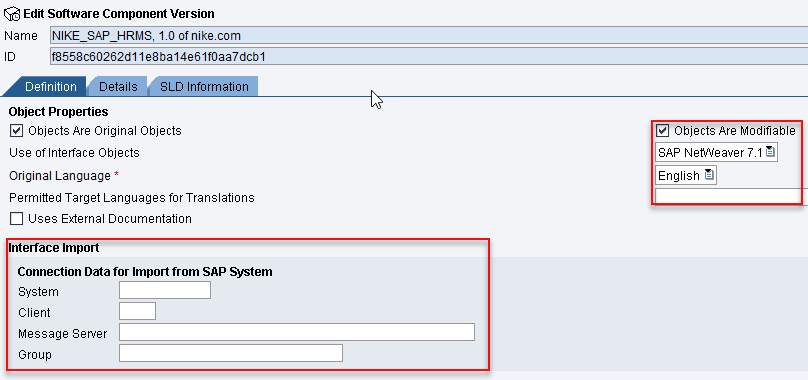
Assign the corresponding SAP System detail and specify the language. SAP system detail will be used when you import iDocs and RFCs from the back-end SAP system.

Hope you learned how to create Products, Software Component versions of a SAP back-end system and register them in SLD. You should be able to use created SWCVs and Business Systems to create integration scenarios. Please leave comment if you have any questions on Netweaver System Landscape Directory (SLD).
The post Register SAP ABAP System in SLD appeared first on SAP Integration Hub.