


With ever changing world of integration one language that has stood the test of time is XML. Due to capabilities of XML and large number of system integration requirments, its impertinent for technical consultants to understand the XML transformation capabilities in SAP. SAP transformations are used to filter and recognize XML data.
SAP transformations can be used for,
Deserialization: Process of transforming XML documents to other XML, HTML, Text or ABAP data structures.
Serialization: Conversion of ABAP data structures to XML, HTML or text files.
There are several methods to create XML transformations in SAP.
XLS Transformations:
Simple Transformations
Just like any other ABAP program, transformations are also repository objects which could be accessed via SE80. SAP has now provided a graphical tool to create transformations. Graphical transformation program creation wizard could be accessed through transaction XSLT_TOOL.
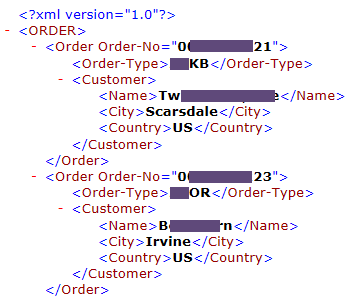
In this serialization example and we are creating a XML file in the application server with sales order information. XML file holds multiple sales order information with sales order number, sales order type and customer information.
Output file format:
You require access to these transaction codes to generate this XML transformation.
SE11 – ABAP Dictionary
SE38 – ABAP Editor
XSLT_TOOL – Transformation Editor
Step by Step Guide on XML Serialization Using XSLT_TOOL.
1. Create table type.
Depending on the XML file format, matching ABAP table type should be created.
Go to transaction SE11.
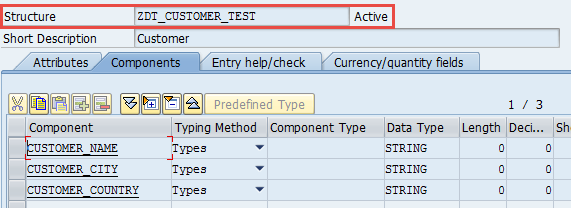
Create underline data type (structure) which match XML “customer” segment.
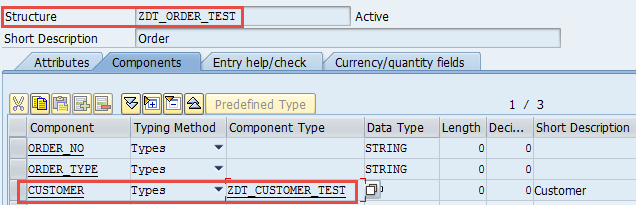
Create data type which correspond to “Order” segment in XML.
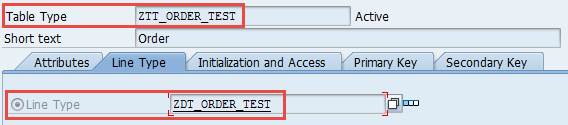
Create table type.
2. Create transformation in XSLT_TOOL.
Go to transformation XSLT_TOOL.
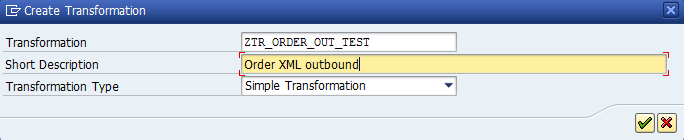
Provide name and click create. Set description and transformation type.
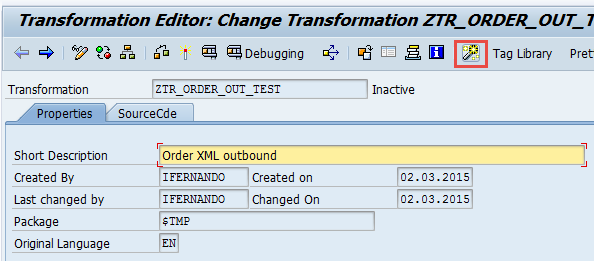
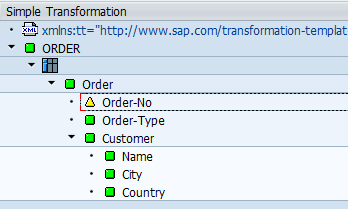
Select wizard button “Edit Simple Transformation Graphically”.
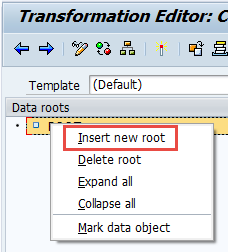
Right click on root element and select “insert new root”.
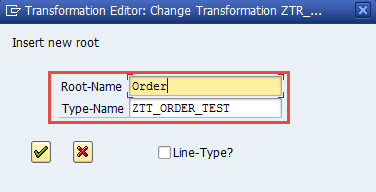
Provide header root element name and table type name.
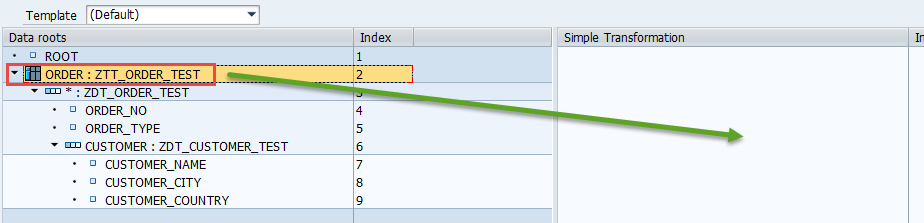
Drag and drop data root into simple transformation section.
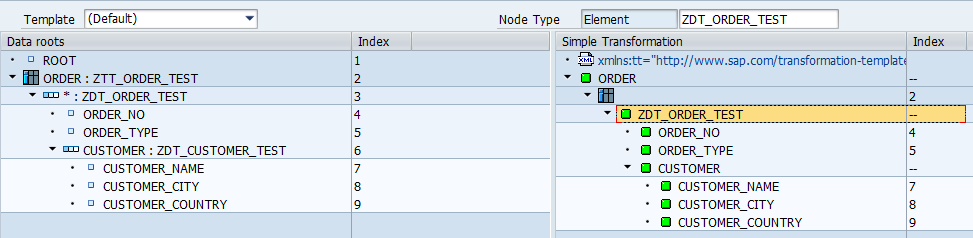
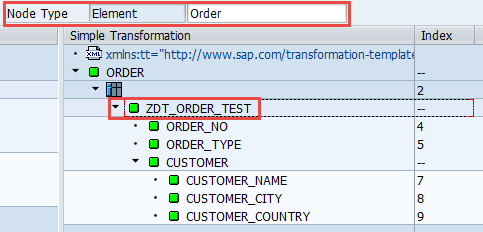
Double click of each element/node and change the name as desired to be shown in XML.
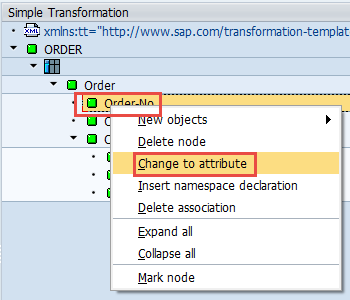
You can set any element as a attribute of a segment as needed. In this example “order-no’ is set as a attribute of segment “Order”.
Right click on the element and select “Change to attribute”.
Save and activate.
Final transformation.
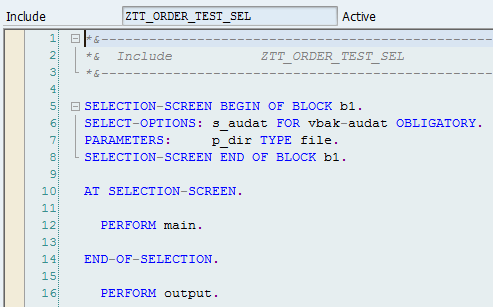
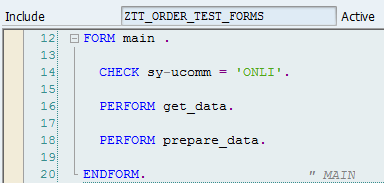
3. Create outbound program.
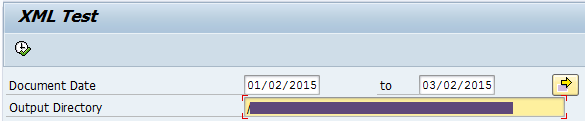
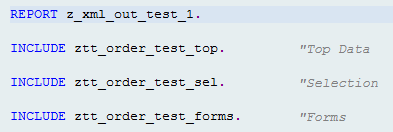
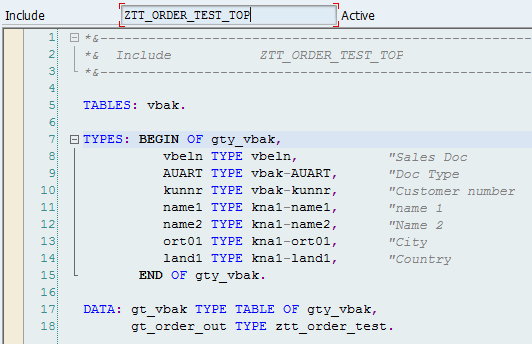
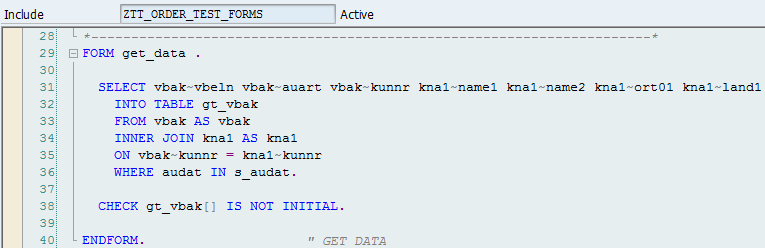
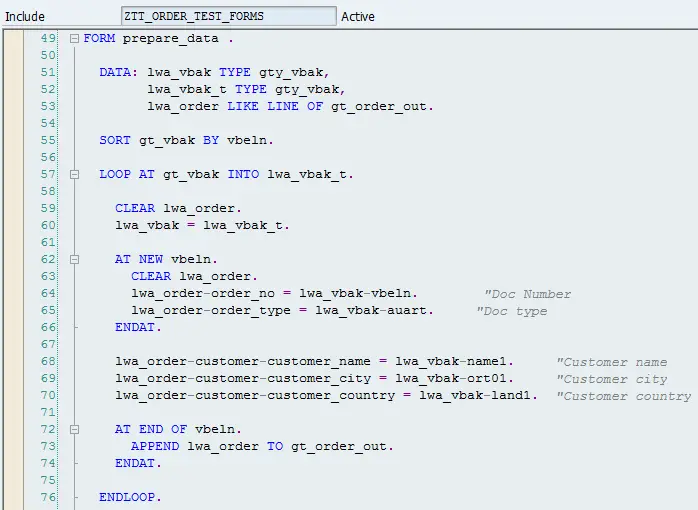
Outbound driver program consist of,
Data selection logic. Program select sales order information on sales order creation date selection (Form select_data).
Prepare data to XML format (form prepare_data).
Call XML transformation created in XSLT_TOOL (Form download_xml). CALL TRANSACTION is a keyword in ABAP to call the transformation created in XSLT_TOOL.
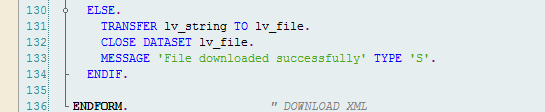
Download XML data to file (form download_xml).

XML file would be downloaded as below.
If you have any questions on any of the XSLT_TOOL transformation configuration steps, please leave a comment below,
The post XML Transformation Example with XSLT_TOOL appeared first on SAP Integration Hub.