

📚 SAP AIF Configuration Series - Guide #4
We are configuring value mappings on top of the iDoc interface we developed in our previous guides.
If you are new here and would like to see the previous articles, check out the following guides.
In the last article, we built a single value mapping in SAP AIF that translates a salutation code from an external system into the internal SAP value. That works fine when you only have one incoming field to look up. But sooner or later you’ll hit a requirement where the result depends on a combination of fields, and a single mapping can’t handle that.
That’s exactly the situation we’re solving here. The scenario is that the airline customer interface receives customer data from an external system via IDoc.
The business wants a discount assigned to each new customer automatically, based on the country of the customer and the customer type.
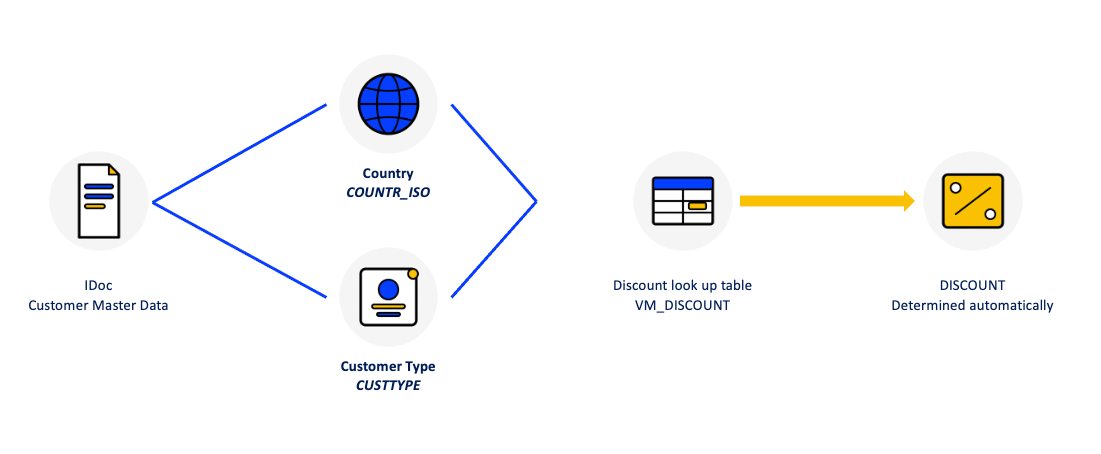
Here are the two fields in the incoming message,
ISO country code (COUNTR_ISO) - full path
E1SCU_CRE-E1BPSCUNEW-COUNTR_ISO)Customer type (CUSTTYPE) - full path
E1SCU_CRE-E1BPSCUNEW-CUSTTYPE)
The discount determined for the customer gets written into the DISCOUNT field (E1SCU_CRE-E1BPSCUNEW-DISCOUNT).
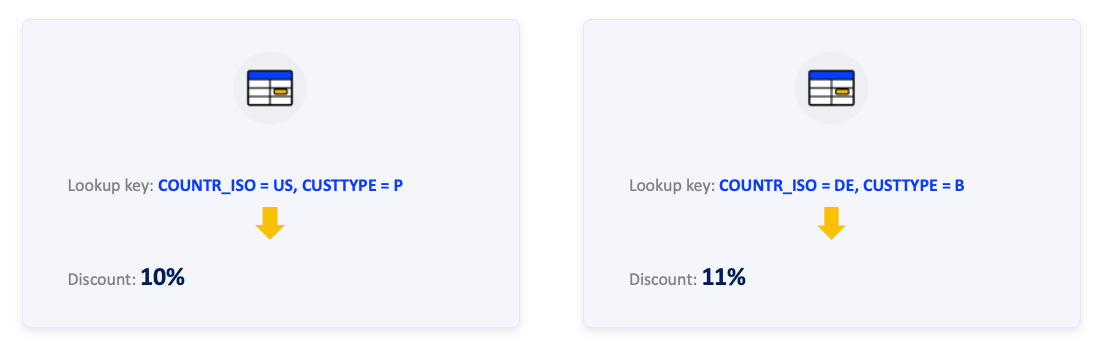
The discount rules look like this:
Single Value Mapping vs. Multi-Value Mapping
A single value mapping has exactly one external source field. AIF looks up the incoming value in the mapping table, finds a match, and writes the corresponding target value to the destination field. The salutation mapping from the previous chapter is a good example of this: one external field (FORM) maps to one internal value.
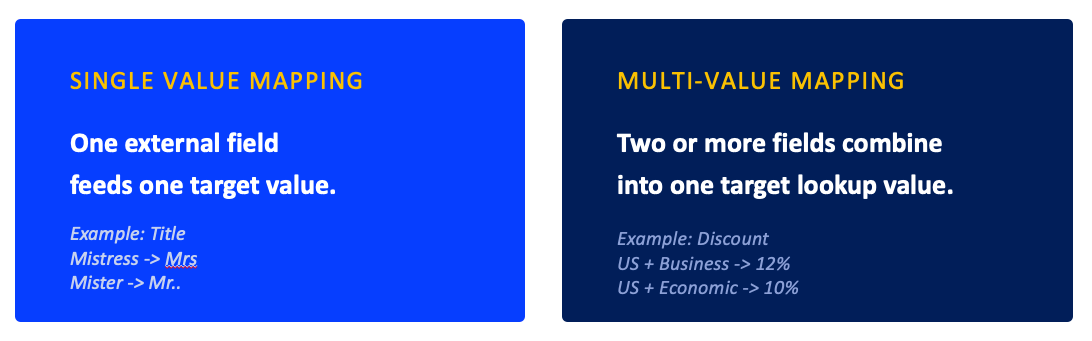
A multi-value mapping has two or more external source fields, and AIF evaluates all of them together as a single combined key. The combination is what determines the result or the target value.
💡 Tip: "when field A equals X, the result is Y," a single mapping can handle. When the rule becomes "when field A equals X and field B equals Z, the result is Y," you need to use multi-mapping in AIF.
Configuration Steps for Multi-Value Mapping in AIF
🛑 This configuration builds on the II_FL_CUST interface from the base AIF IDoc interface chapter. The structure mapping and field mapping for that interface need to already be in place before you start.
Step 1: Define the Multi-Value Mapping
Transaction: /AIF/CUST -> Interface Development -> Define Structure Mappings -> Define Field Mappings
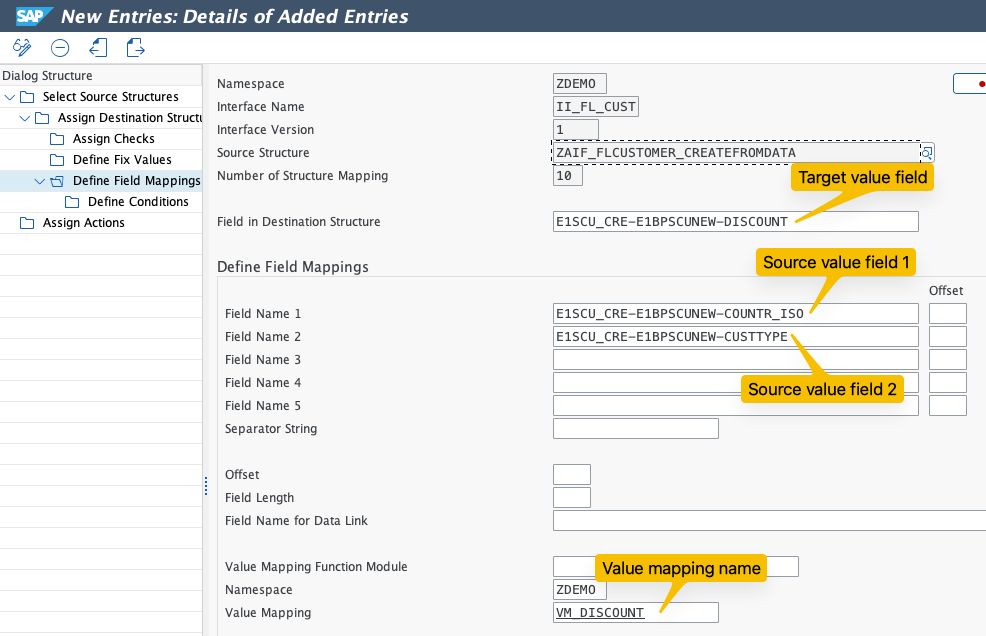
💡 Tip: The order of the source fields matters. AIF builds the lookup table by combining the values in exactly this order. When you maintain the mapping data later in /AIF/VMAP, the external value columns will appear in the same sequence —COUNTR_ISO first, CUSTTYPE second.
Since VM_DISCOUNT does not yet exist, AIF will prompt you to create it. If it does not, double-click the value mapping name to create it.
Step 2: Configure the Details of the Value Mapping
Number of External Values -
2Single or Multiple Value Mapping -
MultipleCustomizing or Master Data -
Master Data
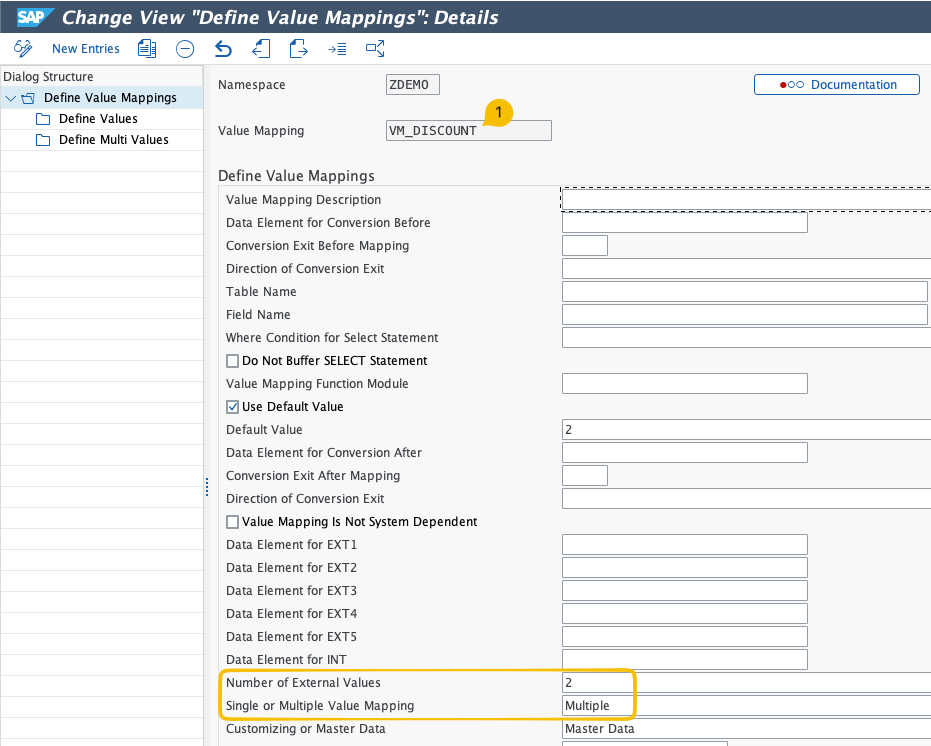
Setting Number of External Values = 2 tells AIF to expect two source fields as the combined lookup key
💡 Customizing or Master Data?
This controls how and where the mapping values are maintained.
Master Data - values are maintained at runtime directly in transaction
/AIF/VMAP. They’re client-dependent, meaning each client manages has its own copy of mapping values.Customizing - values are maintained in the IMG and transported like any other Customizing entry. Use this when the mapping is stable and needs to be consistent across all clients through the landscape.
Save your entries.
Optional Step: Remove Any Conflicting Fixed Value
If a fixed value was previously configured for the DISCOUNT target field, you should remove it.
In the previous example, we defined a Fixed Value in AIF for the Discount field. In that case, fixed values take priority over value mappings, so the discount field would receive the fixed value instead of the target value from Value Mapping.
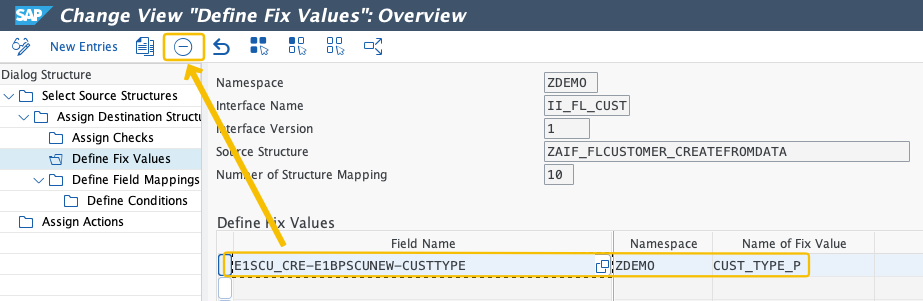
Step 3: Maintain the Multi-Value Mapping Data
Open transaction /AIF/VMAP, select namespace ZDEMO and value mapping VM_DISCOUNT.
You will see two external value columns, one for COUNTR_ISO and one for CUSTTYPE, in the order defined in Step 1. Create new data rows for each combination of incoming value and target.
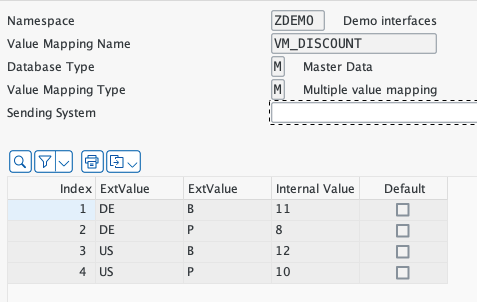
⚠️ Warning: Both external values must match exactly for AIF to find a result. They are case-sensitive. If the IDoc sends COUNTR_ISO = US but CUSTTYPE arrives as lowercase p instead of uppercase P, the lookup will fail and the message will go into error.
Step 4: Test the Interface
Use transaction WE19 to create a test IDoc based on basic type FLCUSTOMER_CREATEFROMDATA01. In segment E1BPSCUNEW, populate the following fields and leave the DISCOUNT field empty. AIF will fill it in during preprocessing.
Test case - US Passenger customer (COUNTR_ISO = US, CUSTTYPE = P)
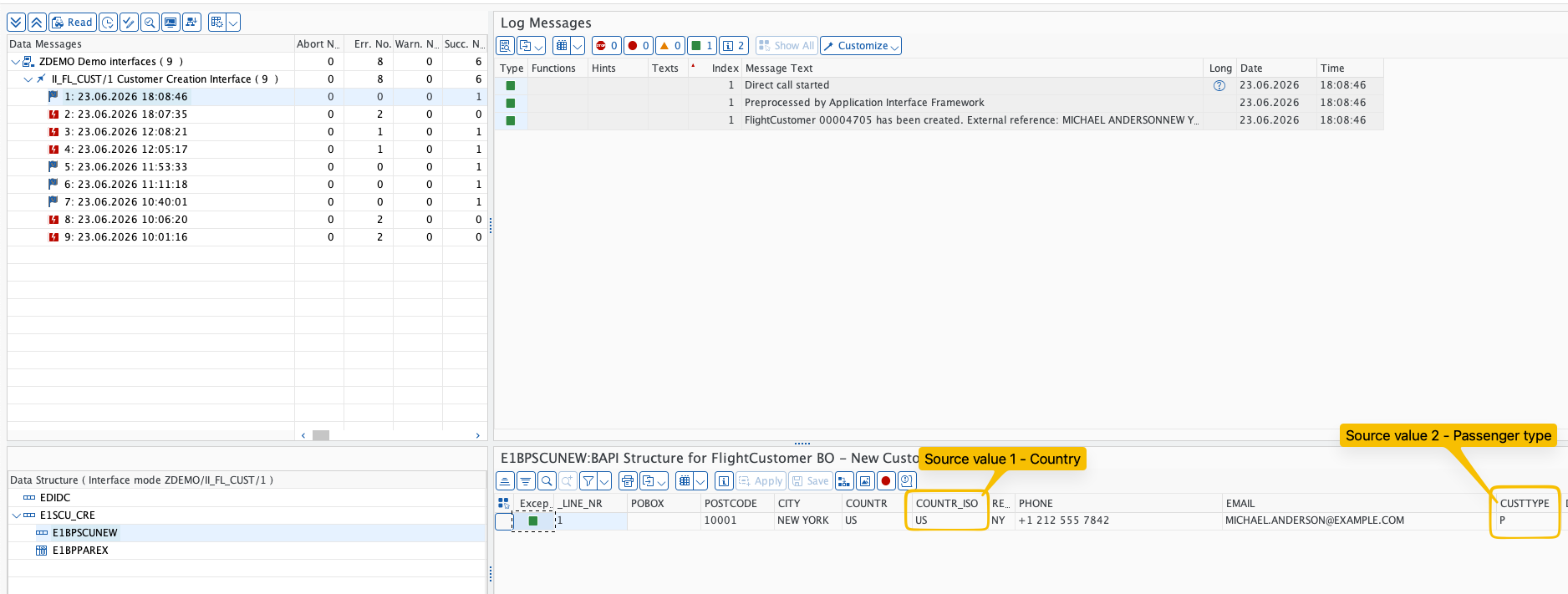
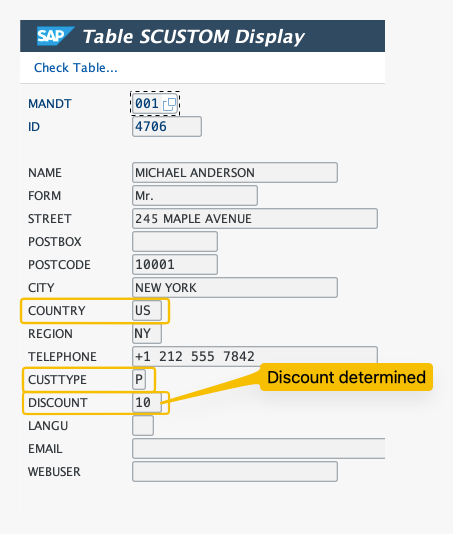
Verify that the discount was correctly determined by checking the message in /AIF/IFMON or /AIF/ERR and inspecting the customer record in table SCUSTOM.
📚 Want the complete AIF eBook?
We have put everything we know about SAP AIF into a single eBook: the SAP AIF Configuration Guide. It is the complete collection with more than 75 articles like this one.
It covers how to set up AIF in your SAP system for the first time, the use cases we see most often, full configuration walkthroughs, and the lessons we have learned from past SAP S/4HANA implementation projects.